

Tags: Challenges, Staff
This article pertains to school clients. If you’re a library client, check out this article. To learn more about challenges, including setup and badges, visit Beanstack for Everyone.
This article walks you through the challenge setup customization options available to a media specialist plus within a draft reading challenge. Once you’ve activated a challenge template or created a challenge from scratch, you can customize the challenge setup section to set the basic details for your challenge by following the steps below.
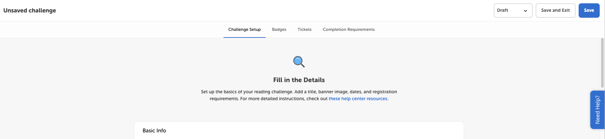
Basic Info
-
Challenge Name: What do you want to call this challenge? The name will be visible to eligible readers and should be unique and easy to understand for readers and staff alike. Consider including the year, age range, and/or log type in the challenge name if it helps you differentiate between challenges!
-
Challenge Description: Tell your readers all about your challenge! We recommend including at least 150 characters describing how the challenge works and any prizes or incentives.
-
You can use HTML in your description to add things like spacing, boldface, links, and more. However, some HTML such as custom fonts may cause your description to be hidden in the web and/or mobile experiences.
-
-
Challenge Preview Card Description: This optional field is a shortened challenge description that will display on the landing page if the challenge is featured and when readers are logged in and exploring new challenges they have yet to enroll in. If you leave this field blank, your Challenge Description will display instead.
-
HTML is not supported in the preview description, and we recommend limiting this text to 100 words.
- This preview card description does not display on the mobile app.
-
-
Challenge Position: If you are offering more than one challenge, determine where this challenge will appear on a reader’s page.
-
Header Image: Include a challenge image. The ideal size for this image is 920px x 351px, with an overall file size less than 10MB in either jpeg, jpg, gif, or png form.
Challenge Enrollment
-
Automatically Enroll Readers? This setting defaults on for all school challenges, and enrolls all eligible readers once the challenge is published. Toggle it off if you want students and staff to register themselves, or if you want to enable alternative challenges, pre-registration, and/or challenge codes, which cannot be used with auto-enrollment challenges.
Challenge Availability
-
Age or Grade: What ages or grade level is this challenge available? We recommend scoping all your challenges by either age or grade, but not a mix of the two.
-
Challenge Dates: When will the challenge be live and available to readers? Set those in date fields, or leave blank to create an ongoing challenge that’s always available to eligible readers. Reading list and bingo challenges cannot be ongoing, so you must input a start and end date in order to save and eventually publish it.
-
Is this challenge only for staff members? Is this challenge intended to be only for those with staff level access? If so, select “Yes.” This is a setting you may change later, but can be helpful for testing purposes!
-
Require a code to register for this challenge? Toggle this setting on and set a unique challenge code if you want to restrict access to this challenge to specific readers to whom you give the code. Code-protected challenges are not displayed to eligible readers unless the correct code is entered, and cannot be used with alternative challenges or auto-enrollment.
-
Allow readers to preregister for this challenge? By toggling this on, readers can register for the challenge as soon as it is published, but cannot participate until the start date. Pre-registration cannot be enabled for auto-enrollment challenges.
-
Feature this challenge on your landing page? By toggling this on and enabling featured challenges in your landing page settings, you are adding this challenge’s preview card to your landing page.
-
Alternative Challenges: If you want readers to participate in this challenge and any other challenge, select Disable Alternative Challenges. If you want them to choose between this and another challenge, select Enable Alternative Challenges. Keep in mind that you cannot use a challenge code or auto-enrollment on alternative challenges.
-
This Challenge Is Available to Classroom(s) ... : This setting appears if you have classes rostered to you. Leave it blank if you want to create a challenge for the whole school or select any number of your classes to only make it eligible for those students.
Badges
The next step in your challenge is creating or editing your badges.
You can learn more about badges here.
Our data shows that adding rewards to your challenge increases participation! Follow these instructions to add rewards.
Tickets
Adding tickets to badges within a challenge gives participating readers the opportunity to deposit those earned tickets to a ticket prize option of their choice. You only need to set up tickets and ticket drawings if your library offers multiple prize options and you want your readers to be able to select the prize drawings (sometimes thought of as raffles or baskets) into which they are entered. Otherwise, if you have something like weekly drawings or a grand prize drawing, you should skip tickets and set up a general drawing.
You can learn more about tickets and drawings here.
Completion Requirements
Lastly, click the “Completion Requirements” and select one of the following:
-
“Require All Badges” if you want readers to earn all the badges in the challenge in order to complete it.
-
“Require Specific Badges” if you want to select which badges readers must earn.
-
“Require Some Badges” if you want to set a number of badges readers must earn, within which you can also pick specific badges.
A few notes about badges and challenge completion:
-
If you select require specific badges, or require some badges, readers are able to continue earning badges once they have fulfilled the completion requirements. This is a good way to keep completion manageable while accommodating for your “super readers”.
-
If your challenge includes a completion badge, readers will be notified when they hit the completion requirements by earning the completion badge. If your challenge does not include a completion badge, then you and your staff will be able to track completions in Insights and Reports, but readers will not be notified of completing the challenge when they hit the completion requirements.
Challenge Best Practices
-
Offer a challenge for all ages - Running a challenge for all ages makes Beanstack accessible for all your patrons and promotes family literacy.
-
Add incentives - Our data shows that adding incentives boosts participation!
-
Adding 1 or 2 incentives boosted active participation by 12.7%.
-
Adding 3+ incentives boosted active participation by 26.6%
-
-
Keep it simple - Remember, overly complicated challenges can result in a less than optimal user experience for readers and staff. A good rule of thumb, if it takes you longer than 30 seconds to explain your reading challenge, it’s probably to complicated.
-
Use a template - Simplify challenge setup by utilizing one of our pre-made templates.
-
Test your challenge - Create a copy of your challenge and add a challenge code to test the reader experience. Run our client success simulator to ensure your challenge is ready for launch.