

Tags: Libraries, Readers, Accounts
If your library account is set up as a group account that logs “All At One Time,” then you can add additional groups to your account at any time.
A few notes about this action:
-
You cannot add groups to an account that was set up as an individual or family account, or if you created a group account that logs “Individually”; so if the “Add a Group” option doesn’t appear for you in the steps outlined below, you likely need to create a new group account to proceed.
-
By default, any additionally created groups will be set up to log all at once (meaning you log for the group as a whole and not for individual readers). If you want to change how you log reading for the group, then you need to create a new account and change that selection during the initial group registration.
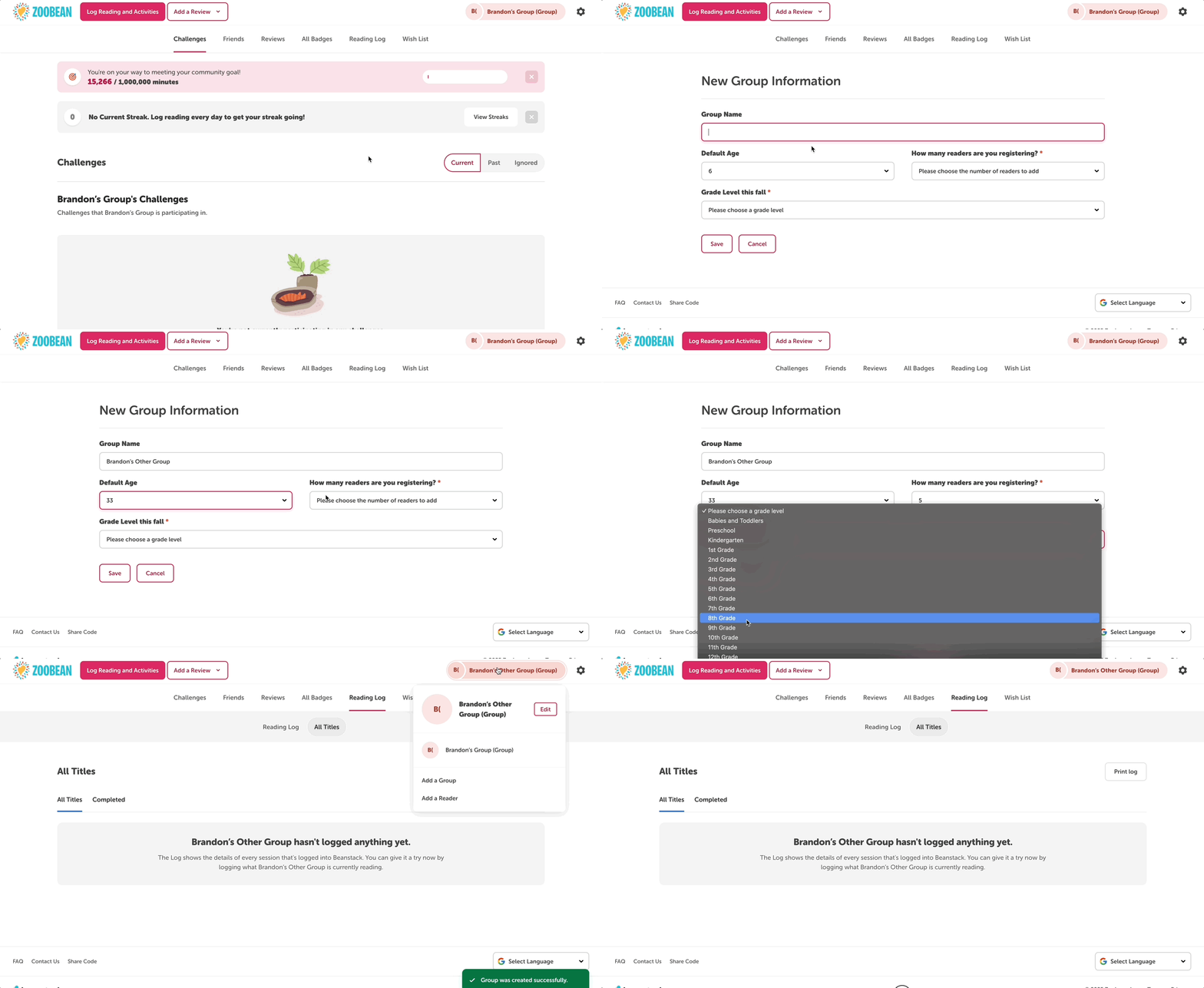
Follow the steps below to add a group to your existing group account.
-
Log in to the reader view for your library group account.
-
Click the group name in the top right corner of your screen.
-
Select “Add a Group” and then fill out the group name, default age, number of readers, and grade level if applicable.
-
Click “Save” to create the group and start logging!