

Tags: Rostering, CSV Rostering
When you’re importing rosters to your Beanstack site via CSV file, sometimes an error message will prevent you from running an import.
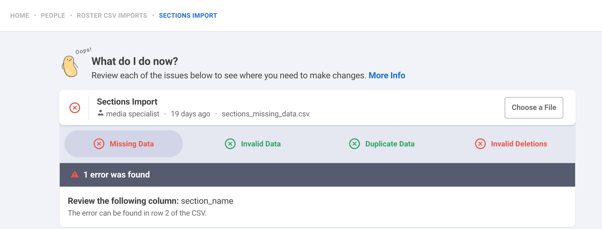
How to Read Error Messages
A Troubleshooting Checklist
How to Read Error Messages
Missing Data
This indicates that certain rows in your CSV file contain empty fields that are required.
Review the rows that are mentioned in your error messages and make sure to include data for the required columns. For more information on required columns and data, please refer to this article.
Invalid Data
This indicates that certain fields include special characters or spaces that are not allowed.
Check the rows that are mentioned in your error messages and ensure that all characters included are compatible with our accepted format. For more information on which fields allow special characters and spaces, please refer to this article.
Duplicate Data
This indicates that some of your rows contain identical information that already exists in your roster. If a student or teacher already exists, the corresponding row must contain changes to be accepted.
Review the rows that are mentioned in your error messages and edit the fields to make your intended changes.
Invalid Deletions
This indicates that some of your rows are marked for deletion, but do not match any existing username or section name.
Check the rows specified in your error messages and either remove “TRUE” from the delete column or edit the username or section name to match an existing one.
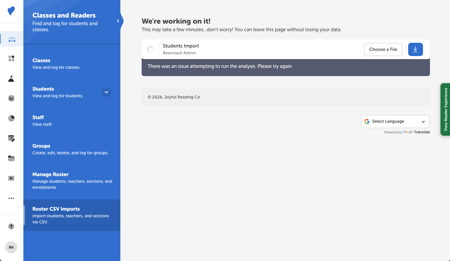
Import Taking Too Long
While it may take a few minutes for an import to complete, it will time out if more than 5 minutes have passed and you will be asked to try again:
A Troubleshooting Checklist
-
Check your CSV filename: All CSV filenames must be lowercase and start with the name of the group type you are importing: students, teachers, or sections (e.g., sections.csv, teachers_schoolyear.csv, students_classroom_year.csv, etc.). Filenames cannot include spaces or special characters.
-
Check your CSV column names: If importing a student or teacher roster, make sure your file contains at least the six required column headers—username, password, first_name, last_name, grade_level, and birthdate—and at most 11 column headers—the six required fields above plus the optional headers ethnicity, gender, email, sections, and delete. If importing a section roster, make sure your file contains at least the one required column header, section_name, and at most three column headers—section_name, subject, and the optional header delete. Ensure your file and its headers appear without additional spaces, characters, or columns.
-
Check your CSV entry rows for empty fields or inaccurate formats: Double check that all your rows contain information in all the required fields and in the accepted format.
-
Special characters are not accepted in any fields.
-
Username, password, birthdate, email, delete, and sections fields cannot contain spaces.
-
Passwords must be 6 characters minimum and 128 characters maximum.
-
Grade_level fields must be written as Preschool, Kindergarten, 1st Grade, 2nd Grade, etc.
-
Birthdate must be input as YYYY-MM-DD.
-
Delete fields must contain TRUE if you want to delete an existing student, teacher, or section.
-
-
Check your CSV entry rows for duplicates: Triple check that all your rows contain unique information, without duplicate entries.
-
Check how many students are enrolled in a given section: Sections are limited to 50 students. On your students file, make sure no more than 50 students are enrolled in a single section.
-
Check the CSV rows you want to delete: If you are using a CSV roster import to delete existing students, teachers, or sections, ensure that all delete fields that are set to TRUE match an existing username or section name.
-
Check your CSV for existing records: If you are using a CSV import to update your roster, double check that the CSV file you are importing does not include a section, student, or teacher entry without any changes.