

Tags: Badges, Challenges
Follow the steps below to create, edit, and add activities to activity badges:
-
Log into the admin view of your site.
-
Navigate to Challenges and click a challenge draft you’d like to edit.
-
Go to the “Badge” tab.
-
Make sure that “Completing Activities” is toggled on as an earnable badge type.
-
Scroll to the “Activity Badges” section and click “Create a Badge.”
- To edit an existing activity badge, click the “Edit” button and use the steps below.
Step 1: Badge Information
-
Name your activity in the “Title” field.
-
You can also give it an optional description.
-
-
Then, click “Choose Badge” to search for a badge:
-
You can search for badges created by you and by Beanstack.
-
Also, you can check a badge group to bring up badges under that group.
-
-
Click the badge icon to select it.
-
Give your badge a custom name in the “Badge Name” field.
-
Change other activity settings such as:
-
Locking it until a certain date or challenge timeframe.
-
Making it earnable after earning other activity badges.
-
-
Add rewards and certificates, if desired.
-
Click “Save and Add” to go the next screen.
Step 2: Activities
-
Click “Add an Activity” to add as many activities as needed:
-
Add a description; HTML can be used for formatting.
-
Add a link title and URL (255 characters max).
-
Set the activity type:
- “Activity”: Readers complete the activity by clicking a checkbox.
- “Activity Code”: Readers complete the activity by inputting a secret code, which is set by the admin. You can add multiple activity codes to a single activity.
- “Text Box Challenge”: Readers complete the activity by typing an answer into the text field and submitting. Text fields are restricted to 5,000 characters (roughly 1,000 words).
-
-
Click “Add” and then “Done” to finalize your badge.
-
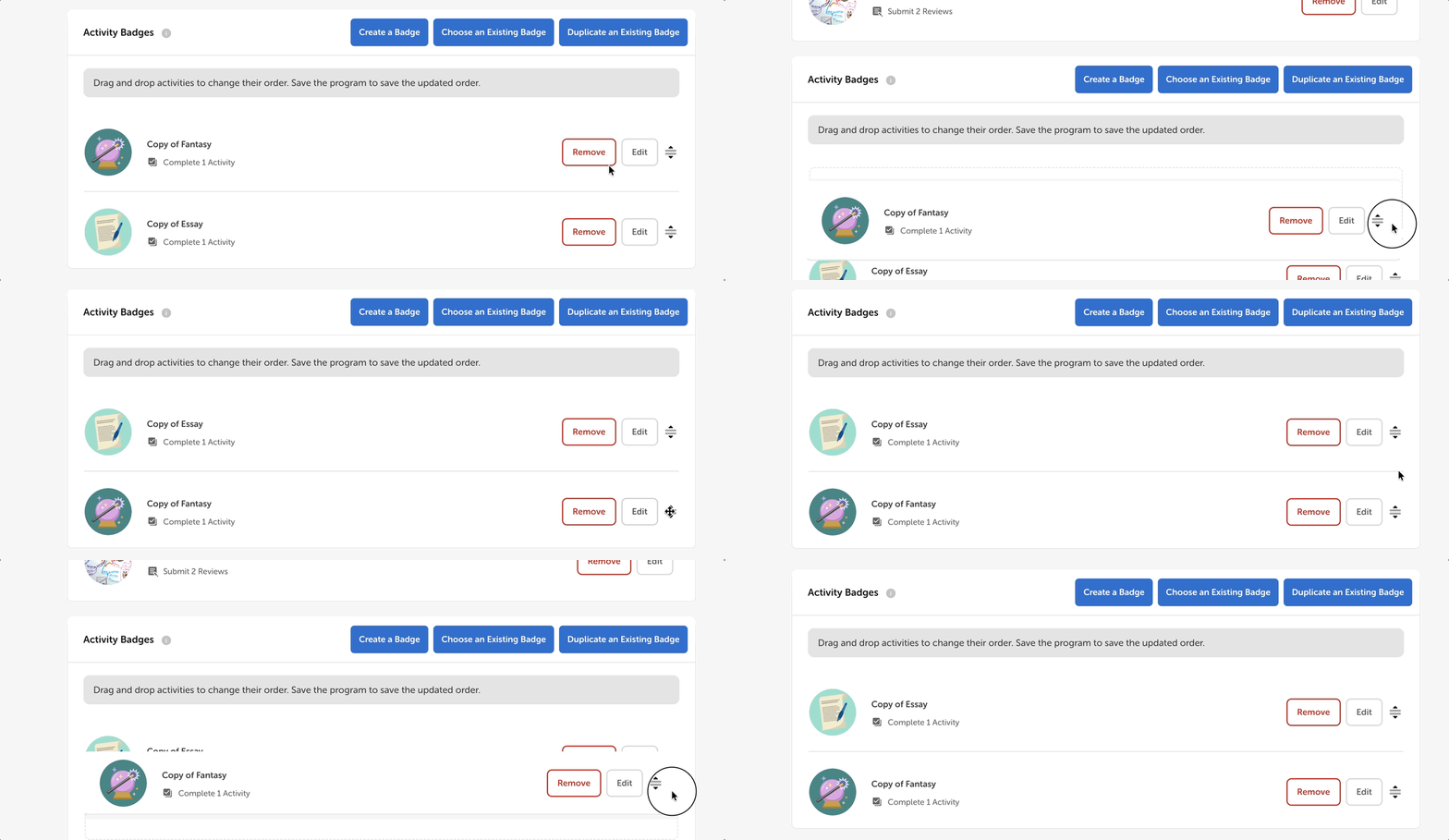
Unlike other badge types, you can change the order of the activity badges by clicking the icon next to “Edit” and dragging the badge up or down to rearrange:
Don’t forget to save your challenge before exiting!