

Tags: Libraries, Staff Actions
This video demonstrates how to look up an account creator or reader and update their information from the admin side.
This article shows how you can look up and manage reader accounts to take different staff actions, including updating their information.
Note: The following steps apply to account creators, individual readers, and groups.
-
Log into the admin view of your site with your staff credentials.
-
Go to People > Find a Person.
-
Populate some of the search fields to find the reader or group (e.g., name, email).
-
Perform a staff action with one of the quick-action button icons on the right of the account.
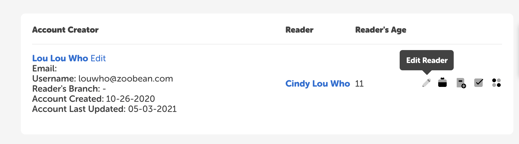
Edit Reader
This action brings up a form where you can edit account information such as first/last name, birthdate, and library branch. For groups, you can change the number of readers.
Alternatively, you can edit information by doing the following:
-
Click the name of the account creator, reader, or group.
-
Go to the “Actions” dropdown menu and select “Edit Information.”
Redeem Incentives
This action presents a list of rewards attached to badges within challenges, that you can redeem for a reader or group.
You can also redeem rewards by doing the following:
-
Click the name of the account creator, reader, or group.
-
Go to the “Challenges & Rewards” section.
-
Scroll down to “Rewards.”
-
Check off current rewards associated with a challenge.
To learn more about redeeming rewards for readers, check out this article.
Add to Log
This action lets you log reading for an account creator, reader, or group, using a form for logging minutes, pages, or books.
You can also reach this form by doing the following:
-
Click the name of the account creator, reader, or group.
-
Select the blue “Log Reading” button near the top-right of the screen.
To learn more about logging reading for readers, check out this article.
Log Activity
This action lets you log current and past activities to earn badges.
You can also perform this action by doing the following:
-
Click the name of the account creator, reader, or group.
-
Select the blue “Log Activities” button near the top-right of the screen.
To learn more about logging activities for readers, as well as completing activity badges, check out this article.
Challenge Actions
This action lets you enroll or disenroll readers and groups from available challenges.
You can also enroll/disenroll from challenges by doing the following:
-
Click the name of the account creator, reader, or group.
-
Go to the “Challenges & Rewards” section.
To learn more about enrolling readers in challenges from the admin view, check out this article.