

This article pertains to library clients. If you’re a school client, check out this article.
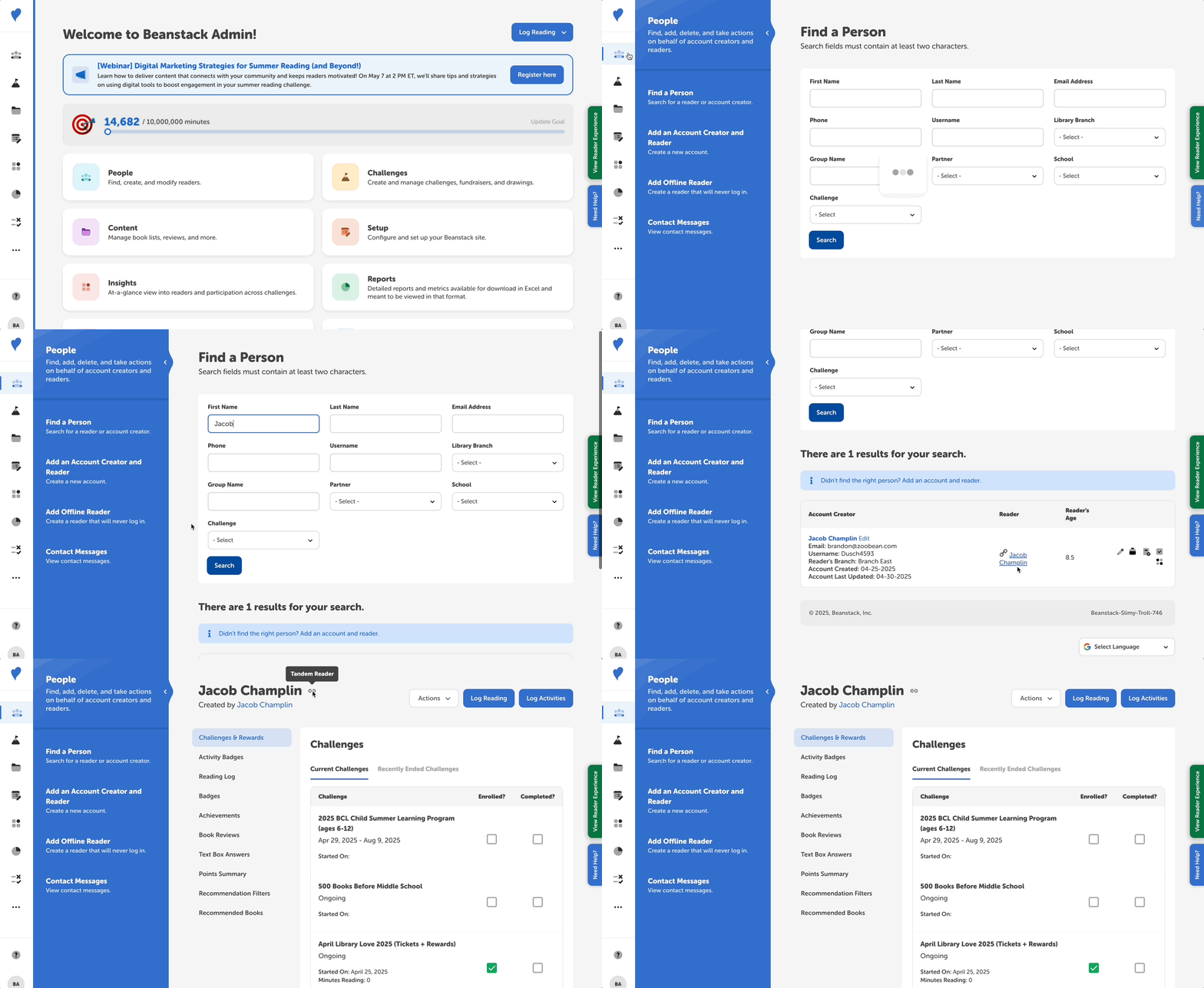
On tandem connected library and school sites, linking readers and breaking tandem links is all controlled on the reader side. On the admin view, you can tell which individual readers have active tandem links by following the steps below.
- Log in to the admin view of your library site.
- Navigate to People > Find A Person.
- When you search for a linked reader, their reader name in the “Reader” column displays with a 🔗 link icon next to it.
- On their reader profile, the 🔗 link icon also appears next to the reader name.
- Library administrators can also see to which school a reader is tandem linked by viewing their reader information. Access this information by clicking the quick-action “Edit Reader” pencil icon in the search results of the Find a Person page or by clicking “Actions” and then “Edit Information” on their reader profile page.