
Tags: Staff, District Regional Administrator Actions
Note: If you’d like to set a school-wide goal instead of a district-wide goal, refer to this article.
District goals allow district administrators to create a reading goal for their entire district, where reading logged by readers at all schools contributes to reaching this milestone.
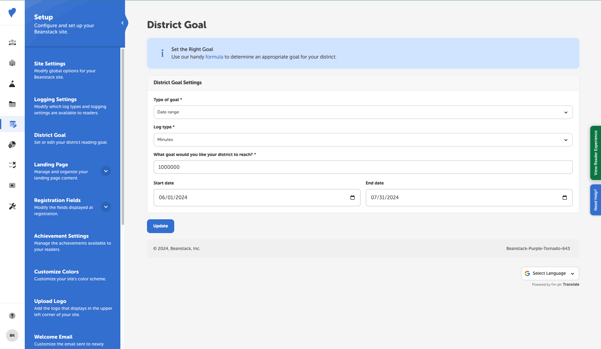
Follow these steps to set up or edit your district’s reading goal:
-
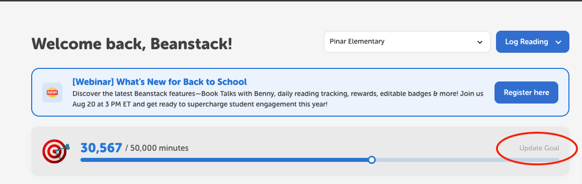
From your district dashboard, click Update Goal from the Community Goal Ticker:
-
Determine the goal type, the log type (e.g., Minutes or Books), and the goal you would like to reach. When you set a date range goal, this allows you to set the start and end date for your goal as well. Only reading logged between these dates will contribute to your progress.
-
Tip: We recommend you set a date range goal, as this further motivates your community and allows you to rally everyone around a single date! For guidance on how to determine the right goal for your district, refer to this article.
-
-
Click “Save” or “Update” to apply the new goal to your district.
Note: The data powering the total displayed on your district’s landing page and administrator dashboard is not pulled from a specific report. Instead, our system assesses each unique reading session and compiles a total on a nightly basis. If you create or change your goal, it may take some time for your total progress to update accordingly.