

Tags: Staff, Media Specialists, Libraries, Logging, Setup, Web
Admins can streamline their reader’s logging experience by combining minutes and books into a single logging option on the web.
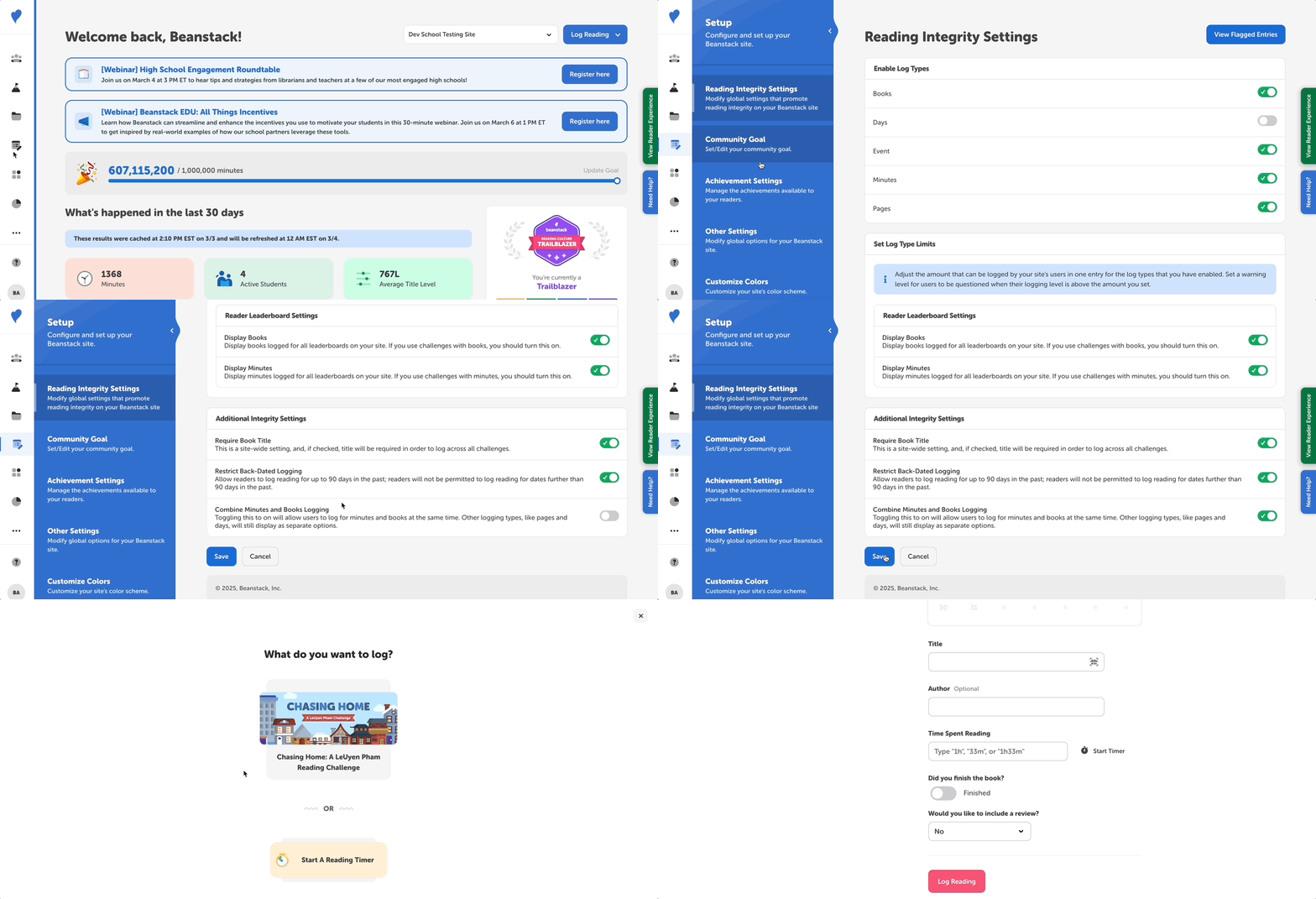
When this setting is turned on, readers will see a “Log Reading” option that lets them log both their minutes and books all at once.
Note: Only media specialists plus and library admins can this and other site settings.
-
Log into your site with your school admin credentials.
-
In the dashboard, select “Setup”, then:
-
For schools, go to “Reading Integrity Settings.”
-
For libraries go to “Logging Settings.”
-
-
Scroll down to the “Additional Integrity Settings” section.
-
Toggle on the “Combine Minutes and Books Logging” option.
-
Select “Save.”
You can test this feature by switching into the Reader Experience and selecting “Log Reading” near the top-left. There, you’ll find a “Log Reading” option that brings up a form for entering minutes and book data for a reading session.
Note: Turning on combined logging also changes the look of the logging form on the web, but not the mobile app. Learn more about it in this product update about logging on the web.