

Tags: Tech Help
Sometimes, you may encounter errors when trying to visit your Beanstack site on a web browser. The following sections troubleshoot common browser errors.
Clearing cache and cookie data on my browser
Using my Beanstack URL
Did you use “https://www.yoursite.beanstack.org”? If so, you want to remove “www” from that URL.
Your site’s URL is https://yoursite.beanstack.org. The subdomain yoursite is the subdomain and there cannot be two subdomains in a web address. For example, you can go to mail.google.com but not www.mail.google.com. Please make sure that you direct people to the correct URL!
Note: Ending the URL with beanstack.org or beanstack.com should bring you to the same site page.
Clearing cache and cookie data on my browser
Sometimes, you may want to clear a browser's cache and cookies to protect your account (especially if you are using a shared computer). It can also resolve slow load times experienced when accessing Report or Insights on your Beanstack site.
Google Chrome
Mozilla Firefox
Microsoft Edge
Safari
Google Chrome

-
Select the three-dot icon near the top-right of the window.
-
Go to “Settings” > “Privacy and Security.”
-
Select “Delete Browsing Data.”
-
Choose your time range with the dropdown menu.
-
Check the boxes to include cookies, cached images, and other site data.
-
Select “Delete Data.”
Mozilla Firefox

-
Select the hamburger menu near the top-right of the window.
-
Go to “Settings” > “Privacy & Security.”
-
Scroll down to “Cookies and Site Data.”
-
Select “Clear Data” to bring up a menu.
-
Choose the time range and types of data to delete, such as cookies and cached files.
-
Select “Clear.”
Microsoft Edge
.gif?width=600&height=360&name=Clearing%20cached%20site%20data%20on%20Microsoft%20Edge%E2%80%99s%20settings%20(1).gif)
-
Select the three-dot icon near the top-right of the window.
-
Go to “Settings” > “Privacy, search, and services.”
-
Scroll down to “Delete browsing data.”
-
Select “Choose what to clear” to bring up a menu.
-
Choose the time range and types of data to delete (cookies, cached images, passwords, etc.)
-
Select “Clear now.”
Safari
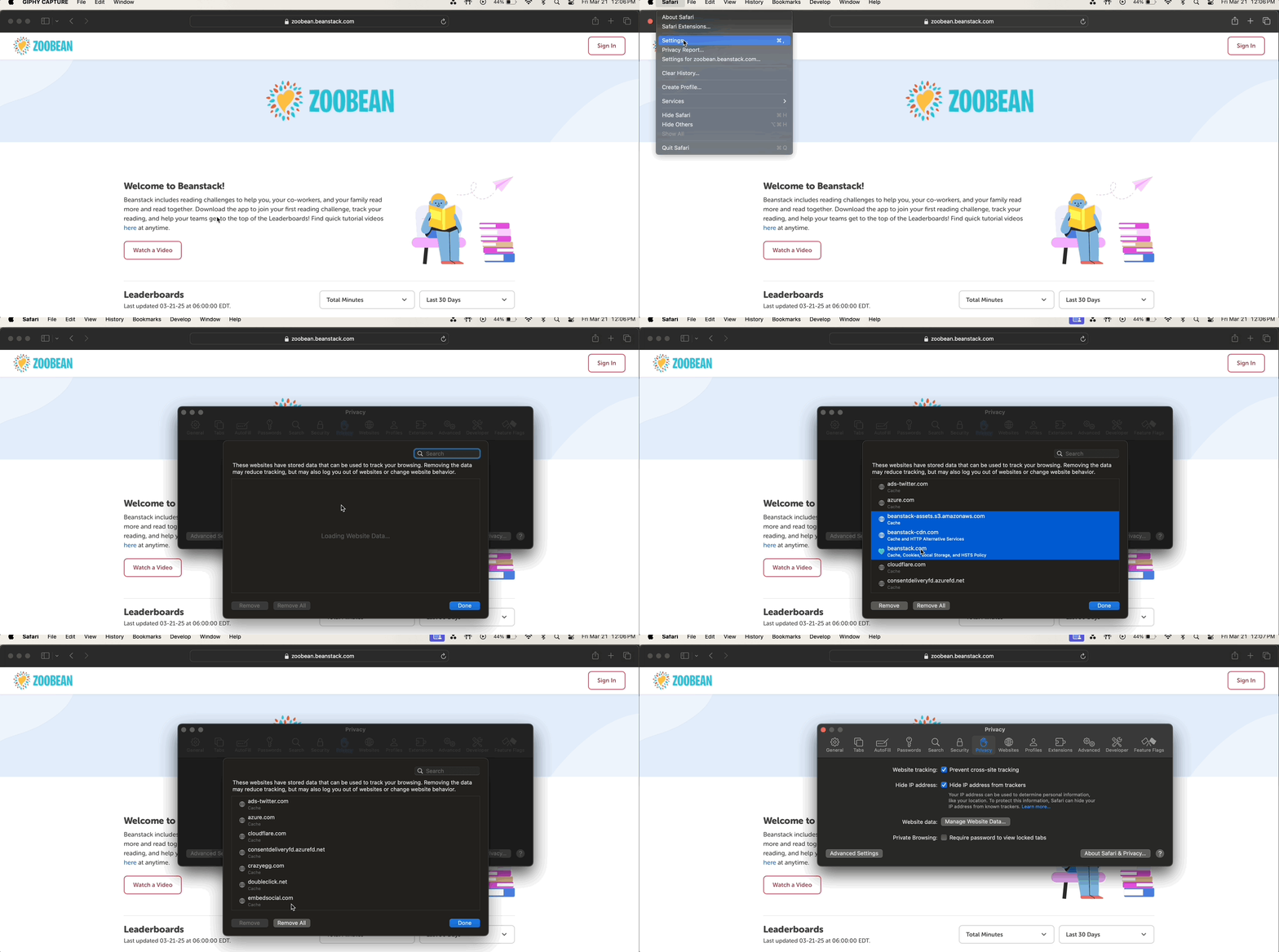
Note: These steps apply only to macOS (Apple).
-
Select “Safari” from the top menu bar.
-
Go to “Settings” > “Privacy.”
-
Select “Manage Website Data.”
-
Highlight one or more websites.
-
Select “Remove” to clear data for the highlighted websites.
-
Click “Done.”