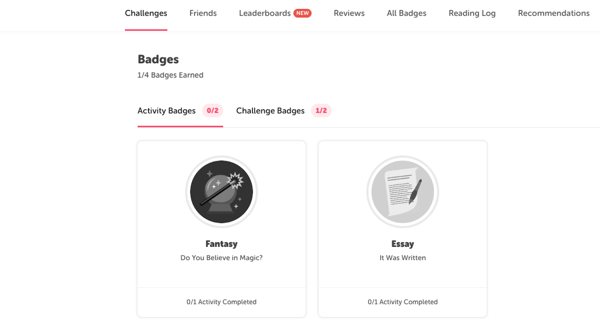
Tags: Badges, Challenges
Library and school admins can edit default badge names while setting up their challenges. Reuse our existing badge artwork without the clunky names, freeing up your time to focus on what matters most: inspiring readers!
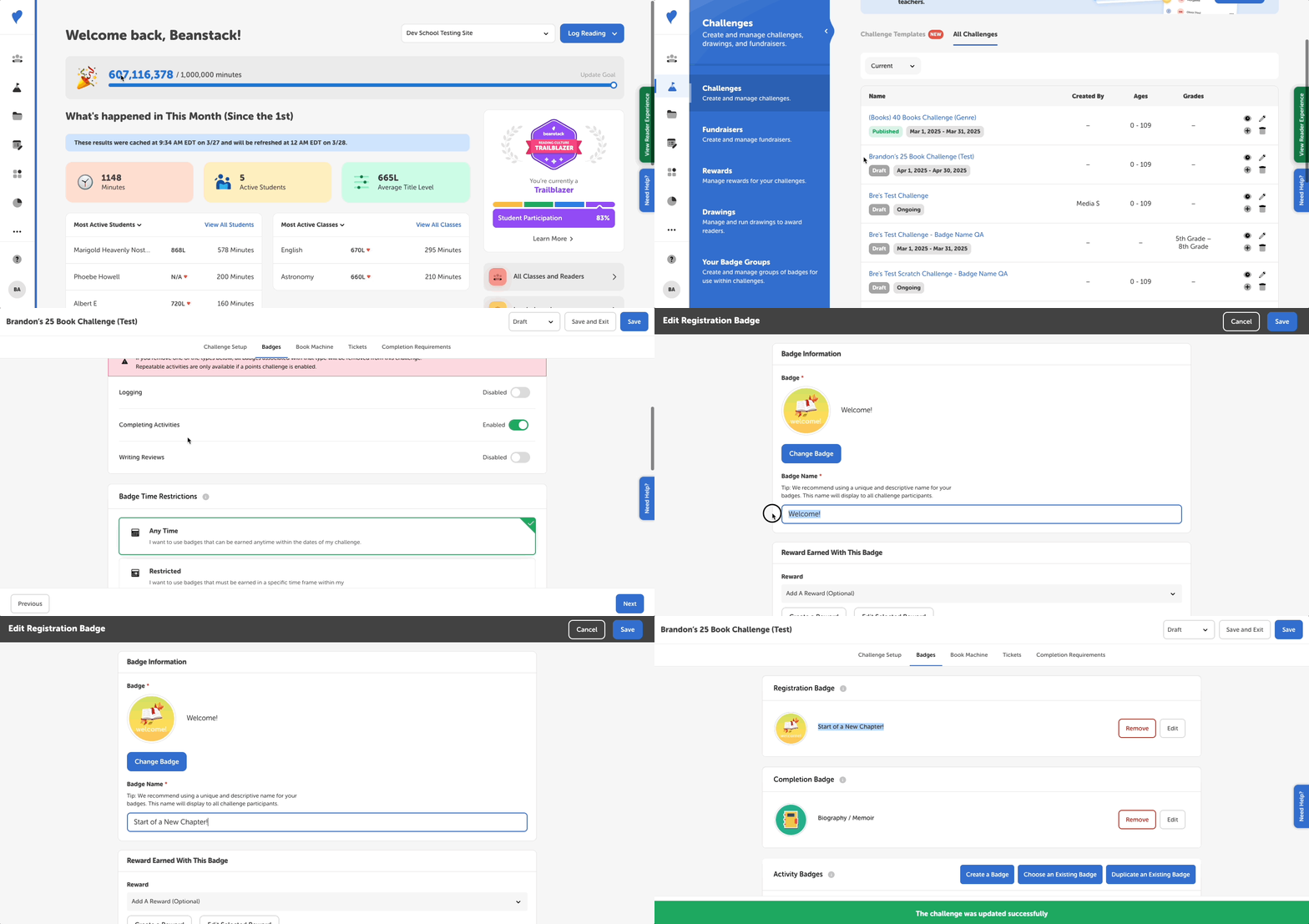
This article assumes you’ve already begun creating a new challenge and created at least one badge.
Notes:
- When setting up a challenge, every badge should be unique; the same badge should not be used repeatedly.
-
We strongly encourage you don’t edit a badge after a challenge has been published, as this may create issues for admins and readers.
-
Log in with your admin credentials.
-
Go to Challenges.
-
Select a challenge in draft mode.
-
Go to the “Badges” tab.
-
Scroll down to the badge you’d like to rename and click “Edit.”
-
Change the text in the “Badge Name” field, under “Badge Information.”
-
We recommend adding a unique and descriptive name for your badges. This name will display to all challenge participants on both web and mobile.
-
-
Click “Save.”
Your custom badge name should now be set! After you publish your challenge, custom badge names will be visible in the following places:
-
On the reader view, in the “Badges” tab under an enrolled challenge.
-
On the admin view, under “Reports”, “Challenges”, and reader profiles.
For admins, custom badge names will not be visible in Drawings or Insights.
Activity badges will not show the custom name on the challenge setup page, but instead the activity title. However, the custom badge will appear if you click “Edit” next to the activity title:
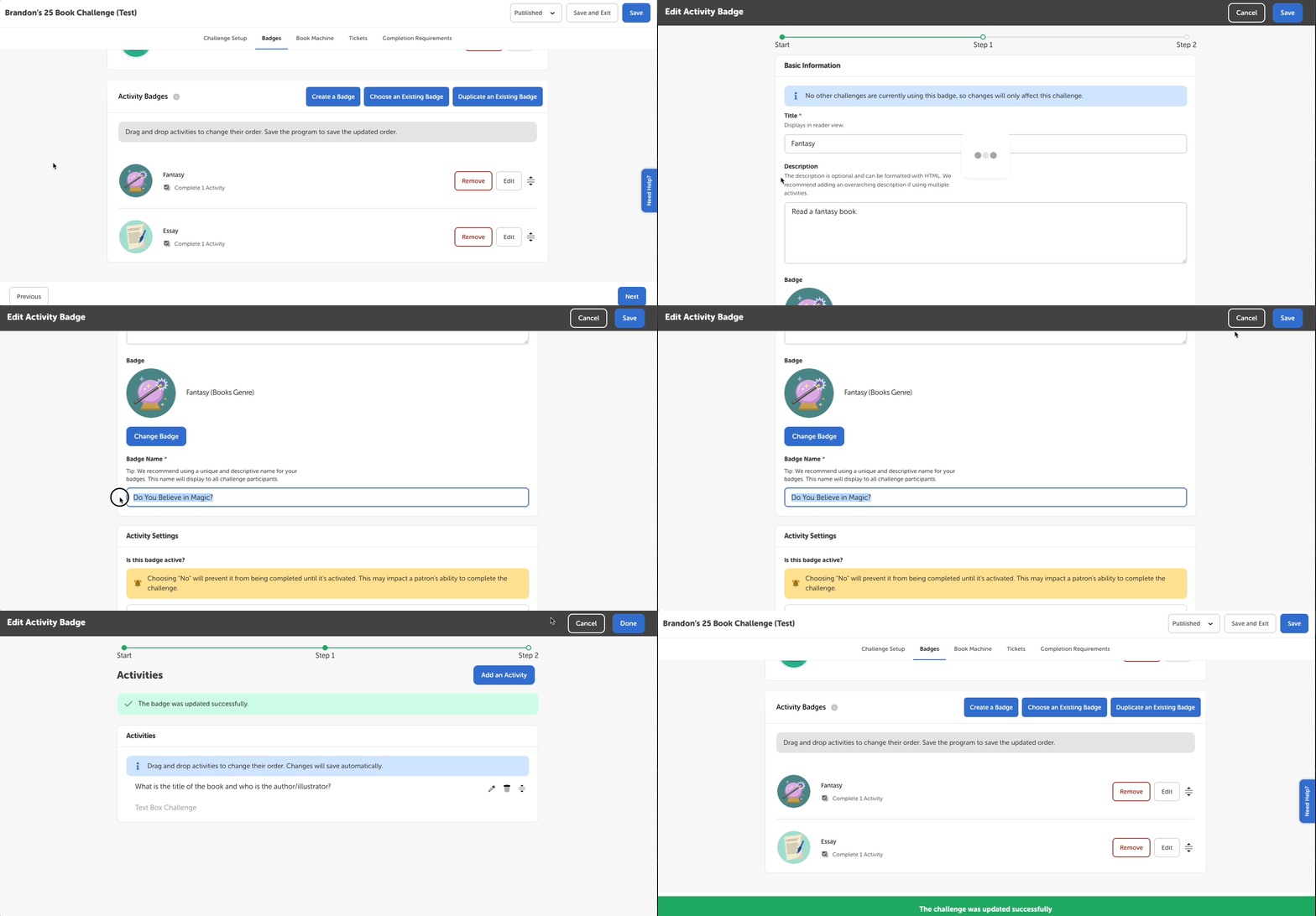
This will be reflected on the reader view: