

Tags: Report & Insights, Insights, Staff, Reports
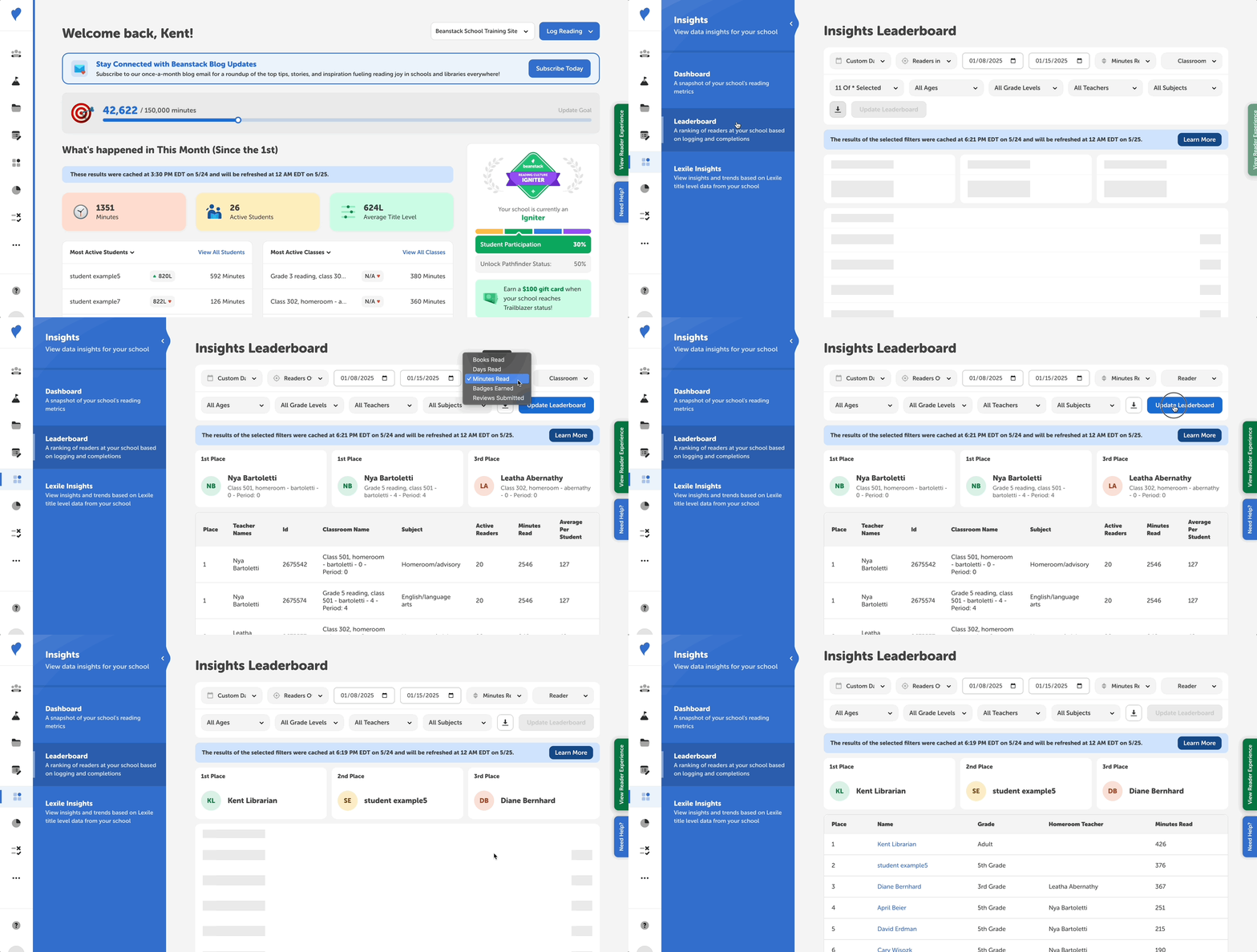
With Beanstack Insights Leaderboards, you can view which student read the most during a certain week (or any time range).
Note: Media specialists/media specialists plus may pull Insights data for all classes at a school, while teachers can only pull data for classes that are rostered to them.
-
Log in to the admin view of your school site.
-
Navigate to Insights > Leaderboard.
-
Set your time range.
-
This can be for the last week, month, year, or a custom date range.
-
-
Set the “Show data for” to “Readers Overall” or “Readers in Challenges.”
-
If you select “Readers in Challenges,” you’ll then want to select the challenge(s) you want data for. But if you only want top reader/grade/class data for all readers, then choose “Readers Overall.”
-
-
In the “Sort by” setting, set it to “Minutes read” or “Books read.”
-
Select “Reader” in the “Group by” setting.
-
Feel free to filter your data by updating age, grade level, teacher, and/or subject settings.
-
Click “Update Leaderboard.”