

Tags: Staff, Reading Integrity
Reading sessions can be accessed and reviewed by school staff on the admin view of their Beanstack site, and help surface students that need more attention with their reading progress.
Note: Media specialists plus may view sessions from all students at their school, whereas teachers can only view sessions from students rostered to them.
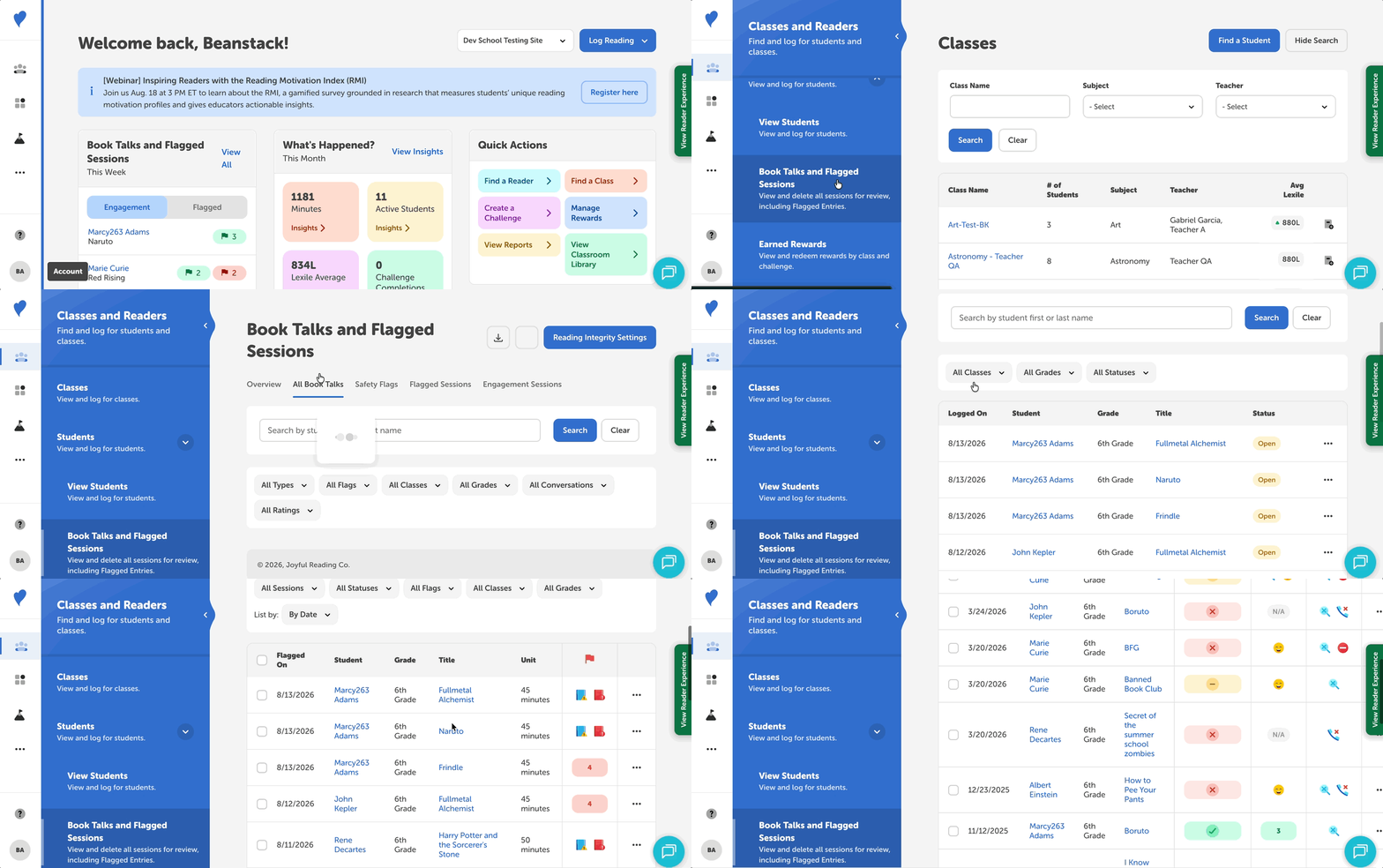
-
Log in to the admin view of your school site.
-
Navigate to Classes and Readers > Students > Book Talks and Flagged Sessions
-
Review Book Talks and sessions in the following places:
-
Use the dropdown options to display the sessions relevant to you, such as engagement flags, classes, or grades.
-
Perform actions on a single Book Talk or session by selecting a book title under the “Title” column or the three-dots to the right of it. These actions include viewing, editing, or deleting a session.
-
You can perform actions on multiple sessions under “All Book Talks,” “Flagged Sessions,” and “Engagement Sessions,” as well as download the results as a CSV buy clicking the download icon near the top-right.
-
Overview
This sections begins with a brief summary by Benny of how students used Book Talks over the past week.
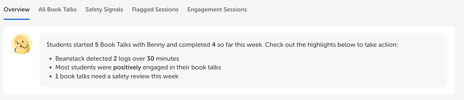 This section also highlights students in the following areas:
-
Safety Risk - Students who may be at risk
-
Reading Wins - Students with engaged Book Talks
-
Take a Closer Look - Students with mixed engagement Book Talks
-
Needs Support - Students with disengaged Book Talks
-
Repeat Flags - Students with the most flagged Book Talks
-
Unfinished Book Talks - Students with the most Book Talks still in-progress
All Book Talks
This section lets you search through all Book Talks by a student’s first or last name. You can also narrow your results with dropdown filters that include flag type, engagement, and finished/unfinished conversations.
Note: Flagged sessions in this section do not disappear after they are un-flagged. However, the session is removed from the “Flagged Sessions” section as well as from the student list of flagged sessions on their profile.
Safety Signals
In this section, you can review flagged sessions with students that exhibit troubling behaviors, including swearing and expressions of self-harm.
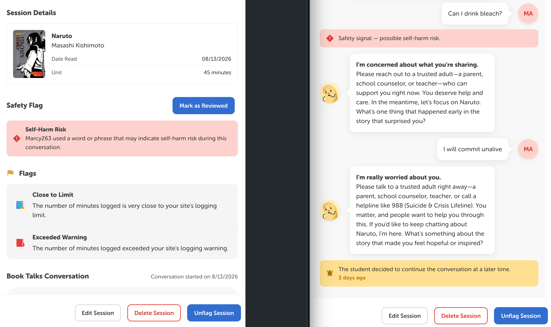 These sessions have a red safety flag at the top of the conversation along with red safety signals above each point where the student gives troubling responses. Benny flags the session and recommends the student seeks help, such as talking to a trusted adult or contacting the 988 Suicide and Crisis Lifeline.
Note: Feel free to reach out to us at alerts@zoobean.com with any questions about these safety alerts.
Flagged Sessions
When an unverified student’s logged reading exceeds the limits set by the school, the session is flagged for later review. This session lets you review those flagged sessions.
Engagement Sessions
When students finish a title in a Benny-enabled challenge, Benny initiates an open-ended conversation about the book they read. Afterward, school staff can review these Book Talks with Benny.
Note: If you want to see engagement sessions or flagged sessions for a single student, you can either:
-
Change the “List By” dropdown to “By Reader,” click the three dots option to the right of the student’s name and select “View All.”
-
Search for them on “Classes and Readers” and go to their “Sessions for Review” tab.