
Tags: Staff, Media Specialists, District Admins
Note: Only staff members with district admin or media specialist plus roles may update staff roles.
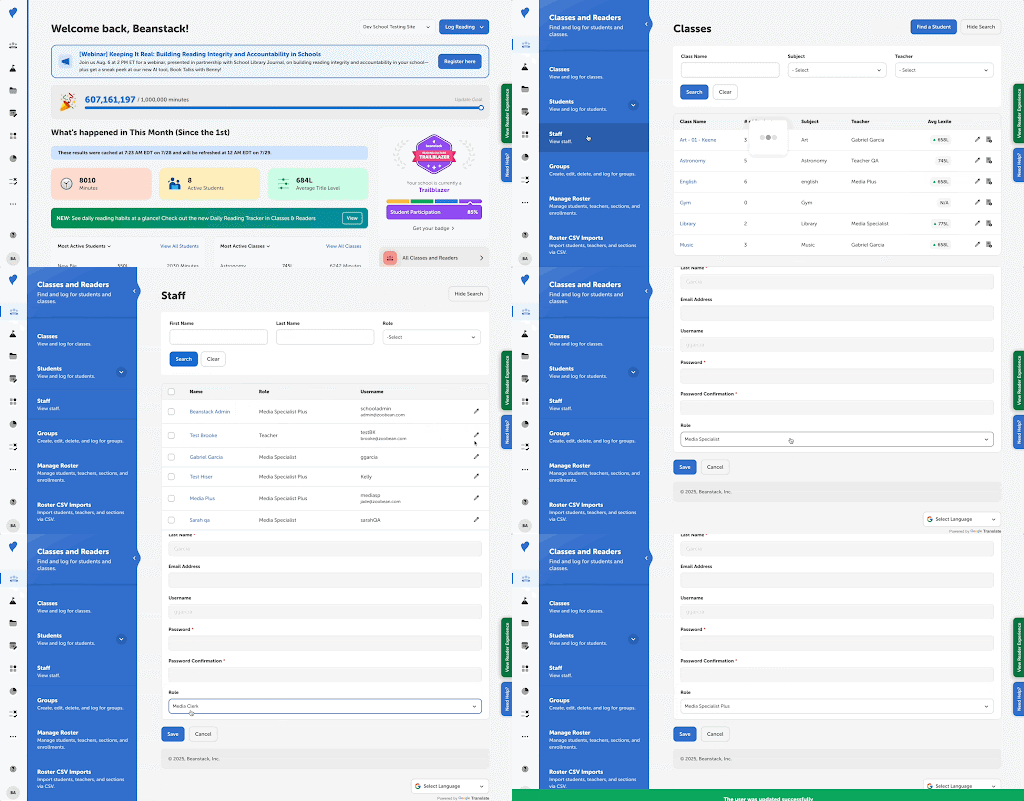
It is now easier for school admins to assign roles to their staff and seemingly re-rank their updated staff for the new school year. Use the following steps to do so:
For Media Specialists Plus
- Log in to the admin view of your school site.
- Navigate to Classes and Readers > Staff.
- On the right side of a staff person’s name, click the pencil icon to bring up an edit screen.
- At the bottom of this screen, use the dropdown menu to assign the appropriate role for the staff person.
- Click “Save.”
For District Admins
If you are a district admin:
-
Log in to your district admin site.
- Select “View School Data” from the home dashboard.
- Find the desired school from the list and select “Log in to site” next to the name.
- Follow steps 2-5 under the section above.