

Tags: Rostering, Staff, CSV Rostering
If you roster with CSV files, there may be times when you need to add one or just a few students, or a new teacher or class. You can do so on your admin dashboard, without uploading a new CSV file!
Note: If you prefer to use our import tool and upload a CSV, follow the steps in this article.
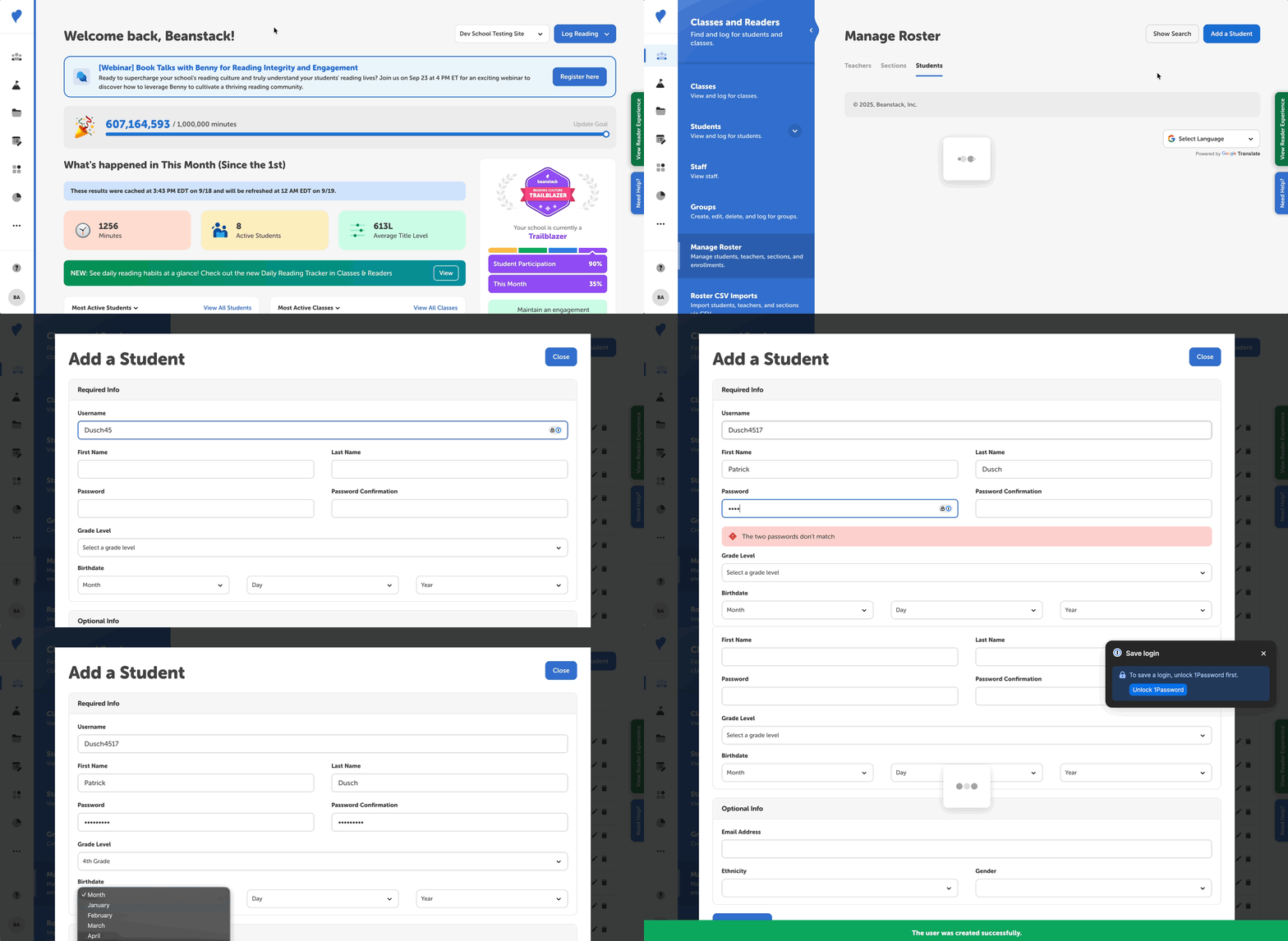
Follow the steps below:
-
Log in to the admin view of your school site.
-
Navigate to Classes & Readers > Manage Roster.
-
Select either the “Teachers,” “Sections,” or “Students” tab.
-
In the top right, click the ”Add a ___” button.
-
Complete the form for the teacher, section, or student.
-
Note: If you use Google SSO, an email is required even though it is in the optional section. We only look at that email field for Google SSO, not username, so please update that!
-
-
Click “Create ___” when finished!
To add teachers or students to their class section (starting from the admin dashboard):
- Navigate to Classes & Readers > Manage Roster
-
Select the “Sections” tab.
-
Tab through or click “show search” in the top right to find the section.
-
Click on the people icon labeled “Edit Enrollments,” to the right of the section name.
-
Click “Edit Teachers” or "Edit Students.”
-
Search the teacher or student’s name.
-
Click on their name to highlight the box in green.
-
Click “Update Teachers” or “Update Students,” then “Update enrollments.”