

Tags: Registration, Libraries, Setup
-
Log in to the admin view of your library site.
-
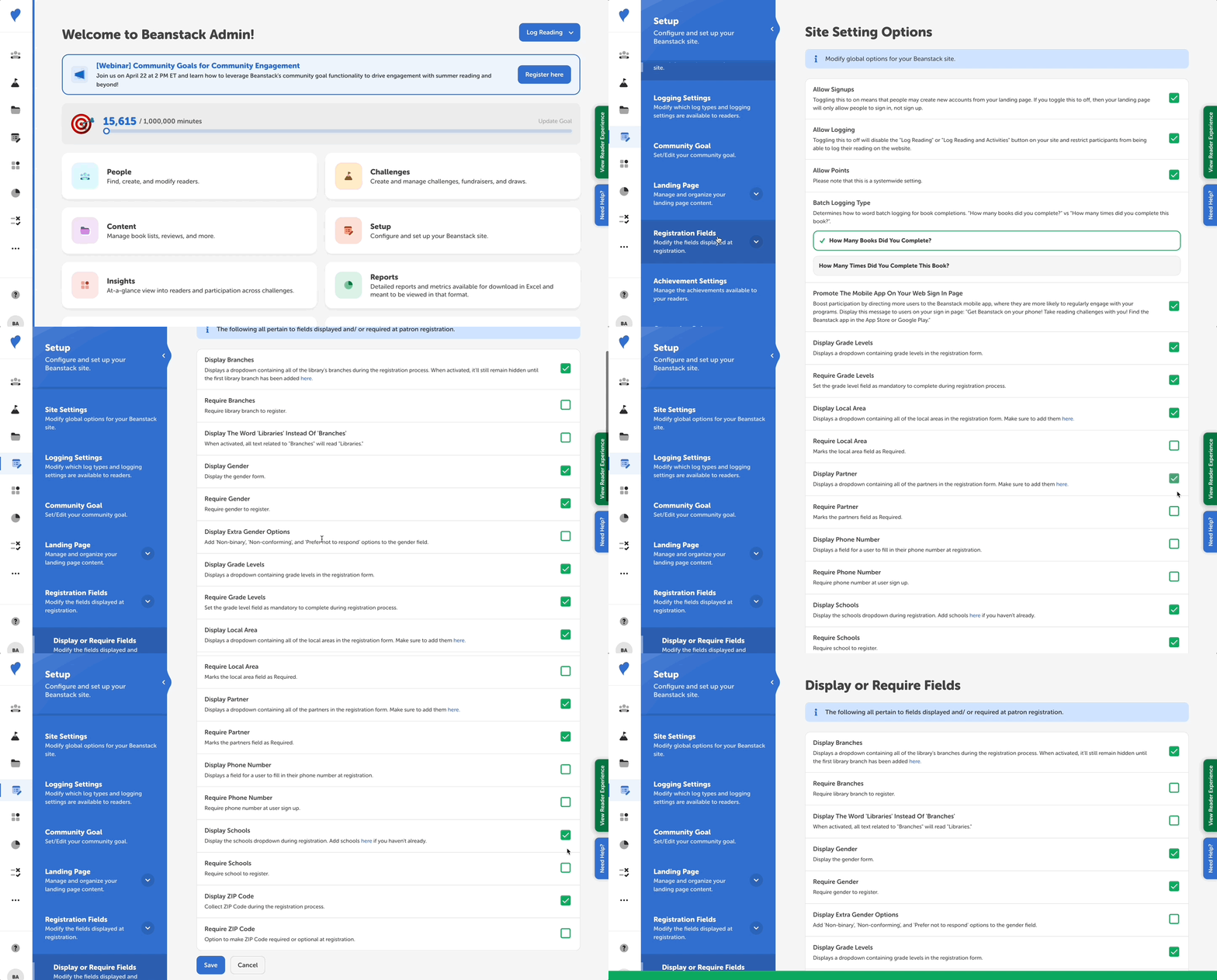
Navigate to Setup > Registration Fields > Display or Require Fields.
-
Check or uncheck “Display ____ (Schools, Branches, etc.)” to make the field(s) visible on a registration form.
-
Check or uncheck “Require ____ (Schools, Branches, etc.)” to make the field(s) required on a registration form.
-
Note: Make sure to uncheck a “Require ____” field before unchecking a “Display ____” field.
-
-
When finished, click “Save.”
Our team will help ensure that certain fields display or do not display per your request, however, some fields do require that you enter options for someone to select. For example, you must first add branch options before branch can appear at registration. See this article to add options for registration fields.