

Tags: Registration, Libraries, Setup
If your site collects registration information like school, branch, partner, or custom question answers, you must add the selections available for readers.
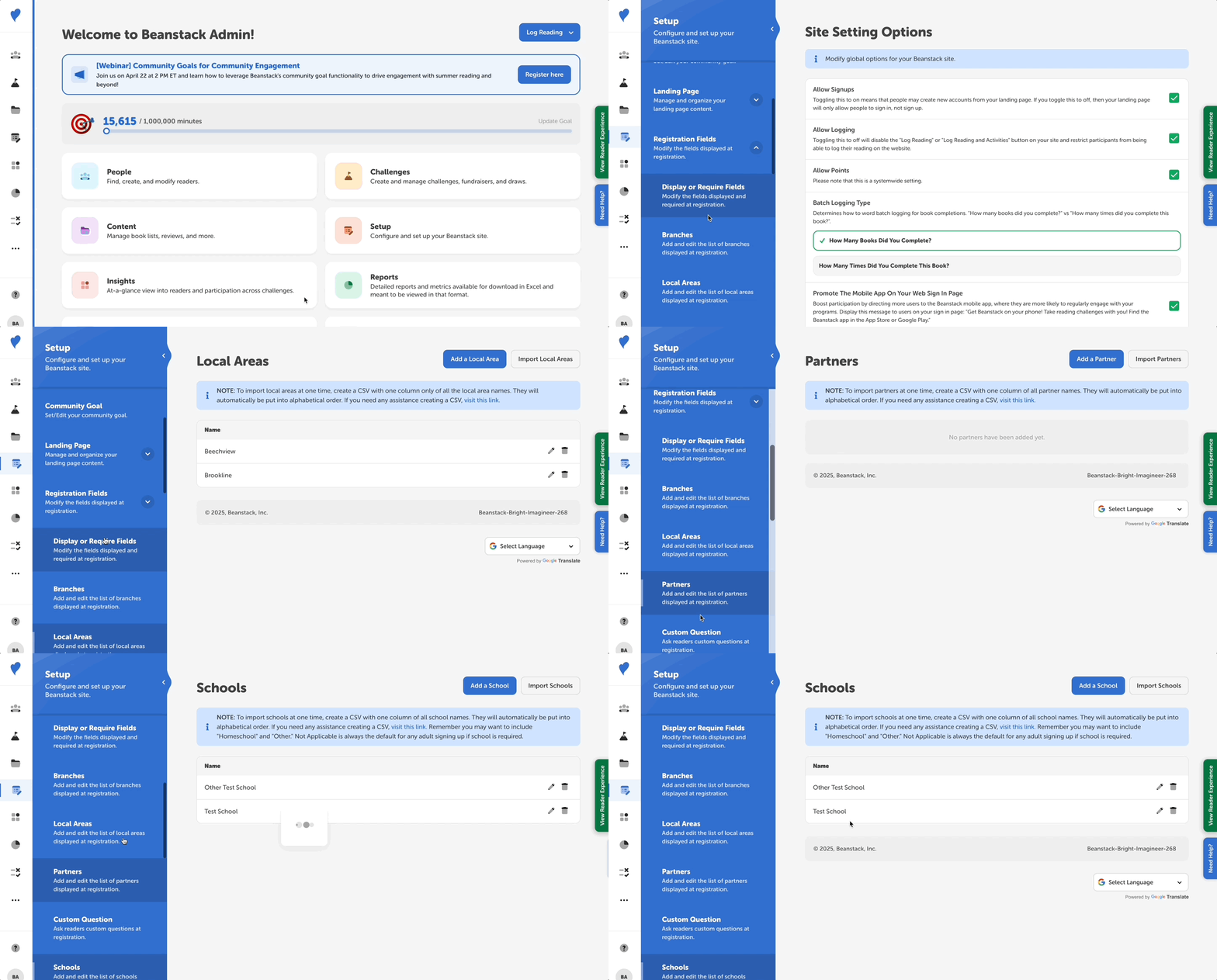
Follow the instructions below to add answers to those fields or create a custom question:
-
Log in to the admin view of your library site.
-
Go to Setup > Registration Fields
-
Select the appropriate registration field.
-
To add options manually, click “Add a ___ (School, Branch, etc.)”. Type in the name of one selection, like “East Branch” then click “Add.” Repeat for all possible selections.
-
To add options en masse by uploading a CSV file, first create a spreadsheet with each selection listed in separate rows in the first column. Save/export your spreadsheet as a CSV file and then click “Import ____ (Schools, Branches, etc.)” and select your CSV file. Some things to keep in mind:
-
Ensure your CSV file name ends with .csv.
-
The file should only have a single column of data.
-
We recommend creating and downloading your file on Google Sheets for proper formatting.
-
-
Selections are automatically put in alphabetical order. If you’d like to customize the order, you can put numbers in front of them.
Note: You’ll still need to make these registration fields visible. To do so, follow the steps in this article.