

Tags: Logging, Libraries, Readers
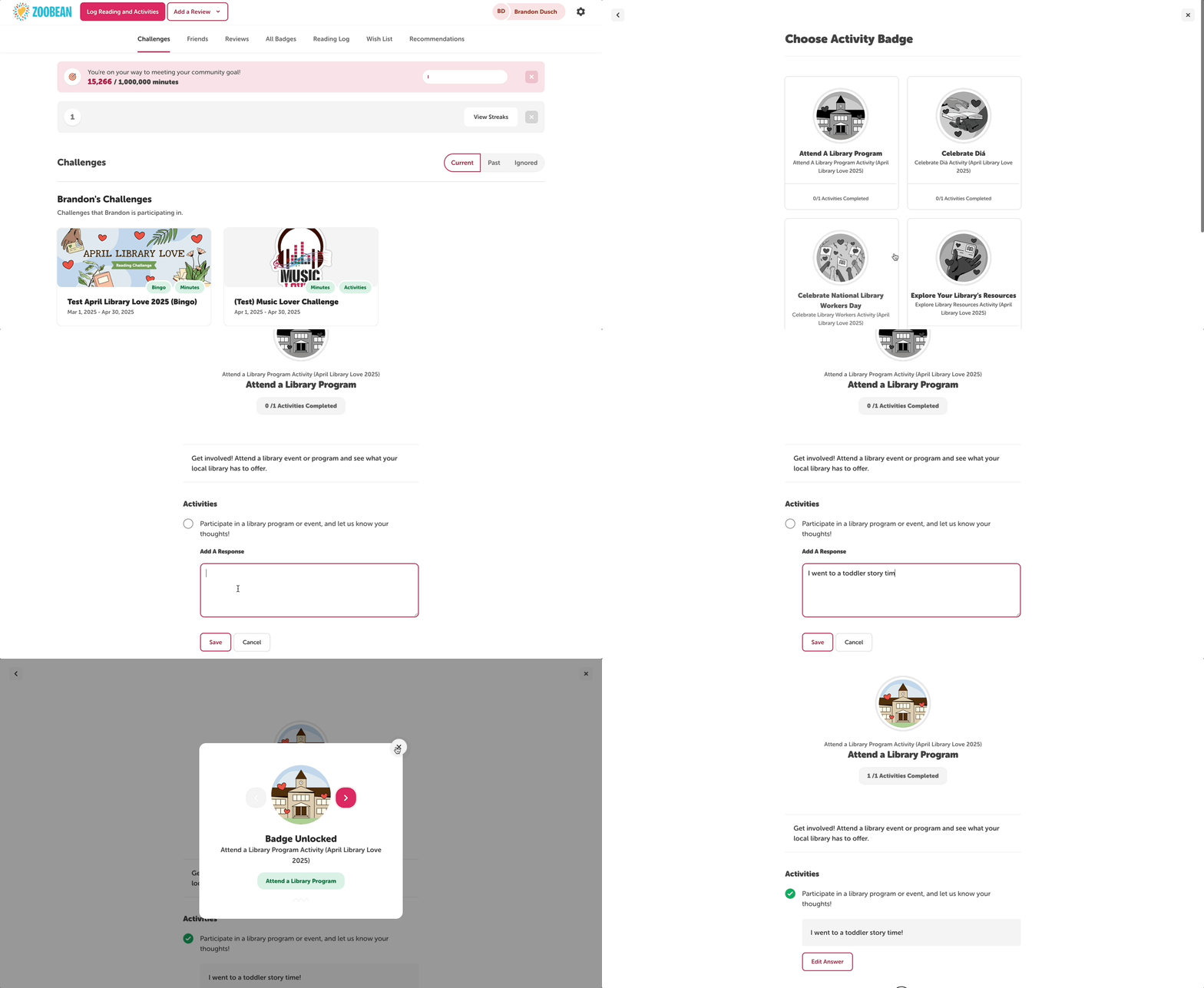
Once logged in online, readers can log activities from any page by following these steps:
-
Click the “Log Reading and Activities” button in the upper lefthand corner of the screen. Note that Activities will only appear as an option if the reader is enrolled in a current challenge with activity badges.
-
Select the accurate reader(s) and then “Complete An Activity.”
-
If the reader is enrolled in a challenge or challenges with multiple activity badges, they will then be able to select the desired activity badge to view and complete its activities.
-
Once inside the badge, the reader will either check off the activity, write a response into a text box, or enter an activity code (set and provided by the library) to complete the activity.
-
If warranted, the reader may earn the activity badge and any attached tickets, or rewards after completing the activity, which will pop up after logging.
Readers can also log activities from within a specific challenge page by following these steps:
-
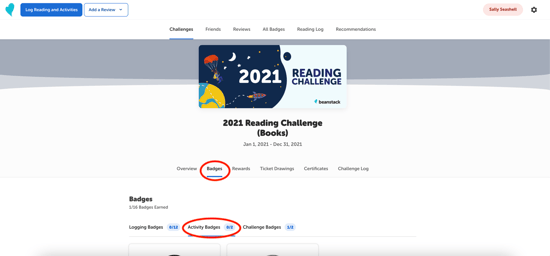
Once viewing a challenge, click over to the Badges tab and then Activity Badges.
-
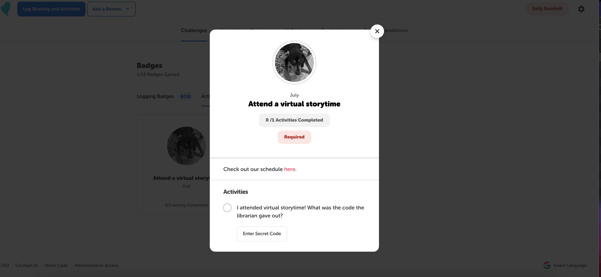
Click on any unearned activity badge to complete the activity by either checking it off, writing a response into the text box, or entering the activity code.
-
If warranted, the reader may earn the activity badge and any attached tickets, or rewards after completing the activity, which will pop up after logging.