

Tags: Badges, Challenges
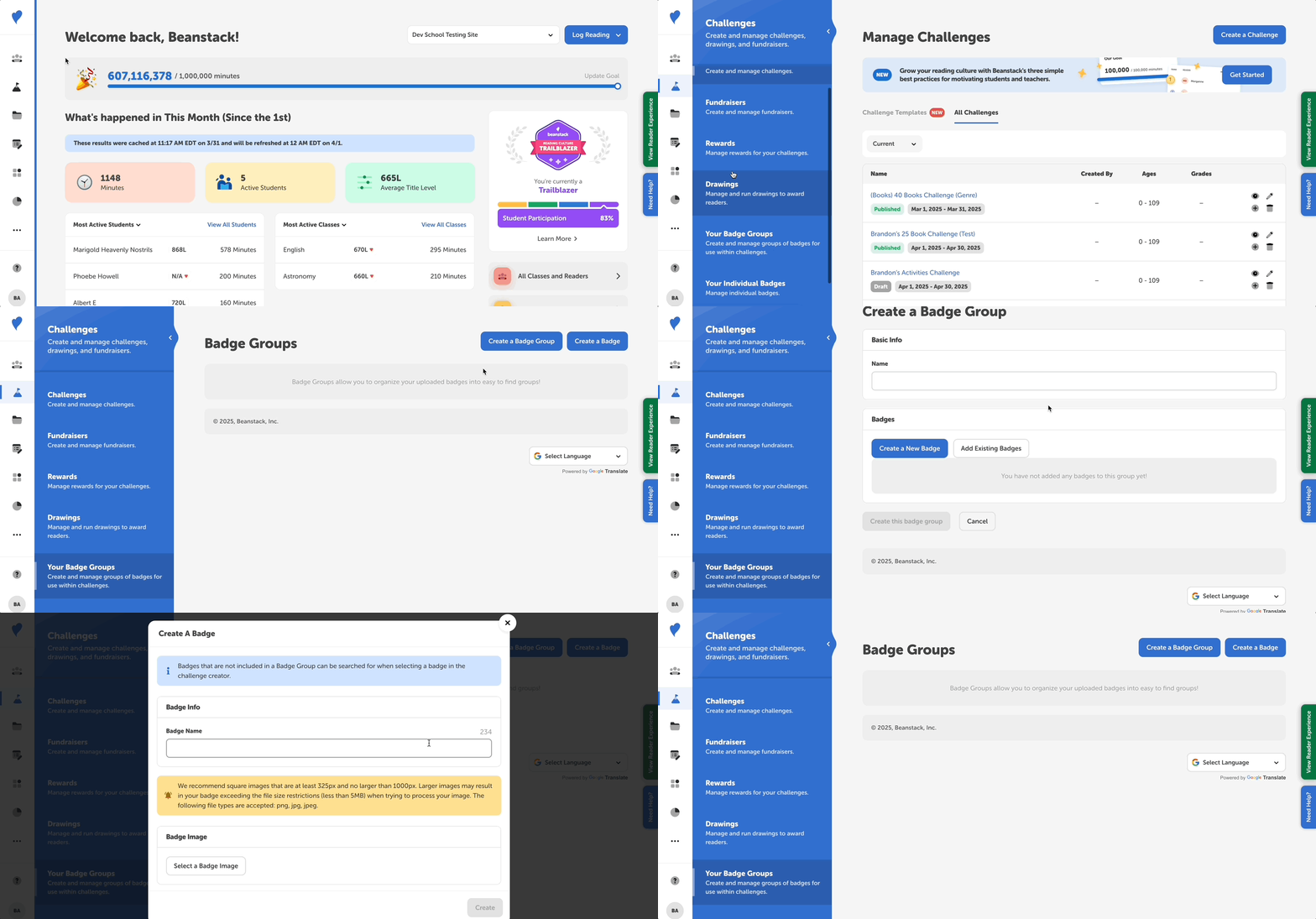
As an admin, you can create and upload your own custom badges and badge groups for your reading challenges.
Note: When setting up a challenge, every badge should be unique; the same badge should not be used repeatedly.
To get started, follow the steps below:
-
Sign in to the admin view of your site.
-
Go to Challenges > Your Badge Groups.
-
You will see two options available to add badges to your site:
Note: As a best practice, we recommend you create a badge group before adding badges. If you create a badge first, it will end up in their own “ungrouped” section.
Create a Badge Group
-
Click on “Create a Badge Group.”
-
Name your badge group (required).
-
Click on "Create a New Badge” to add a new badge to this group.
-
Click on “Select a Badge Image” to select an image from your computer’s files.
-
We recommend using square images that are at least 325px. The following file types are accepted: .png, .gif, .jpg, .jpeg.
-
-
Customize your badge by using the slider to adjust the image. You may also rotate the image using the “Rotate Left” and “Rotate Right” buttons.
-
Click “Create.”
-
If you would like to select an existing badge, click on “Add Existing Badges” and select the badges to add to the group. Then click Add Selected Badges.
-
Continue adding badges until you have added all of the badges to the group.
- We recommend adding all badges for a specific challenge template to the same badge group.
-
Click “Create this badge group.”
-
If needed, you can also edit your badge group.
-
Great job! Your badge group will appear once it has been created.
Create a Badge
-
Click on “Create a Badge.”
-
Give your badge a descriptive name (required).
-
Click on “Select a Badge Image” to select an image from your computer’s files.
-
We recommend using square images that are at least 325px. The following file types are accepted: .png, .gif, .jpg, .jpeg.
-
-
Customize your badge by using the slider to adjust the image. You may also rotate the image using the “Rotate Left” and “Rotate Right” buttons.
-
Click “Create.”
Notes:
- You can find your created badges within Challenges > Individual Badges, or in Badge Groups if it is part of a badge group.
- If a badge was awarded/earned by someone in a reading challenge, the removal icon is replaced with a lock icon to protect reader data on your site.
-
If your badge is created outside of a badge group, you will need to search for the badge’s name exactly when adding badges to a challenge. You may add an ungrouped badge to a badge group at a later time. (See step 7 in the directions above to add an existing badge to a badge group)