
Tags: Badges, Challenges
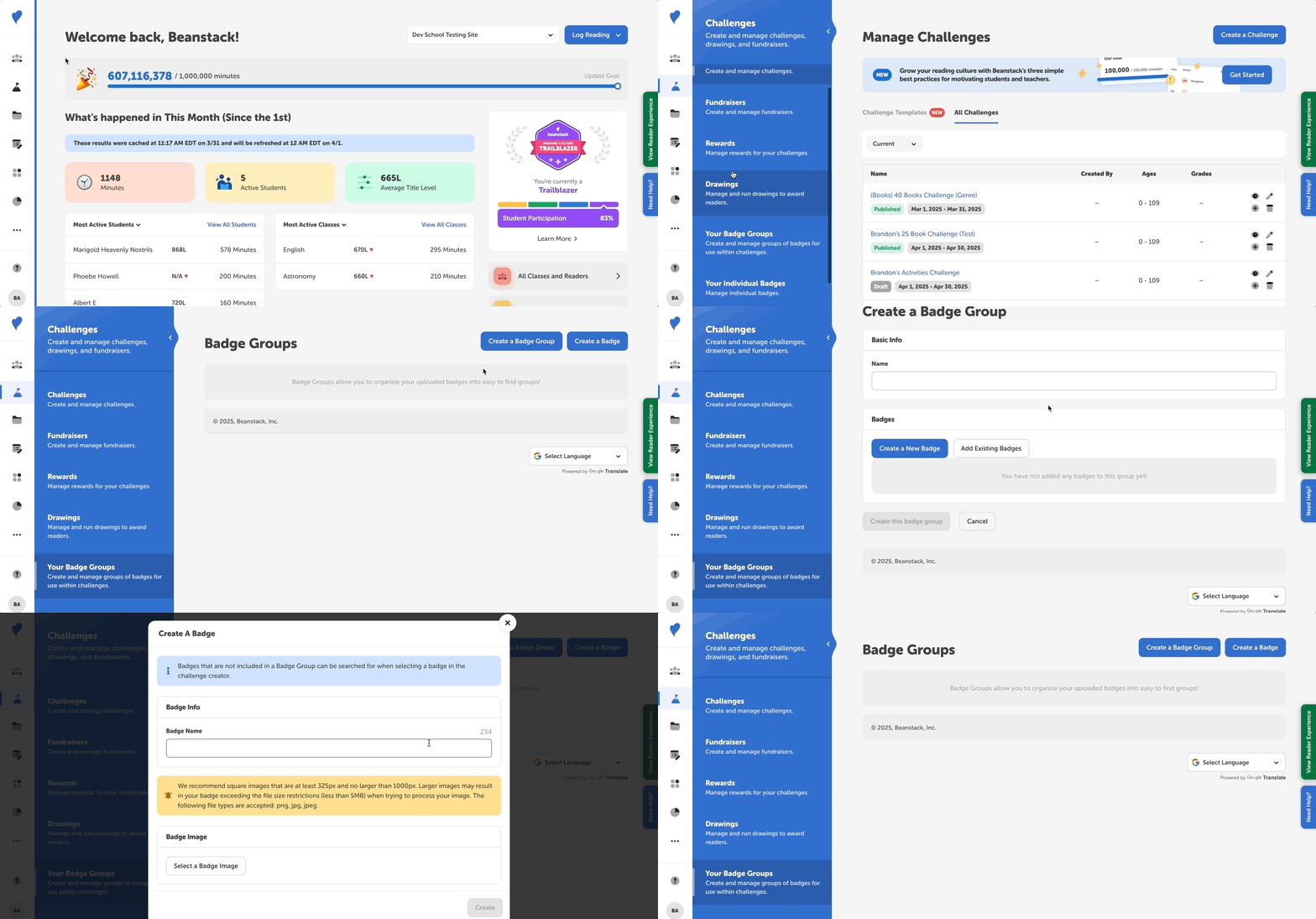
As an admin, you can create and upload your own custom badges and badge groups for your reading challenges.
To get started, follow the steps below:
- Sign in to the admin view of your site.
- Go to Challenges > Your Badge Groups.
- You will see two options available to add badges to your site:
Note: As a best practice, we recommend you create a badge group before adding badges. If you create a badge first, it will end up in their own “ungrouped” section.
Create a Badge Group
-
Click on “Create a Badge Group.”
-
Name your badge group (required).
-
Click on "Create a New Badge” to add a new badge to this group.
-
Click on “Select a Badge Image” to select an image from your computer’s files.
-
We recommend using square images that are at least 325px. The following file types are accepted: .png, .gif, .jpg, .jpeg.
-
-
Customize your badge by using the slider to adjust the image. You may also rotate the image using the “Rotate Left” and “Rotate Right” buttons.
-
Click “Create.”
-
If you would like to select an existing badge, click on “Add Existing Badges” and select the badges to add to the group. Then click Add Selected Badges.
-
Continue adding badges until you have added all of the badges to the group.
- We recommend adding all badges for a specific challenge template to the same badge group.
-
Click “Create this badge group.”
Great job! Your badge group will appear once it has been created.
To edit an existing badge group, see this article.
Adding to Challenge Templates
To add your badges to a new challenge template:
-
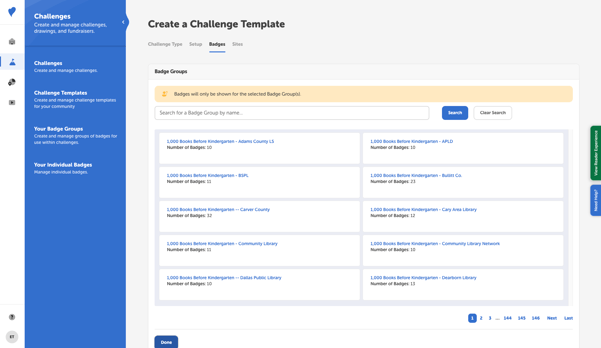
On the “Badges” tab of the “Create a Challenge Template” page, click “Add Badge Groups.”
-
Search for and select the name of your badge group from the list, then click “Done.”
-
Now you can add custom badges to your challenge template!
Create a Badge
-
Click on “Create a Badge.”
-
Give your badge a descriptive name (required).
-
Click on “Select a Badge Image” to select an image from your computer’s files.
-
We recommend using square images that are at least 325px. The following file types are accepted: .png, .gif, .jpg, .jpeg.
-
-
Customize your badge by using the slider to adjust the image. You may also rotate the image using the “Rotate Left” and “Rotate Right” buttons.
-
Click “Create.”
-
If your badge is created outside of a group you will see it in an “ungrouped” badges section when you create your challenge. You may add this badge to a badge group at a later time. (See step 7 in the directions above to add an existing badge to a badge group).