

For more content information, visit Beanstack for Everyone
Sometimes during the period of pre-registration, you may want to turn off the ability for readers to log reading.
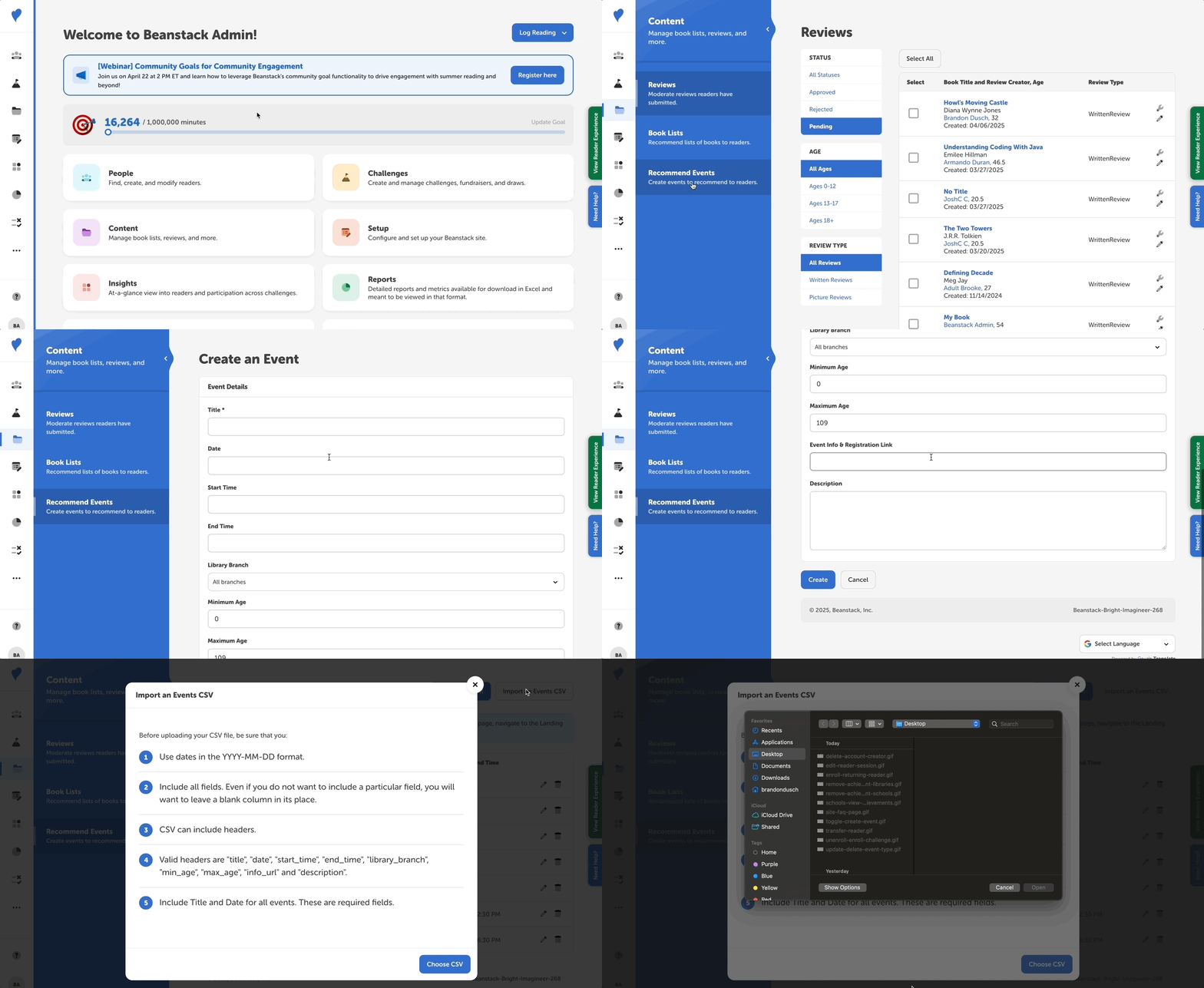
Adding events is completely optional. You can either upload events by uploading a CSV file or adding them individually.
Add Recommended Events by CSV
When creating your CSV, remember:
- Start and end time formats look like 11:30 AM, not 11:30AM
- Make sure to edit your date format to be YYYY-MM-DD
- Do not include bold or underlined fonts
- Create a CSV file for your events:
- Open Excel or Google Sheets.
- Create a new document with the following columns, in this exact format: “title”, “date”, “start_time”, “end_time”, “library_branch”, “min_age”, “max_age”, “info_url”, “description”, and “grade level”. The fields may remain blank, but you should still add the column. Do not include any additional columns.
- Add your event information, making sure to fill in the title and date fields. Any of the rest of the fields can be blank.
- Export the spreadsheet to CSV document
- Log in to the admin view of your library site.
- Go to Content > Recommend Events.
- Select “Import an Events CSV.”
Add Individual Recommended Events
- Go to Content > Recommend Events.
- Select “Create an Event.”
- Enter the required fields indicated by the * symbol.
- Enter any additional fields that are available for that event.
- Click “Create.”