
Tags: Libraries, Readers, Accounts
Sometimes an account creator may want to share one of their readers with another account creator. For example, a parent may want to share a reader’s profile with another caregiver. In this case, the reader can be shared, meaning both account creators may take actions on the reader’s profile, and are able to edit and update it collaboratively.
Note: The share feature is disabled for all schools using Clever to import students.
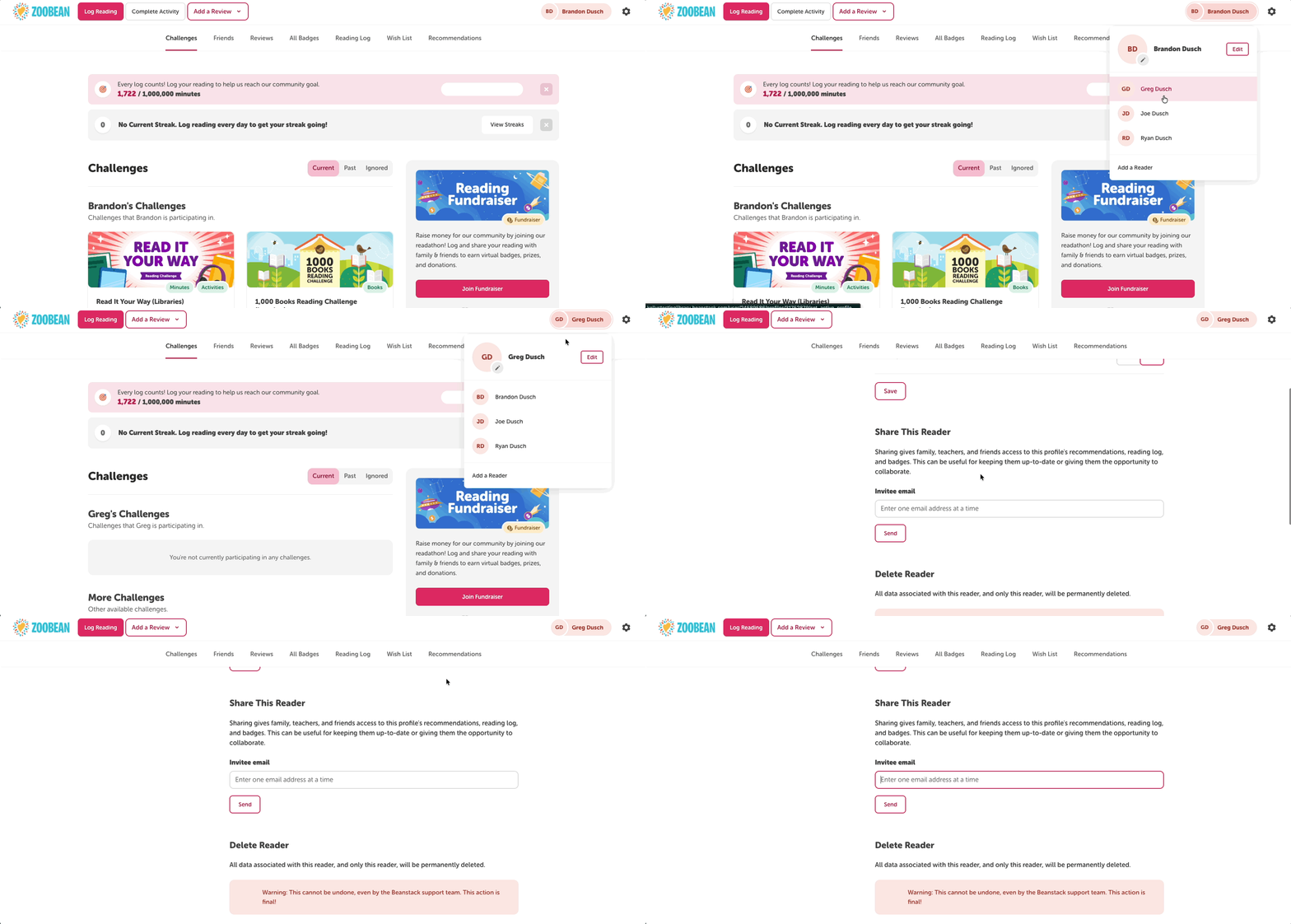
To share a reader, the account creator should take the following steps:
-
Log in to your library site with your account credentials.
-
Click the reader name in the upper right corner of the screen to switch to the reader you’d like to share to move to their reader view.
-
Click the reader name again in order to select the “Edit” button to the right of the reader’s name to edit the reader’s preferences.
-
Once on that page, scroll down to “Share this reader,” and enter the email address of the person(s) with whom to share the reader, then send.
The recipient will receive a message saying that the account creator wants to share this reader, along with the Share Code. When the recipient is logged in, they can click the “Share Code” link at the bottom-right of any page on their Beanstack site and enter the code to link the shared reader.

Note: If the doesn’t yet have a Beanstack account, they will need to create one before linking the shared reader.