

Tags: Challenges, Setup
Would you like for your readers to choose one challenge out of multiple challenges available, rather than registering and participating in all available challenges to them on your site? If so, you can enable what we refer to as “alternative challenges.”
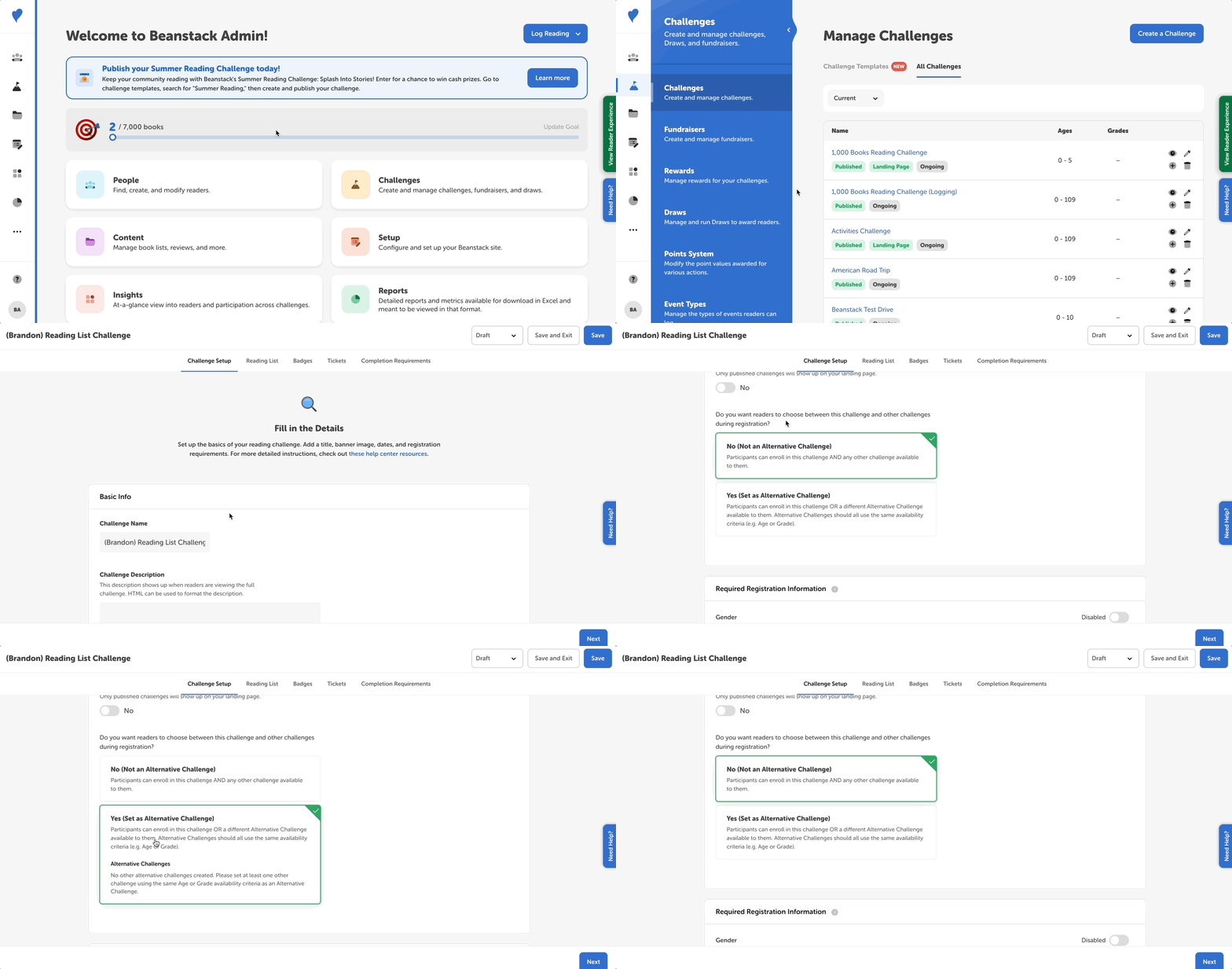
Follow the instructions below to setup alternative challenges:
-
Log in to the admin view of your site.
-
Go to Challenges and select the challenge for which you would like to enable alternative challenges.
-
On the “Challenge Setup” tab, select “Yes (Set as Alternative Challenge)” under the question “Do you want readers to choose between this challenge and other challenges during registration?”
Note: You must answer “Yes (Set as Alternative Challenge)” for all of the challenges you would like readers to choose from. Challenges can only be set as alternative challenges with another challenge if they overlap in age or grade level. As you add more challenges and answer “Yes (Set as Alternative Challenge)” to them, you will see their names appear as challenges between which readers must choose to participate.
Upon registration, readers will have the option to choose one of the available challenges.