

Tags: Challenges, Setup
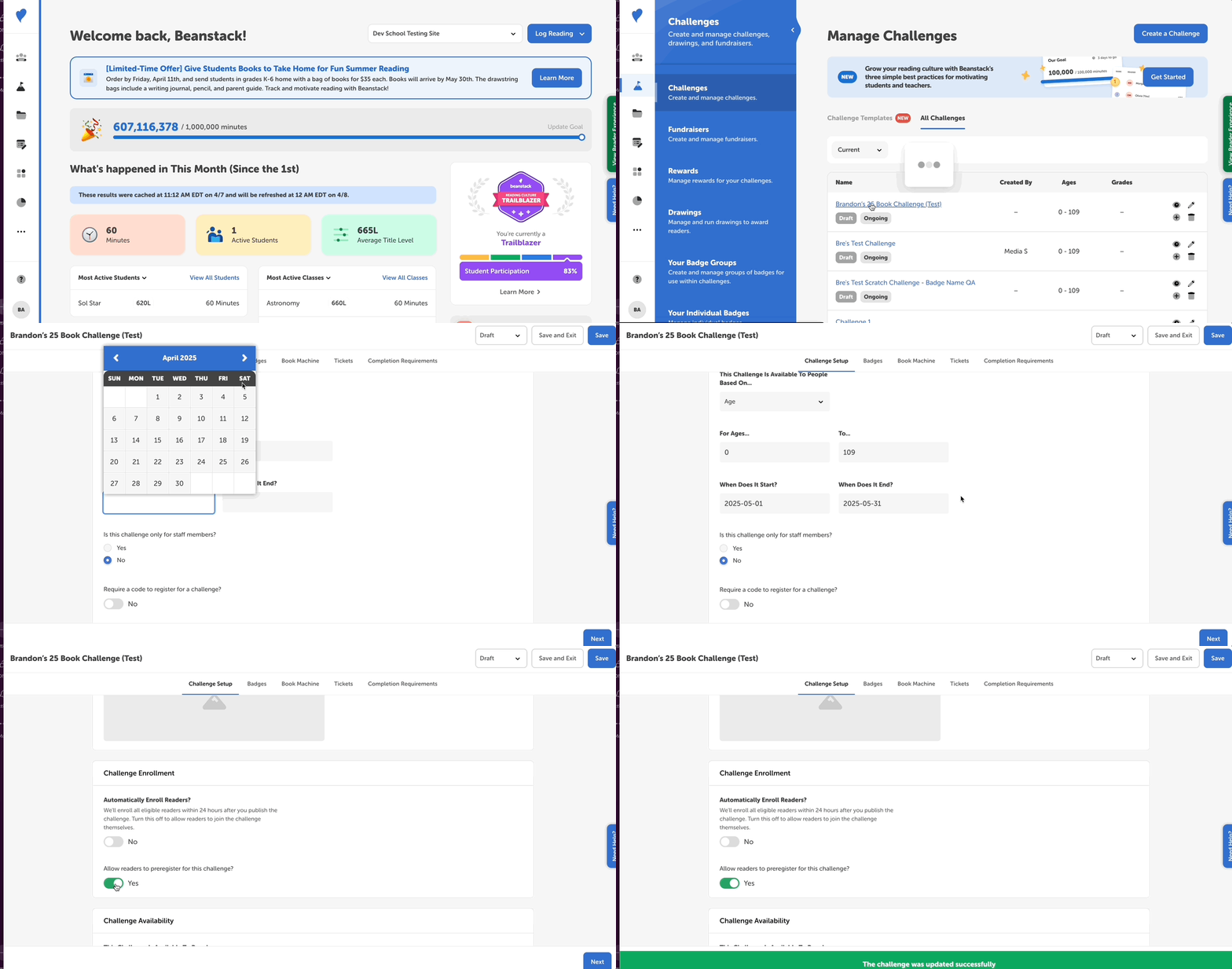
While drafting your challenge and setting up your badges, you can make a challenge available for pre-registration. Follow the steps below to do so:
-
Log in to the admin view of your site.
-
Go to Challenges.
-
Select the desired challenge draft and go to the “Challenge Setup” tab.
-
Toggle on "Are readers allowed to preregister for this challenge?”
-
For libraries, this is found under “Challenge Availability.”
-
For schools, this is found under “Challenge Enrollment.”
-
-
Under “Challenge Availability”, set the start and end dates for the challenge.
-
Readers will be able to pre-register, but won’t be able to log their readings until the set start date.
-
-
Save your challenge as a draft until you are ready for pre-registration to begin.
-
Alternatively, you can make the challenge staff-only.
-
-
When you are ready for pre-registration to begin, publish the challenge and make sure it is available to everyone (not staff-only).
Registration badges
If your challenge has a registration badge, leave it as is so readers will still receive it upon pre-registering.
Note: It is not possible to delay someone receiving the registration badge and/or accompanying prize message. If you have a registration prize that is not available for pickup until after the challenge starts, we suggest adding the dates available in the prize name and description!
Landing Pages
You can update your landing page or challenge preview card description to reflect this information. Leave the dates as-is, so readers know the actual dates of the program, and then update the subheader or description to let readers know that they can pre-register today. After pre-registration is over, you would update this text again.