

Tags: Landing Page, Setup
Your landing page is the billboard for your Beanstack site. You can use it to advertise current and upcoming challenges or to welcome your community to Beanstack no matter what challenges you have running!
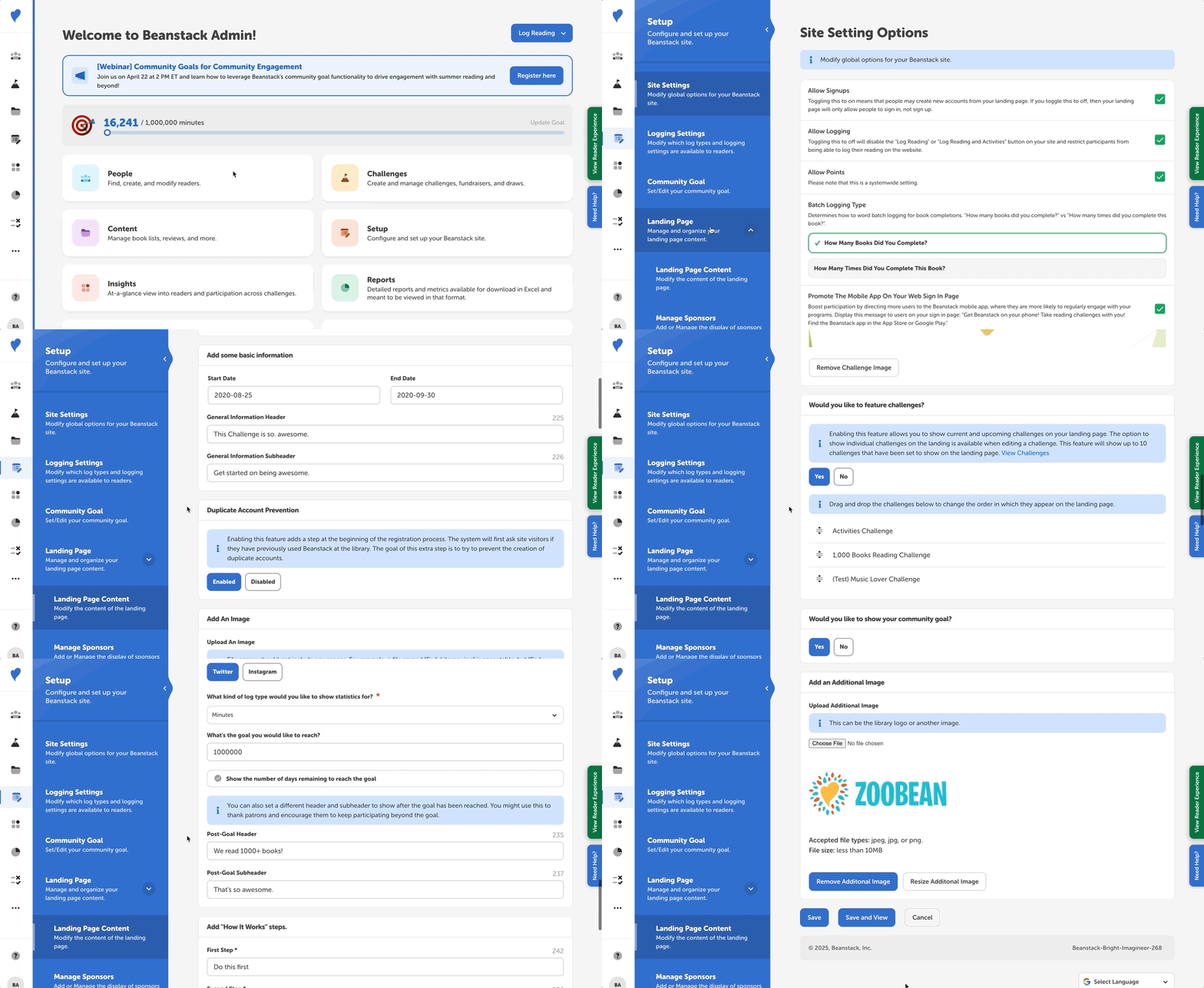 To edit your sortable landing page:
-
Log in to the admin view of your site.
-
Navigate to Setup > Landing Page > Landing Page Content.
-
Customize the following settings:
-
Set the order of your sections: Drag and drop the landing page components to change the order that they appear on your site.
-
Add some basic information: Add general welcome text to the General Information Header and Subheader fields. You may add dates, but you may also leave those fields blank.
-
Duplicate account prevention: We recommend enabling duplicate account prevention. When enabled, every time someone comes to sign up for a Beanstack account, the system will ask if they have already participated in a Beanstack challenge and then prompt them to sign in if they have.
-
Add an image: Upload the primary banner image that you want to greet readers when they first see your site. This may be a banner for a specific challenge or a more general one that you display to advertise reading challenges throughout the year. The ideal size for the landing page image is 1240x460px.
-
Would you like to feature challenges: We recommend enabling feature challenges to give your community a preview of the challenges you’re offering. This will allow you to feature up to ten challenges on your landing page as “challenge cards,” which include the challenge image and a shortened challenge description. You will enable the feature here, save your landing page, and then determine which challenges to feature. You can read more about this here.
-
Would you like to show statistics: If you’d like to show a community goal and your readers’’ progress toward reaching it, enable statistics and fill in that goal. Remember to click on “Show days remaining to achieve community goal” if you want to identify a specific period of time for the count.
-
Add “How It Works” steps: Include three steps here to briefly describe how your site and/or challenge(s) works. We recommend keeping these short and sweet! You can always add more detailed instructions within your actual challenges.
-
Add “Sponsor” header: If your library/school or its challenge has donors/sponsors you want to recognize, you can add text to thank them here. Any sponsors you have added within Setup > Landing Page > Manage Sponsors will display below.
-
Add an additional image: Upload another image for your library, school, or challenge and resize as needed.
-
-
Click “Save” to update your landing page.
-
You can also click “Save and View” to preview your updated landing page!
-
Note: The landing page colors displayed correspond with the site colors you select under your site’s Customize Colors settings.