
Tags: Setup
With admin access, you can change the logo and color schemes on your site at any time.
Your logo appears in the upper lefthand corner of your site at all times. This logo may be different than the logo added directly to your landing page as a larger image (which is controlled within Setup > Landing Page > Landing Page Content).
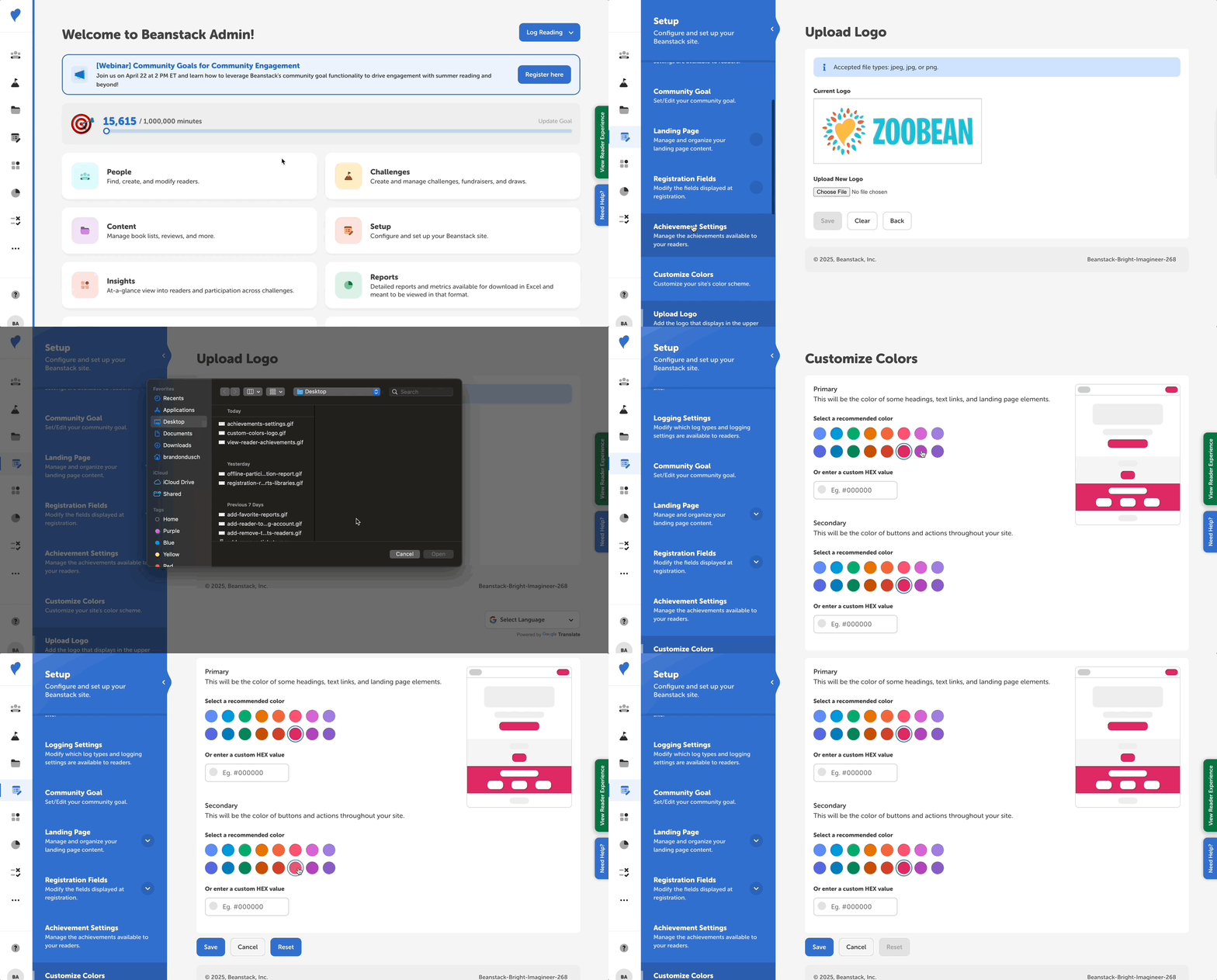 To change your overall site logo:
-
Log in to the admin view or your sits.
-
Navigate to Setup > Upload Logo.
-
Click “Choose file” to upload a .png or .jpg file of your logo.
-
Click “Save.”
You can also set a primary and secondary color on your site.
-
The primary color dictates the color of the block at the top of your landing page and some landing page elements, as well as for headings and text links throughout your site.
-
The secondary color appears on buttons and actions throughout your site.
To update your site’s colors:
-
Go to Setup > Customize Colors.
-
Select a recommended color or enter a custom HEX value for the primary and/or secondary color.
-
Click “Save.”
Note: The “Reset” button on this page reverts your site to the original colors provided to you by our Beanstack team, not the colors that existed before you made your changes.
The color displayed behind individual challenge banners on their challenge pages is pulled from the banner image itself, and thus is not controlled by your site’s color customization settings. This ensures that the challenge page display is cohesive with the banner image and theme for your challenge.

If you would like to influence the displayed accent color behind a challenge banner, we recommend editing the banner image using a free tool like Canva. You can try changing the background color, adding a colored frame to the image’s outer dimensions, or editing the main color scheme used.