

Tags: Activities, Challenges, Badges
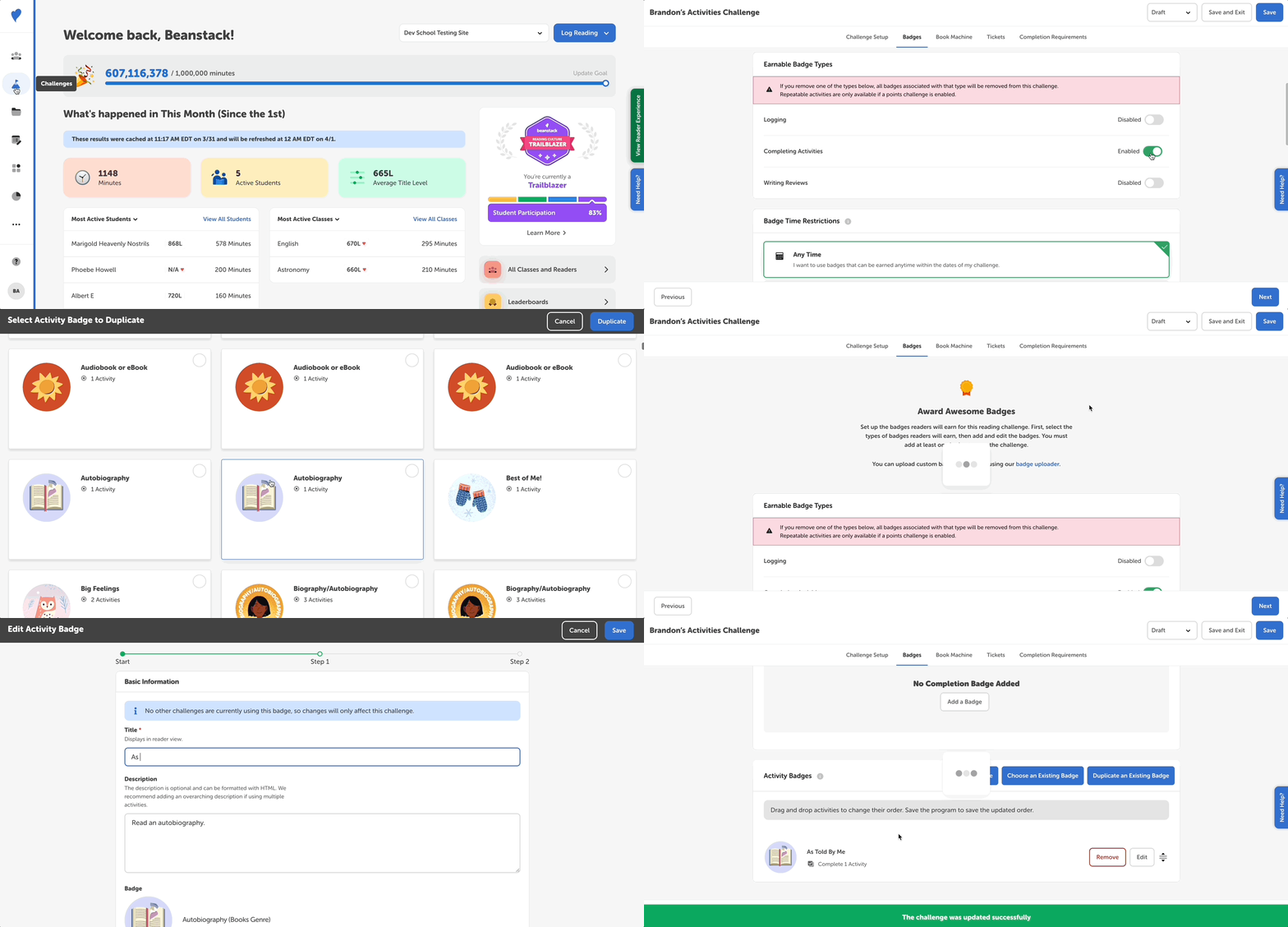
You can easily duplicate existing activity badges within a challenge in order to use badges you’ve already created or activated before for different age groups or challenges. Just follow the steps below!
-
Log in to the admin view of your site.
-
Navigate to Challenges.
-
Either select an existing challenge to edit, create a new challenge, or activate a challenge template.
-
Navigate to the “Badges” tab, scroll down to the Activity Badges section, and click “Duplicate an Existing Badge.”
-
A new screen will load where you can search for and select the activity badge you wish to duplicate from all the activity badges used on your site. Once you make your selection, click “Duplicate.”
-
A duplicate of the original badge will appear in your challenge’s activity badges, with the words “Copy of” at the beginning of the activity title. Click the title or the “Edit” button on the right to edit the newly duplicated badge.
-
Make sure to remove “Copy of” from the activity title and give it a unique name to differentiate it from the original activity, like “Book Recommendations K-5” or “Book Recommendations Summer 2022.”
-
Then you can proceed to edit any other parts of the badge or activities within it, including naming your badge.
-
-
Save the badge and the challenge before exiting.