

Tags: Events, Content, Events & Announcements, Announcements, Libraries
For more content information, visit Beanstack for Everyone.
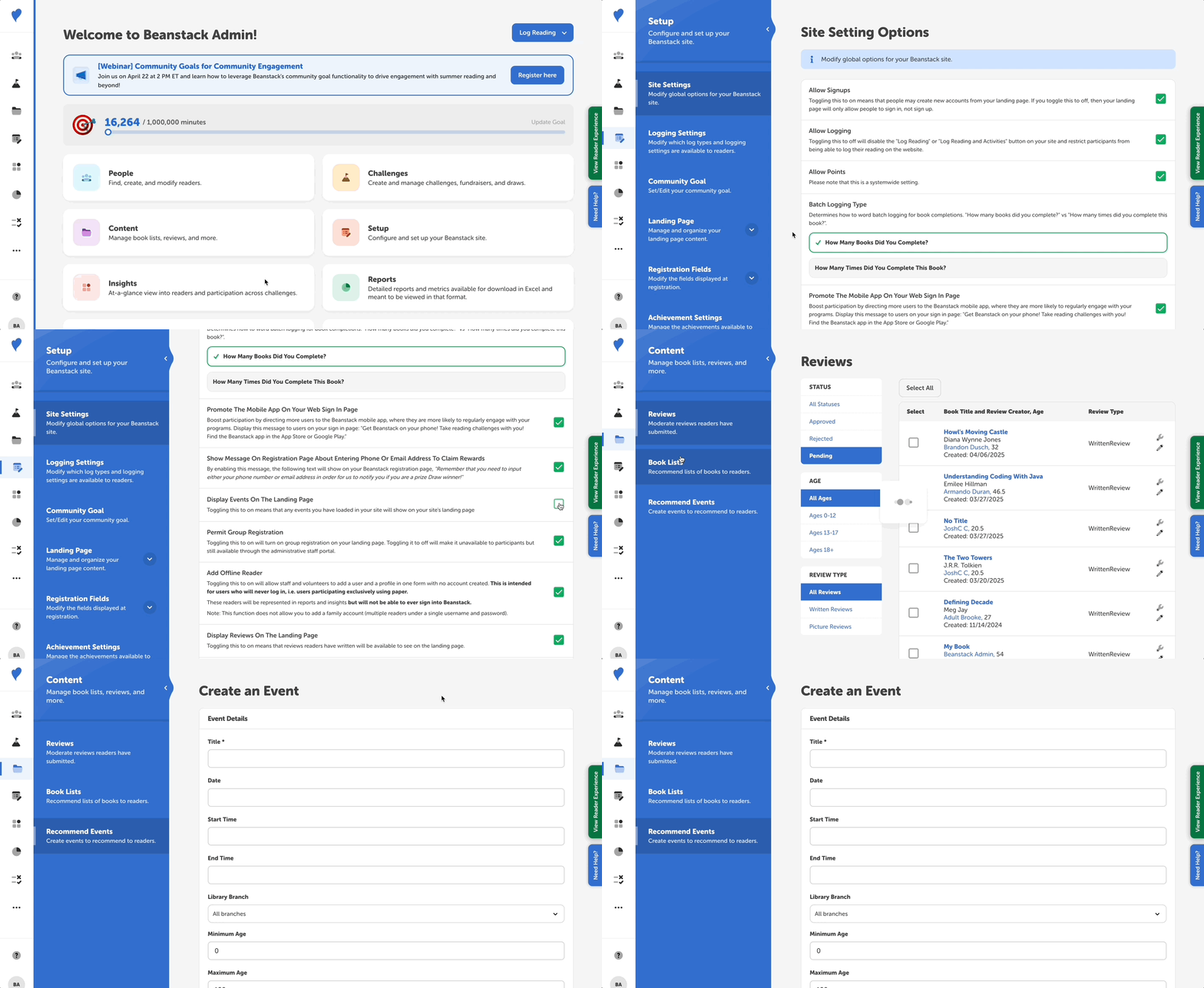
You can enable and display events on your landing page by following these instructions:
Enable Displaying Events on Your Landing Page
-
Log in to the admin view of your library site.
-
Go to Setup > Site Settings.
-
Check the box next to “Display Events On The Landing Page.”
-
Click “Save.”
Add Events
-
Navigate to Content > Recommend Events.
-
Click “Create an Event, fill in all event details, and then click “Create.”
-
Repeat for additional events, keeping in mind that every event added will appear on your landing page once you follow the steps below to enable their display.
Afterward, you can navigate to Landing Page > Landing Page Content to review where events will appear on your landing page. You can drag and drop the section to a new position and then click “Save and View” to preview how your events appear.