

Tags: Reports & Insights, Insights, Reports, Libraries
Note: To learn about Insights key terms, check out this article.
Insights are a dynamic and easy-to-use data-gathering feature for staff and library administrators. You can set your own display settings, timeframes, metrics, and more in your Insights Dashboard, making your most important data just a click away.
Note: Insights data is updated every 24 hours around 12:00am ET.
Dashboard
To access your Insights Dashbaord:
-
Log in to the admin view of your library site.
-
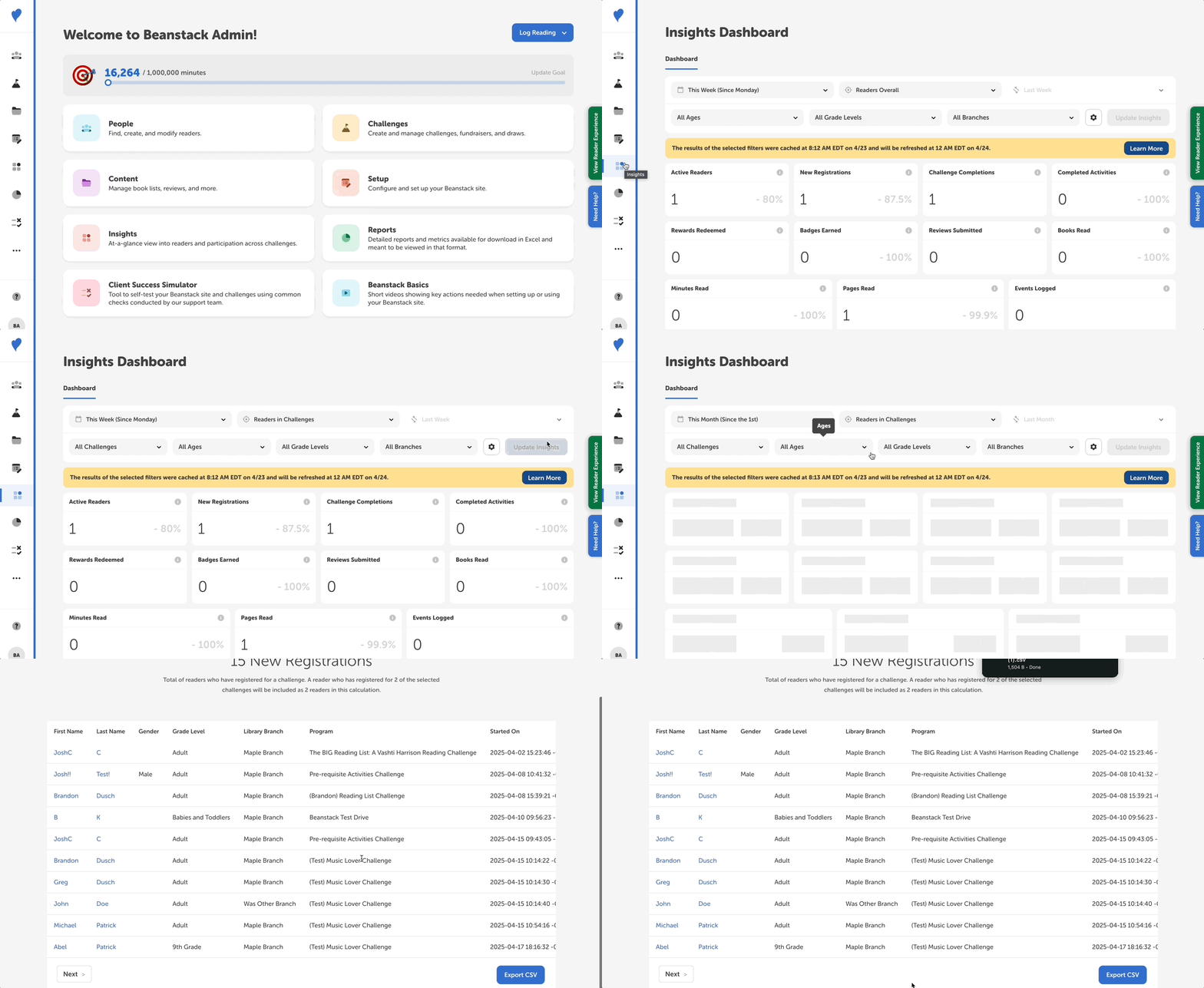
Go to Insights.
-
Set your data timeframe, pick which readers and challenges you want to view, and click “Update Insights” to reset your dashboard.
-
Note: When setting custom dates, your start date cannot be before January 1st of the previous calendar year. For example, if it’s May 18th, 2026, your start date on Insights be set as far back as January 1st, 2025.
-
-
To remove your selections in a certain field for a new search, simply click the refresh icon.
.jpg?width=256&height=250&name=Refresh%20button%20for%20one%20of%20the%20Insights%20settings%20on%20the%20library%20admin%20view%20(1).jpg)
-
To tailor what sections appear on your dashboard, simply click the gear icon and choose what you want to view, like how many minutes were logged, the top books read, and a breakdown by age.
-
Note: When you update the selections, the dashboard saves your preferences for all future visits.
-
If you switch between viewing data for all readers vs. viewing data for readers in specific challenges, keep in mind that some readers may be enrolled in multiple challenges, and thus may be counted twice in certain metrics (like minutes read or challenge registrations) when you’re viewing data for readers in challenges. For more information about how each metric is filtered, hover over the “i” icon to read its details.
Exporting CSV Data
To get into the nitty-gritty datapoints, click a section heading or number for a list of the data. From there, simply click “Export CSV” to download that spreadsheet onto your local device.
Looking for more detailed, up-to-the-minute data? Head over to the Reports & Insights section!