

Tags: Reports & Insights, Insights, Reports, Libraries
This article pertains to library clients. If you’re a school client, check out this article.
Customizing your Insights Dashboard gets your library’s most-used metrics front and center for easy tracking. Each user’s Insights Dashboard preferences are completely individualized, so an administrator can set their own customization preferences, while a staff member can set up a different dashboard view.
Note: Insights data is updated every 24 hours around 12:00am ET.
-
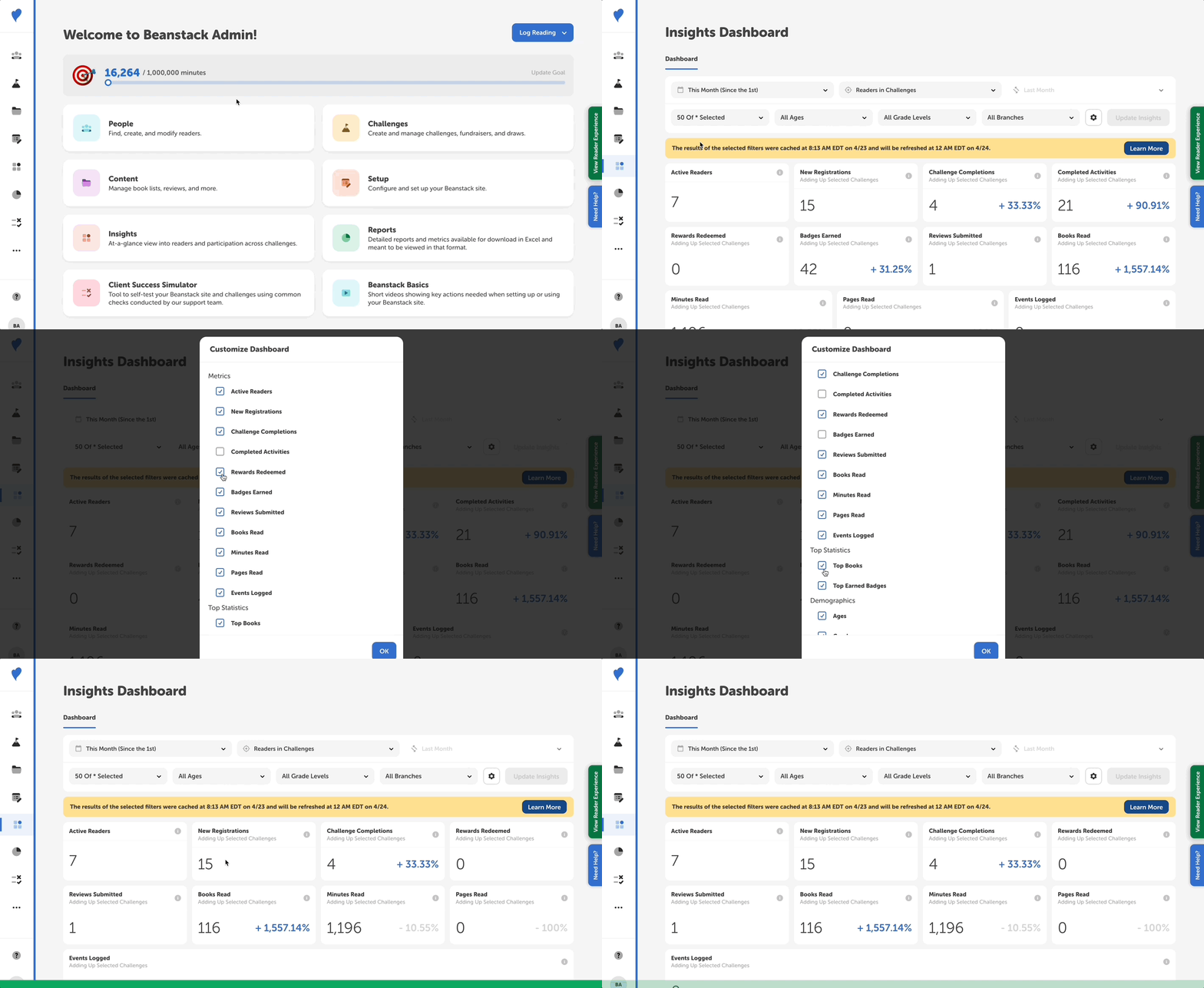
Log in to the admin view of your site.
-
Navigate to Insights.
-
Click the account gear icon near the top-right of the dashboard.
-
Select or deselect the metrics, statistics, and demographics you’d like to include.
-
Click “OK” to save.
Note: Your dashboard preferences are saved for future visits and available to be updated at any time.