Tags: Staff, Media Specialists
Media specialists and media specialists plus can look up an individual student and go deeper into their profile or reading log.
Note: Teachers can only find and view classes and students rostered to them, whereas media specialists can find and view any class or student within their school.
by following these steps:
-
Log in to the admin view of your school site.
-
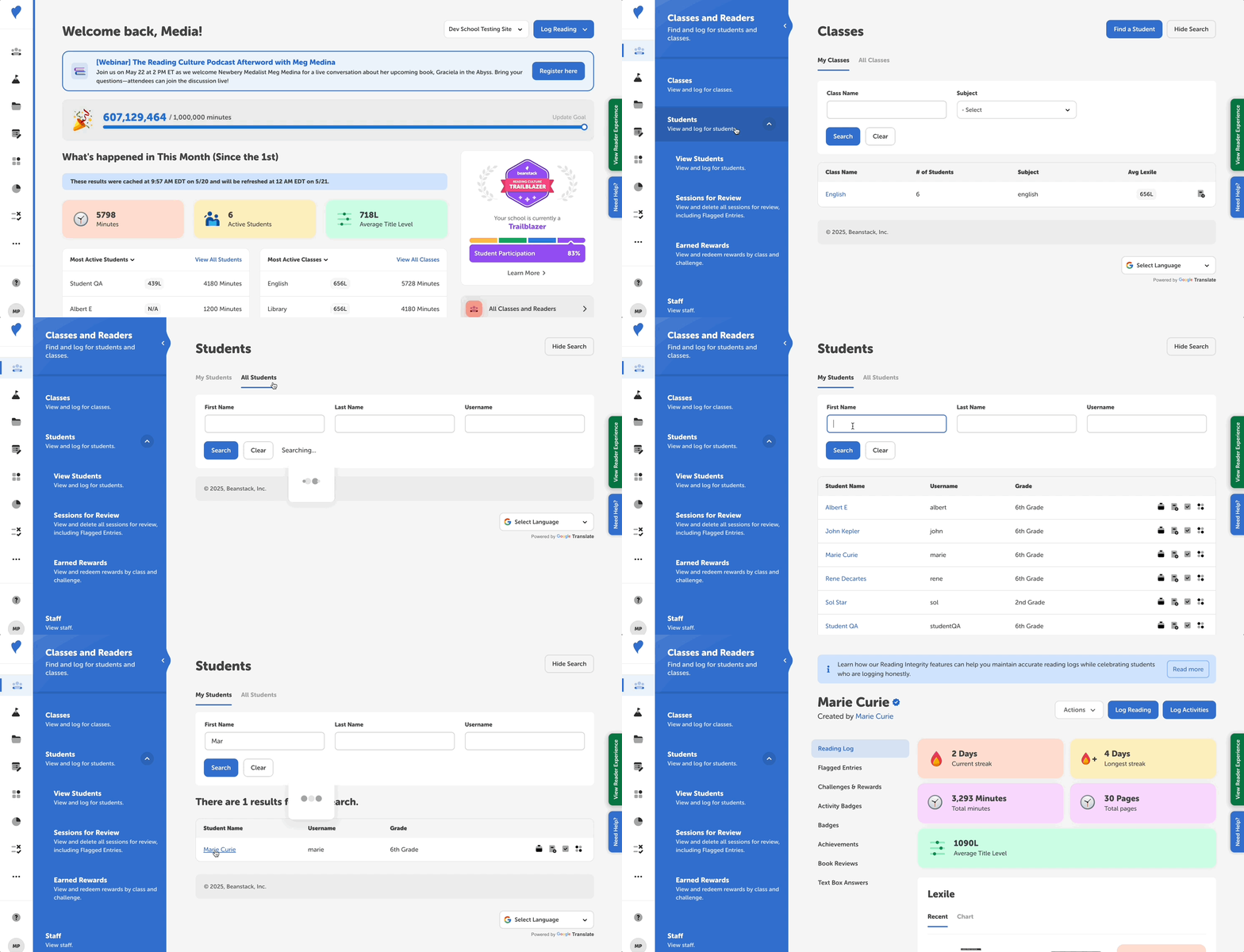
Navigate to Classes and Readers > Students > View Students.
-
If you have classes rostered to you, you will see a “My Students” tab that displays all the students in your classes, as well as an “All Students” tab that displays all the students in your school. If you do not have classes, you will just see “All Students.”
-
-
Within the correct tab, input the student’s information and click “Search.”
-
Once you find the correct entry, you can redeem rewards, log reading, log activities, or enroll that student in a challenge by using the quick action icons in the far right column.
-
-
Click the student’s name to view more detailed information such as their streaks and total logged minutes. You can use the navigation menu on the lefthand side of the screen to view their reading log, earned badges, achievements, and more!
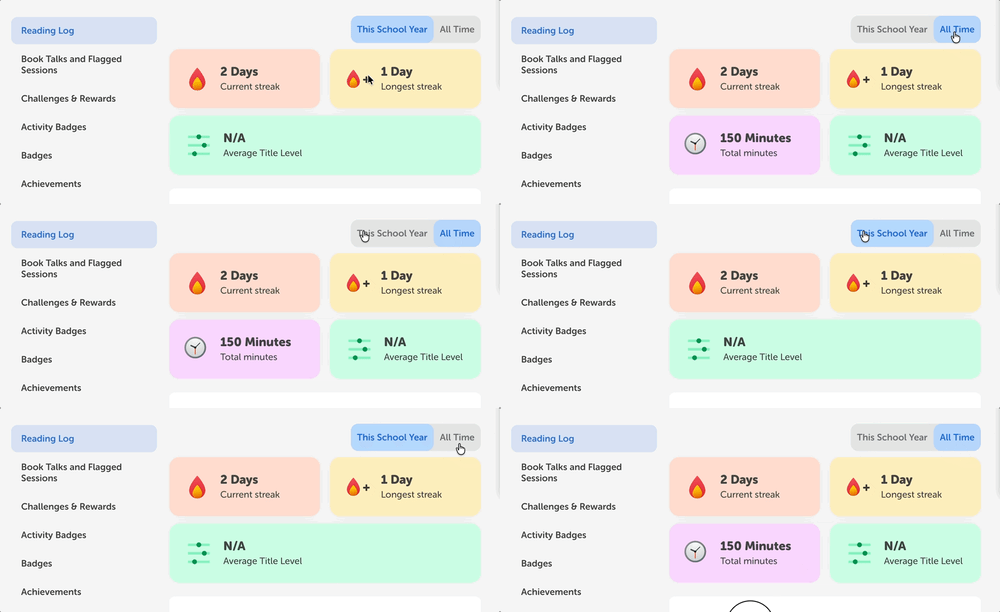
Note: Near the top of an individual student’s reading log, you can toggle between “All Time” to see total minutes logged since their profile was created or “This School Year” to see total minutes logged since August 1st.