

Tags: Logging, Staff, Media Specialists
Media specialists may also log their own reading sessions on their school site! The following steps will teach you how to do so on both the admin and reader views.
On the admin view
On the reader view
On the admin view
-
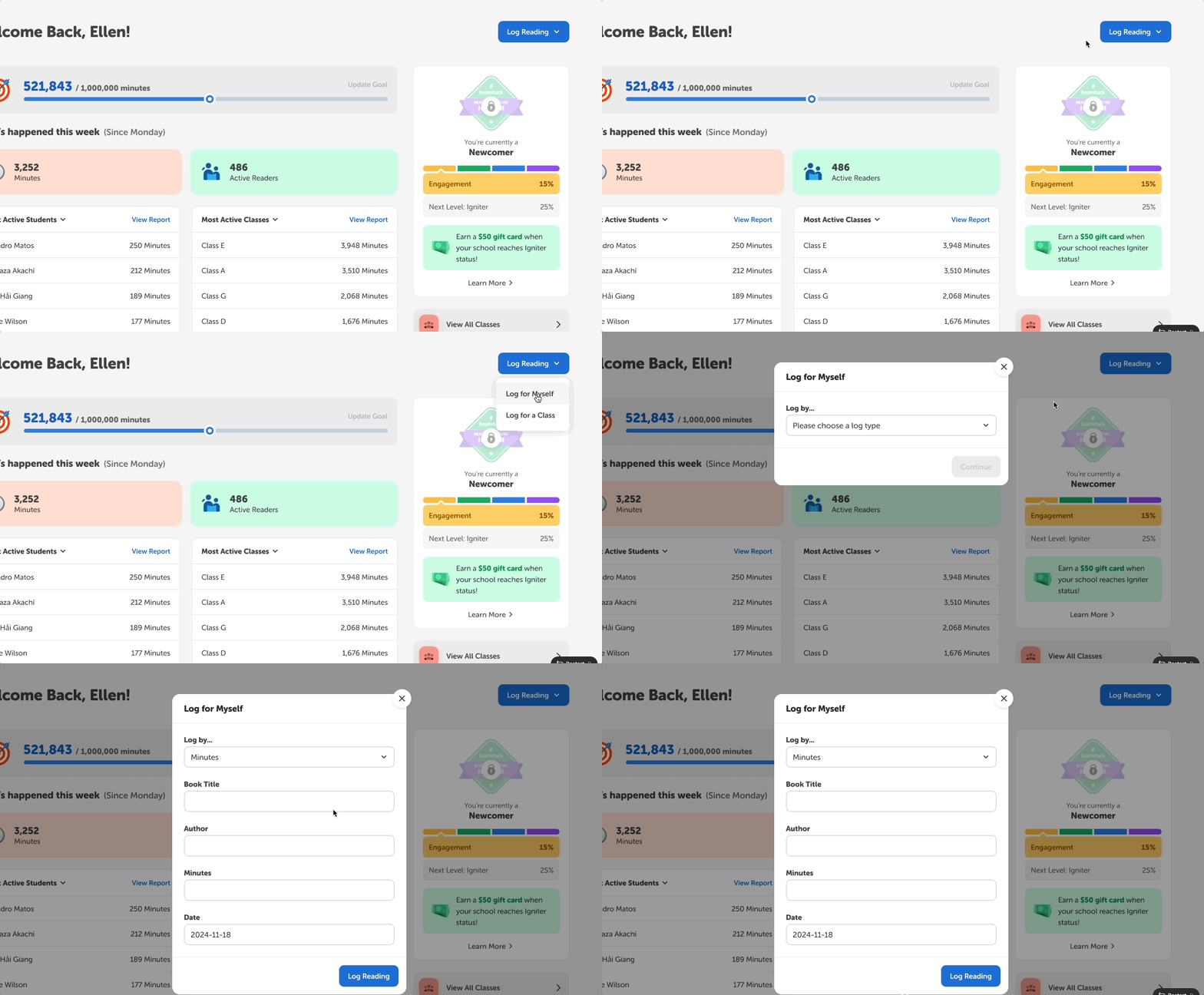
After logging onto your Beanstack admin account, select the “Log Reading” dropdown menu located in the top-right corner.
-
From there, select “Log for Myself.” This will bring up a new form. After selecting “Please choose a log type” under "Log by...", you can enter book data for yourself as a media specialist, including:
-
Log type (e.g., minutes)
-
Book Title
-
Author
-
Minutes
-
Date
-
-
Click “Log Reading” when you’re done!
Note: The options available to you depend on your school’s setup and your current challenges. If you are enrolled in any reading list challenges, you will see an option to log those titles as well.
On the reader view
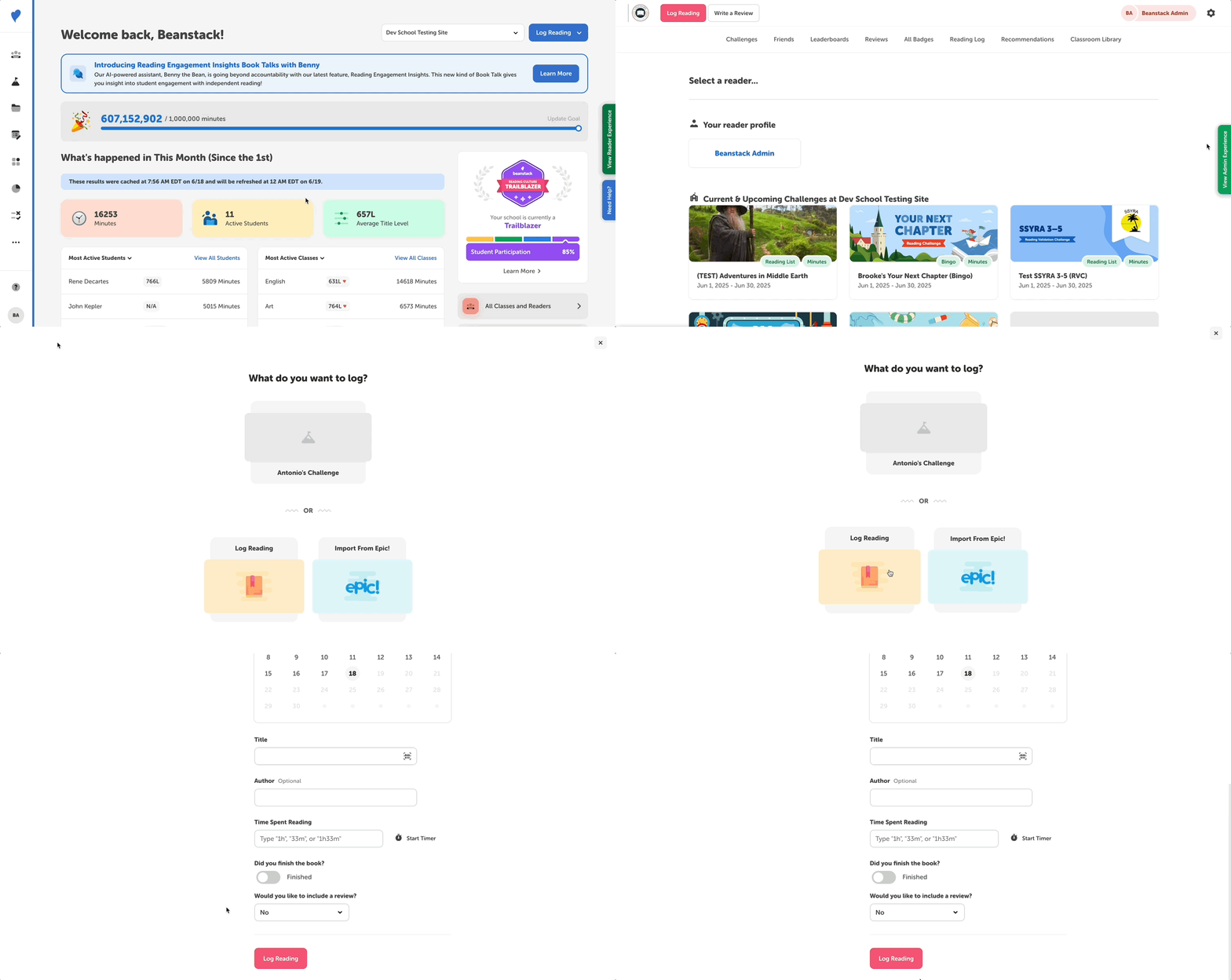
- From the admin view of your school site, click the green “View Reader Experience” tab on the right.
- From here, ensure you are on the reader view for your account and not for any rostered students.
- Note: If you log out of your site while in the reader view for a specific student, you will still be in that student’s reader experience when you log back in and click “View Reader Experience.” This does not mean that a student has admin access, it just means you haven’t switched back to your profile on the reader view.
- Click the “Log Reading” button near the top left of the screen.
- On the “Who do you want to log for?” screen, select the your name from the dropdown menu. This screen will appear if you have any classes or students rostered to you.
- Select your log type and then click “Log Reading” when you’re finished!