
Tags: Activities, Challenges, Setup
This article pertains to non-repeatable activities. Library clients can learn about repeatable activities here.
Library administrators and school staff can create a challenge based solely on completing activities. We recommend including logging badges in challenges whenever possible, as they are at the heart of Beanstack’s gamification tools and substantially increase reader engagement in a challenge.
Note: If you still wish to create an activities-only challenge, we strongly recommend against using activity badges to ask readers to log their reading. Instead, consider creating a reading list challenge if you want to require specific titles or including logging badges if you want to require a certain number of days, minutes, pages, or books read.
Remember that we always recommend creating new challenges or duplicating existing ones to launch new challenges, and strongly counsel against editing over existing challenges. And don’t forget to save your work often!
-
Log in to the admin view of your site.
-
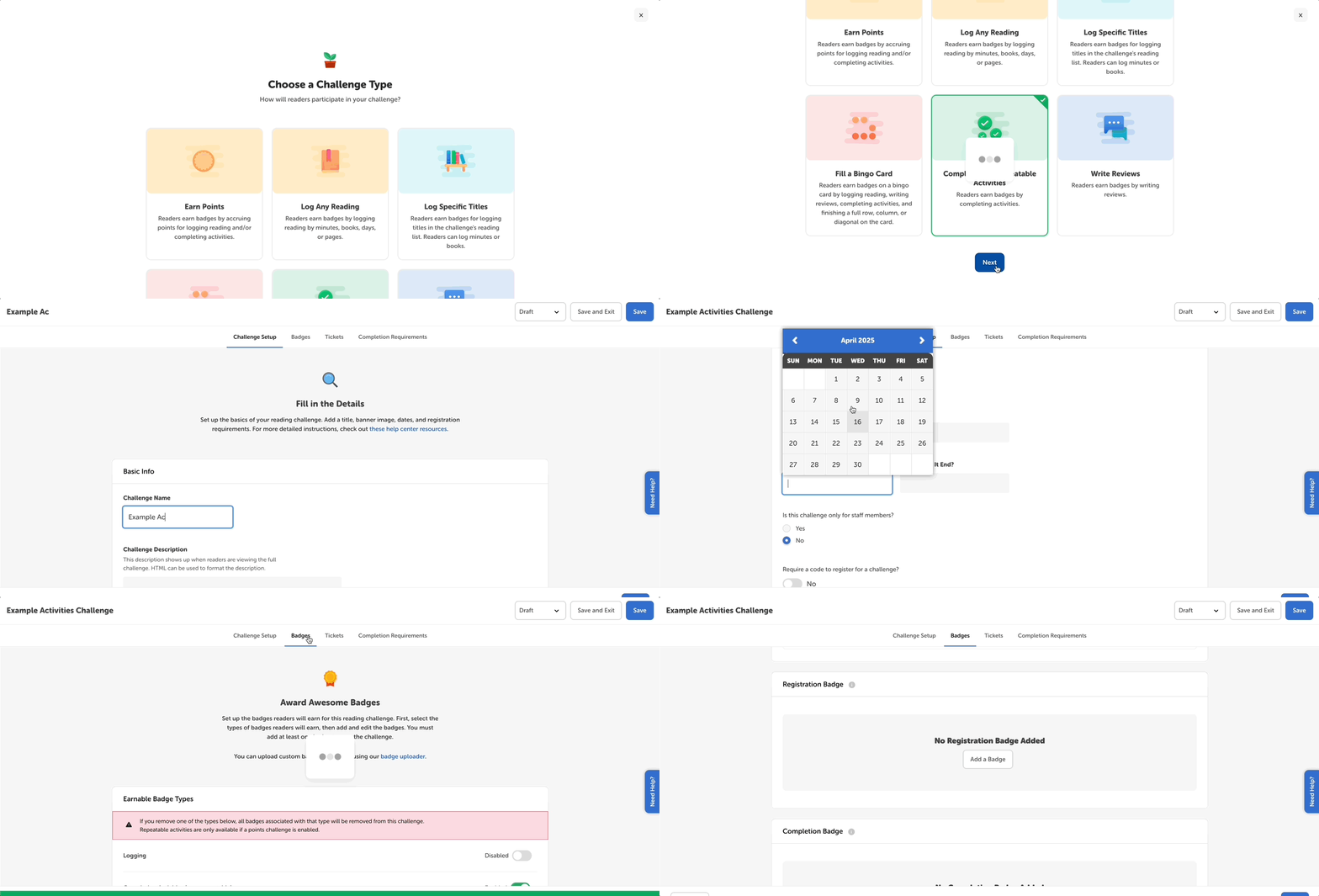
Go to Challenges and click “Create a Challenge.”
-
Select “Completing Non-Repeatable Activities” as the way that readers can earn badges in your new challenge. If you’re a school client, this option will be “Complete Activities.”
-
You can also select and combine other badge types, like “Log Any Reading,” ”Fill a Bingo Card,” and/or “Write Reviews.”
-
-
Then, decide if you want to create a custom challenge from scratch or use one of Beanstack’s challenge templates. Click on your choice.
-
Customize all your setup details within the “Challenge Setup” tab and click “Next.” Depending on your site type, use one of the following for more details about each setting available to you:
-
Click the “Badges” tab so you can add and edit the earnable badge types, badge time restrictions, and individual activity badges and their rewards and certificates.
-
Ensure “Completing Activities” is enabled as an earnable badge type.
-
-
We always recommend adding a registration badge. To do so, click “Add a Badge” under “Registration Badge,” select your badge image, and then set up any attached registration rewards.
-
In the “Activity Badges” section, create, reuse, and/or duplicate a badge for your challenge and add activities for them. For more information, follow the steps in this article.
-
Next, click the “Tickets” tab to set up a set up a ticket drawing. This is optional; if you’re not using tickets, you can ignore this step! Otherwise, see this article to set up a ticket drawing.
-
Lastly, click the “Completion Requirements” and select one of the following:
-
“Require Specific Badges” if you want to select which badges readers must earn.
-
“Require Specific Badges” if you want to select which badges readers must earn.
-
“Require Some Badges” if you want to set a number of badges readers must earn, within which you can also pick specific badges.
-
Note: If your challenge includes a completion badge, readers will be notified when they hit the completion requirements by earning the completion badge. If your challenge does not include a completion badge, then you and your staff will be able to track completions in Insights and Reports, but readers will not be notified of completing the challenge when they hit the completion requirements.
-
-
Keep your challenge in draft mode while you’re finalizing and testing the details.
-
Either click “Save” to keep editing your challenge or “Save and Exit” to go back to all your challenges.
-
-
To publish, click the “Draft” dropdown, select “Published,” and then click “Save.”
Note: Once you save a challenge in a published state, it is live on your site!