

Tags: Content, Books Lists
After you create a book list on your Beanstack site, you’ll need to make sure the list is visible on your site.
Note: If the book list was previously unchecked, it is moved from the “Showing” tab to the “Created By Us” tab.
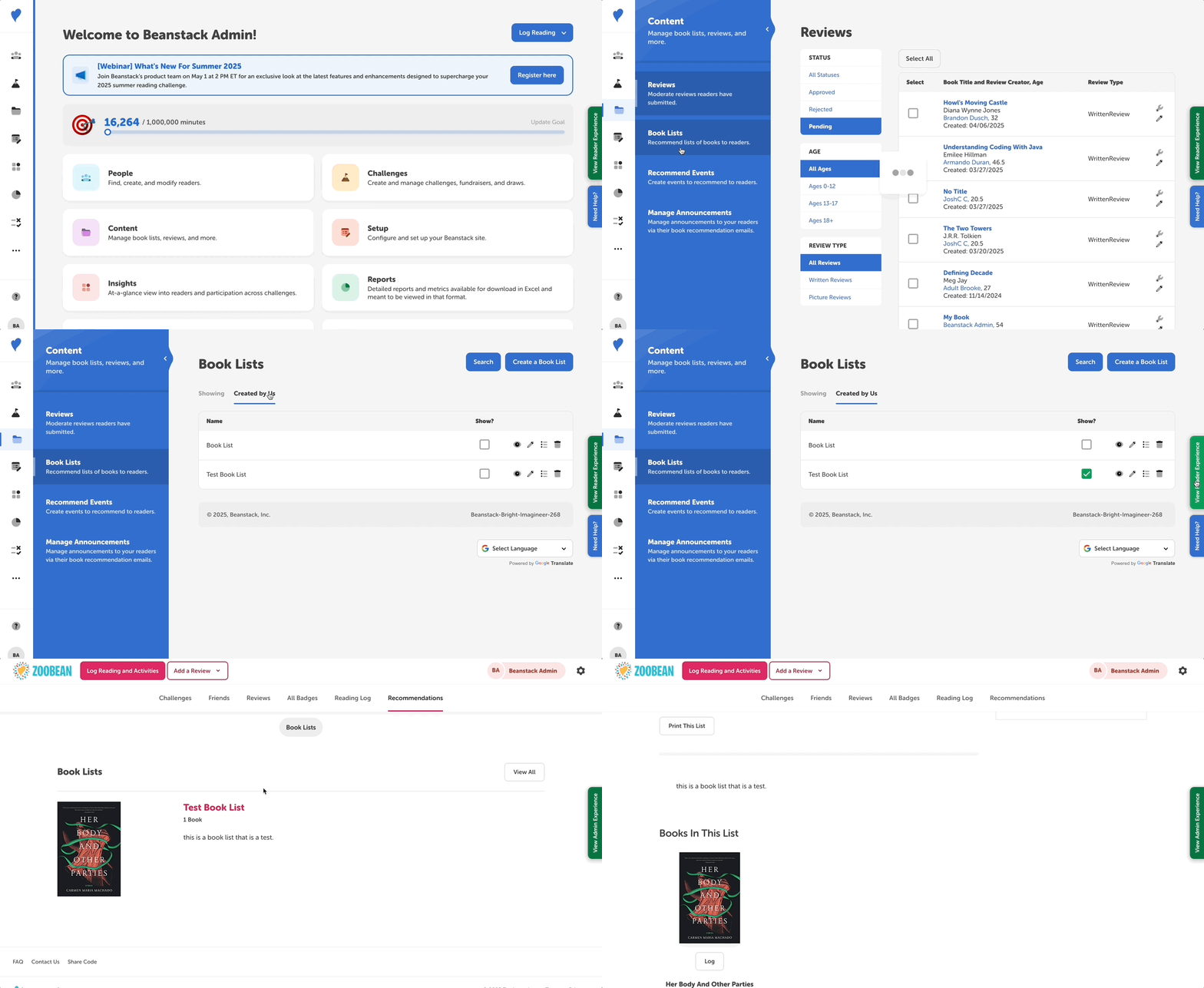
Once “Show?” box has been checked, the book list appears to readers on your site under the “Recommendations” tab on the web or in the “Discover” icon and then the “Book Lists” tab on the mobile app. The “Recommendations” or “Book Lists” tabs do not appear unless a book list has been created and set to show on your site.
If you followed all the steps above and the “Recommendations” and “Book Lists” tabs are still not appearing in the reader view, try one of the following:
-
Refresh your site in the admin view:
-
Go to Setup > Logging Settings (libraries) or Setup > Reading Integrity Settings (schools).
-
Check and uncheck a log type to refresh your site (and making sure you have all the same inactive and active log types selected when you leave the page).
-
Then, navigate back to the reader view and ensure that the “Recommendations” tab is appearing on the web and the “Book Lists” tab is appearing on the mobile app.
-