

Tags: Staff, Media Specialists, Epic!
You can choose to allow your readers to import their reading sessions from Epic! into Beanstack. This will allow them to count their reading on Epic! toward milestones and badges in your site’s challenges.
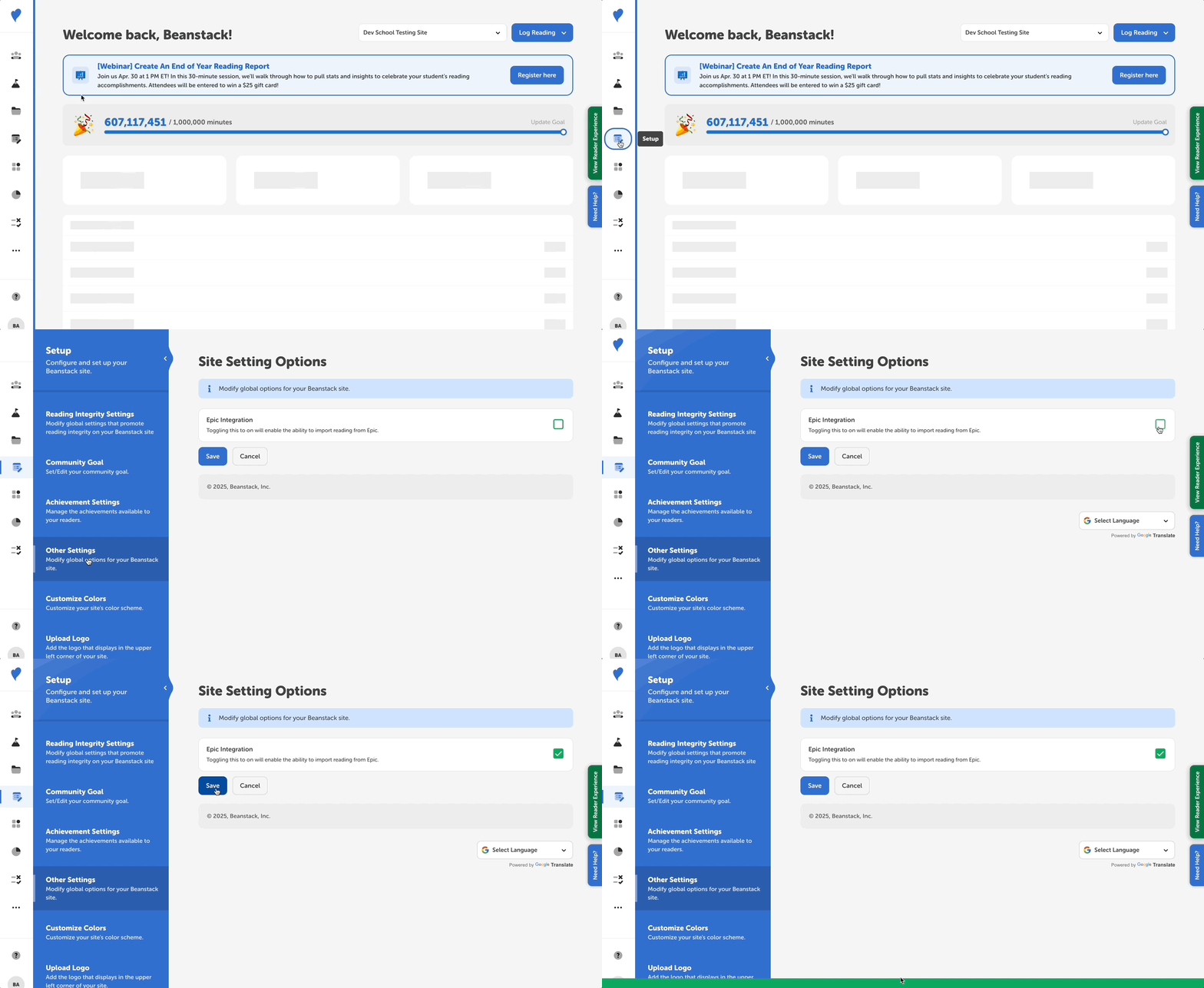 To enable the Epic! integration on your site, follow these steps:
-
Log in to the admin view of your school site.
-
Navigate to the Setup > Other Settings.
-
Check the box on the right next to “Epic Integration” to enable it for your site
Once you have Epic! integrated with your site, your readers’ logging through Beanstack or through Epic! imports will appear identically in reports and insights.
Important Notes:
-
Readers should import often to ensure all reading is synced with Beanstack. Epic! imports are not retroactive prior to integration and import dates, including start date, cannot be specified. Imports can also only apply to recent Epic! sessions. Once you have Epic! integrated with your site, your readers should make sure to import reading from Epic! frequently.
-
Readers can only import reading between 7a.m.-3p.m. Due to Epic’s existing account constraints, importing is only available between the hours of 7a.m.-3p.m. local time. If an error occurs outside this window, please wait until the next available period to try again. If you continue to face issues, please contact our support team.
-
Reading Integrity Settings do not apply to Epic! imports. This includes log warnings, caps, and integrity limits.
-
Epic! reading sessions do not count toward all log and challenge types. Due to data sharing limitations, Epic! logs do not count towards reading list challenges or for pages read.
-
Epic! accounts with any duplicate names cannot import their reading sessions. To fix this, users will need to visit the Epic! website and give each reader on their account a unique name (by adding a middle initial or a number, for example).
-
Epic! data will appear in Reports and Insights. However, readers’ Beanstack logging and Epic! imports will appear identically in reports and insights with no indication of the logging source.