Tags: Landing Page, Setup
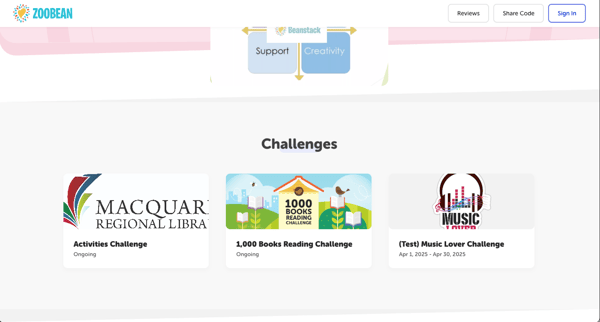
 You can feature up to 10 current and upcoming published challenges on your landing page in the form of “challenge cards.” These display the challenge image, title, and dates, as well as a short challenge description when clicked.
-
Log in to the admin view of your site.
-
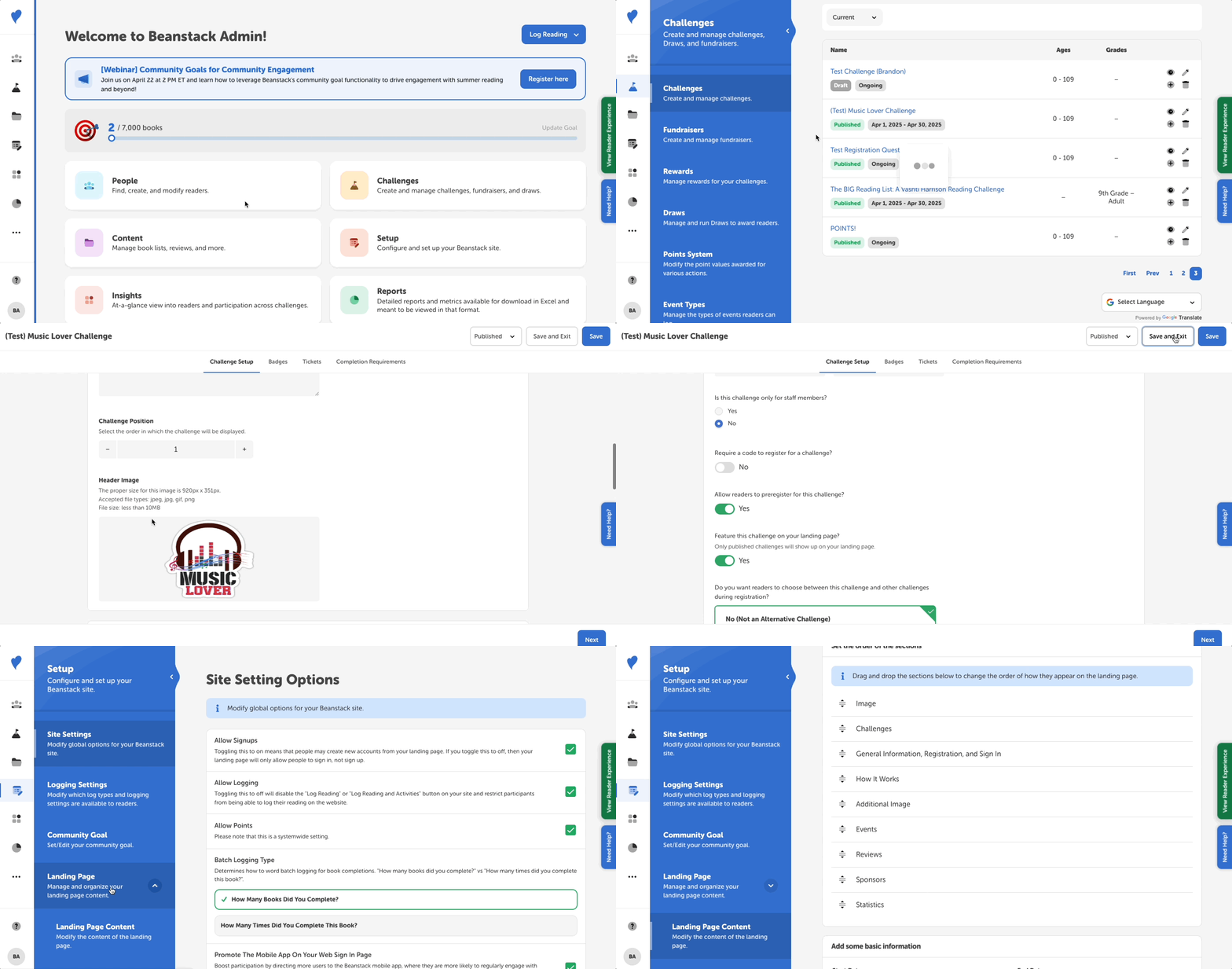
Navigate to Challenges and go “All Challenges” to determine which challenges you want to feature on your landing page.
-
All challenges set to be featured on your landing page will have a green “Landing Page” tag under the challenge name.
-
-
Click the pencil icon next to the challenge you'd like to display.
-
You’ll be asked to confirm you want to make changes to the published challenge.
-
-
On the challenge setup page, enter the Challenge Card Description. This shortened challenge description will display on the landing page and when readers are logged in and exploring new challenges that they have yet to enroll in. If you leave this field blank, your Challenge Description will display instead.
-
Scroll down and toggle “Feature this challenge on your landing page?” to “Yes.”
-
Ensure the challenge is finalized and published in order for it to display. Draft challenges will not display on your landing page, even if toggled to feature.
-
Click “Save.”
-
Navigate to Setup > Landing Page > Landing Page Content and update the order of your landing page components as needed to ensure “Challenges” will display where you'd like.
-
Scroll down and enable feature challenges by selecting “Yes” under the question “Would you like to feature challenges?”
-
The challenges you have selected to display will then appear, and you can drag and drop individual challenges to reorder them.
-
-
Save your landing page settings.
If you log out of your site, you will be on the landing page and find all your displayed current and upcoming challenges: