

Tags: Libraries, Readers, Accounts
Note: Adding/deleting readers is possible with library sites only. It is not currently supported on school sites.
Adding a Reader
You can add readers to your account at any time.
-
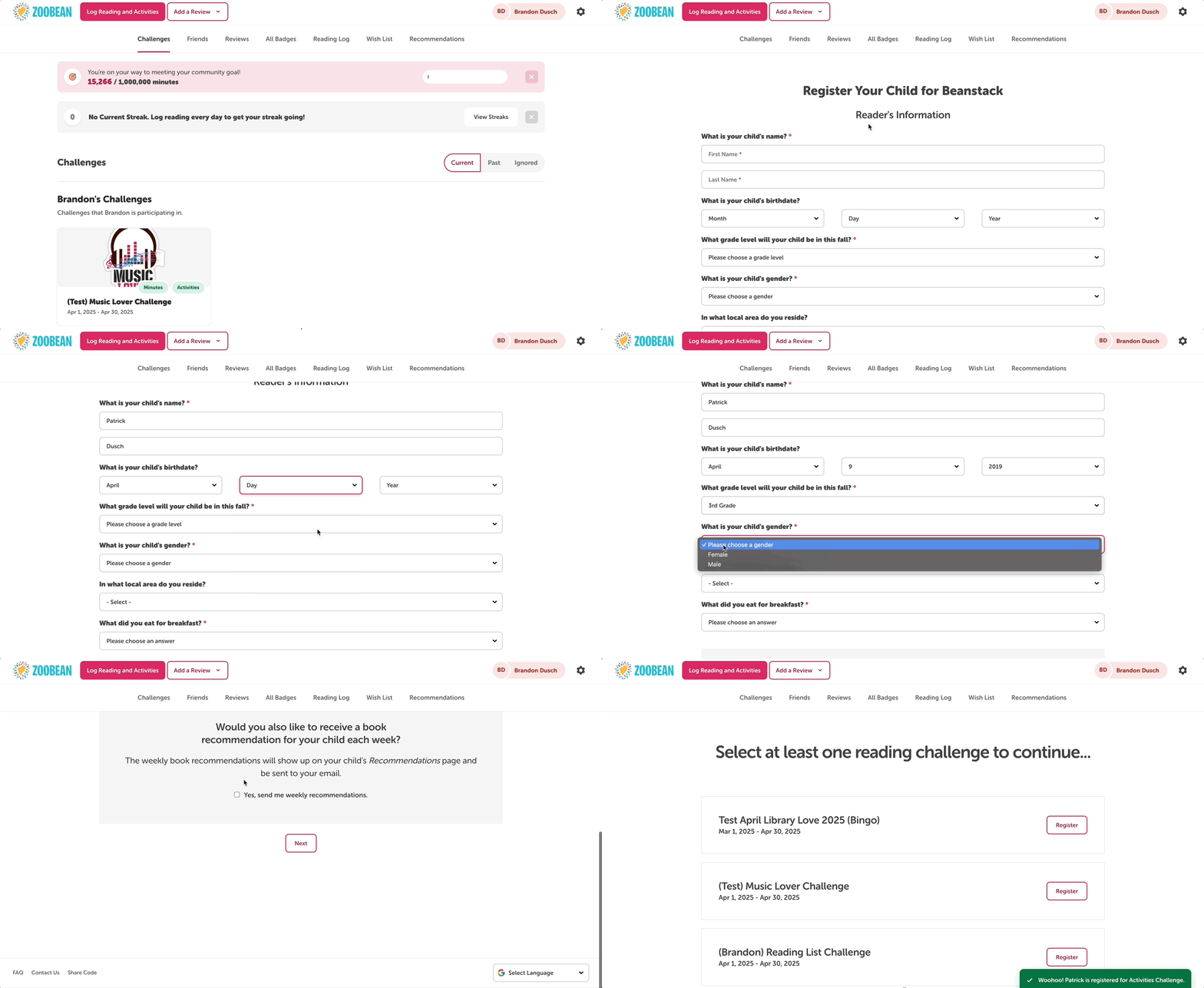
Click the reader name in the top right corner of your screen.
-
At the bottom of the reader dropdown, select “Add a Reader.”
-
Then, follow the prompts to add the personal and required information for the new reader.
-
You’ll also need to register the new reader for at least one challenge.
-
Deleting a Reader
You can also delete a reader at any time.
Note: This is an irreversible action that scrubs their reading data forever.
If you would still like to move forward with deleting a reader:
-
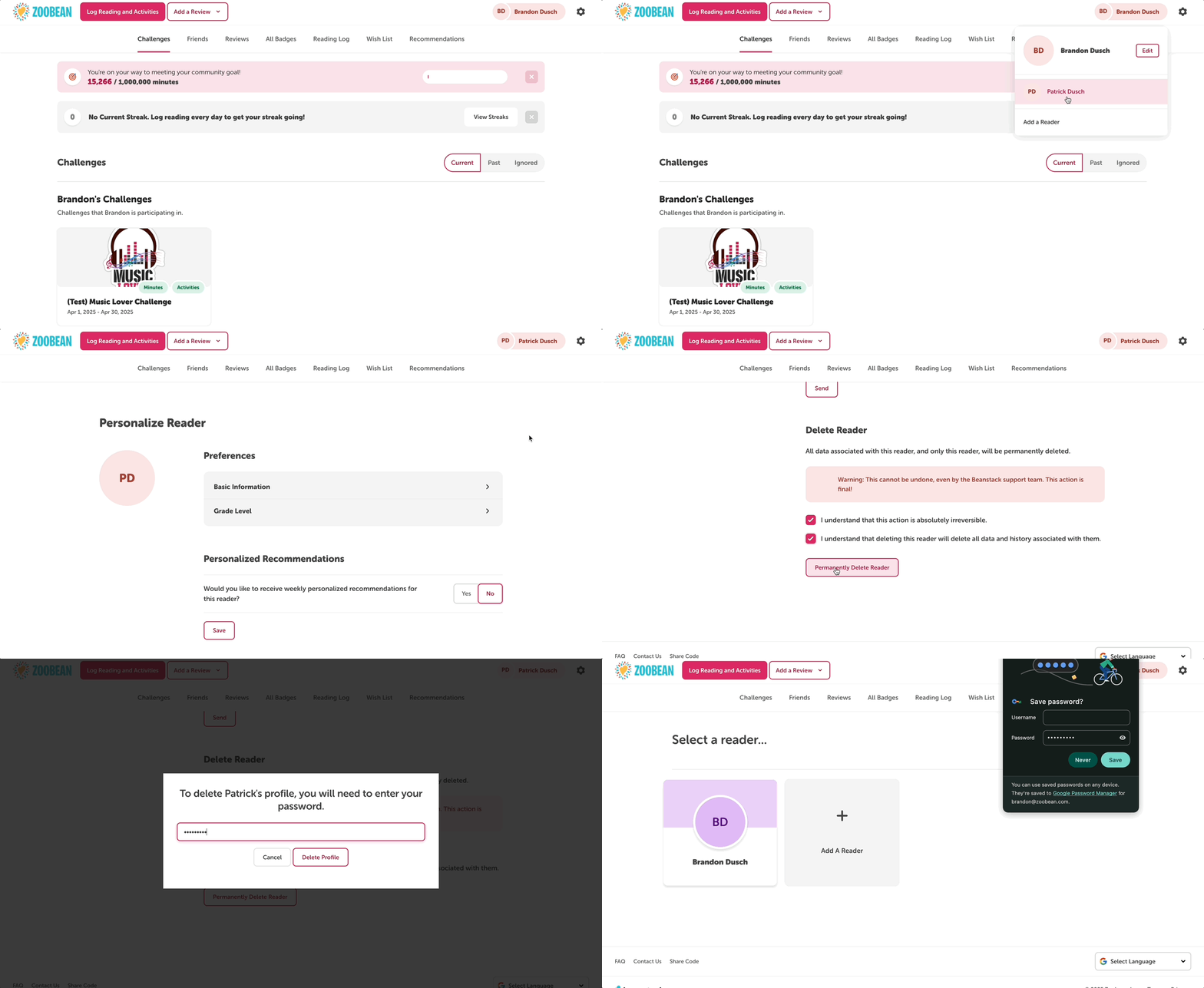
Select that reader name to toggle to their dashboard.
-
Click the “Edit” button next to their name. This will take you to their personal preferences and information.
-
Scroll down to the bottom of the page to the “Delete Reader” section and check off the corresponding boxes.
-
Click “Permanently Delete Reader” and confirm the action with the account password. Remember that this will permanently delete that reader and their data forever.