

Tags: Libraries, Staff Actions
When viewing a reader’s profile from the admin view, staff can add notes to individual readers. This can be helpful if tracking location-specific information or incentives that are not collected site-wide.
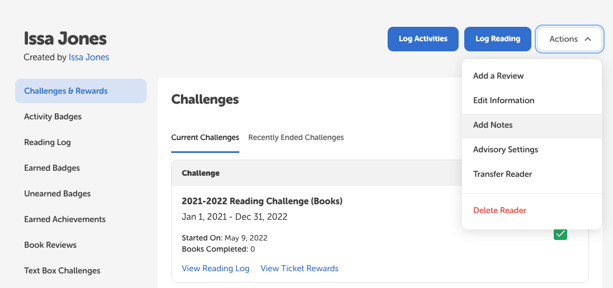
To add, edit, or view a note:
-
Log in to the admin view of your site.
-
Navigate to People > Find A Person.
-
Search for the reader and click their name in the “Reader” column to open their profile page.
-
Click the “Actions” dropdown in the top right corner of the screen and select “Add Notes.”
-
Add or edit the information in the note.
-
Click “Save.”
To view all readers’ notes in a report, staff can run the “Individual Reader Participation by Challenge” report, customize the columns to include the “Notes” column, and then download the report and sort by that column.