
When setting up your reading fundraiser, a host of pre-created prizes are included in each fundraiser template. Administrators can edit, remove, or add prizes as they see fit, as well as change the badges they are earned with. Keep in mind that prizes cannot be edited after your fundraiser is live!
Follow the steps below to edit, remove, or add prizes to your draft fundraiser.
- Log in with your media specialist plus or library administrator account.
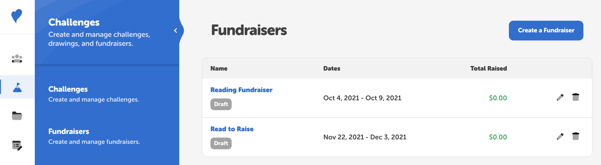
- Navigate to Challenges > Fundraisers.
- Edit a draft fundraiser by clicking the pencil icon to its right.
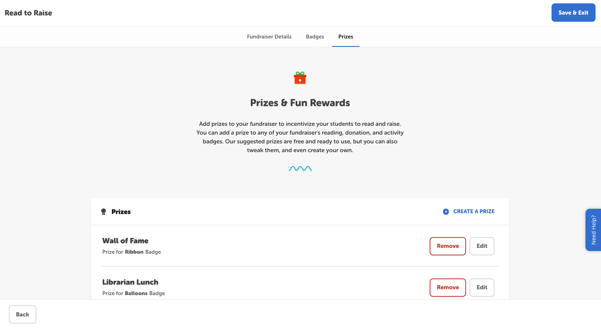
- Click over to the “Prizes” page to see all the prizes included in your fundraiser.
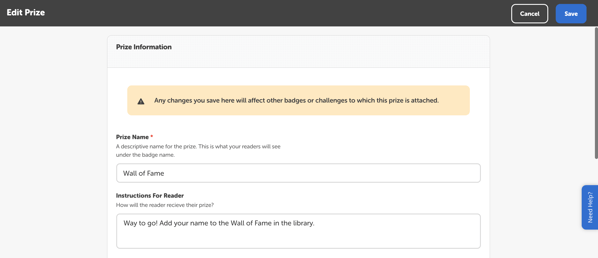
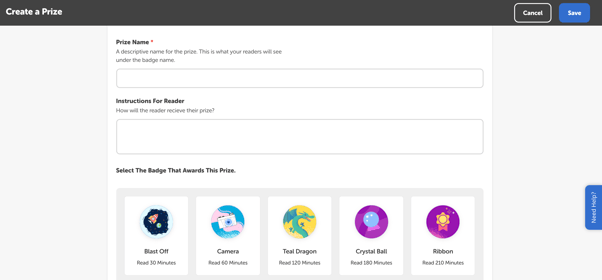
- Click the “Edit” button to the right of a prize to customize it. You can edit the name of the prize and the redemption instructions the reader sees when they earn it.
You can also edit the badge to which the prize is attached by clicking on a different badge image.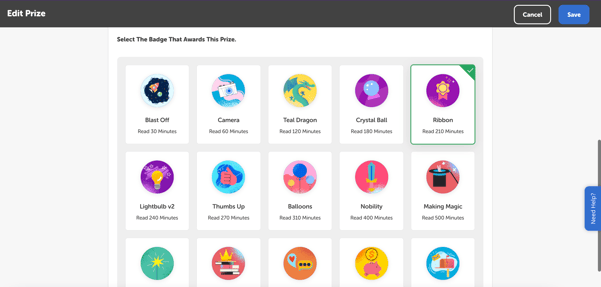
Click “Save” when done. - You can click the “Remove” button to the right of a prize to delete it from your fundraiser.
- And clicking “Create A Prize” allows you to create a new prize from scratch. Fill in the prize name, add the instructions, and select the badge(s) that will earn the prize before clicking “Save.”
- Make sure to click “Save & Exit” when you’re done editing your fundraiser to save your changes.