

You can turn on the track progress setting for a title to see how much of the book you have read, which then updates each time you log more pages of reading for that title. Titles for which we have page information default to enable this setting, but you can always enable it and input your book’s overall page information manually!
To turn on track progress for a new title, follow the steps below:
-
Once logged, tap the + plus icon at the bottom center of the screen, select “Reading.”
-
Select the reader(s) you’d like to log for if you have multiple readers on your account.
-
-
Input your title, author, or ISBN in the search bar and select the accurate title or scan the book’s ISBN.
-
On the “Confirm Title” page, toggle on the “Track Progress” setting and then input the first page number and last page number of your book.
-
Tap “Save” when done.
-
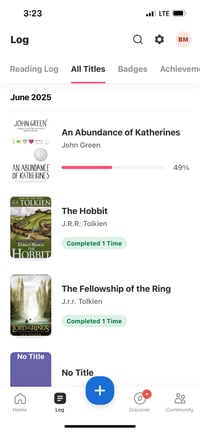
Proceed to log your reading, making sure to include the last page read. You can follow your progress within your log by navigating to Log > All Titles > the “All Titles” tab.
To turn on track progress for a title already in your log, follow the steps below.
-
Once logged in on the app, navigate to “Log” and tap the recently logged title for which you’d like to enable track progress.
-
Tap the ... three dots icon in the upper righthand corner of the screen and select “Edit Title.”
-
Toggle on the “Track Progress” setting and then input the first page number and last page number of your book.
-
Tap “Save” when done.
-
Proceed to log your reading, making sure to include the last page read.