Submitting a book review in Beanstack is a great way to tell your community about your favorite reads!
Note: Picture reviews are not currently available in the mobile app. If your site accepts picture reviews, you can upload your image or video file through your browser. Not sure of your library or school's URL? Find it here or contact Beanstack Support.
Follow the steps below to leave reviews in the mobile app and maybe even earn an achievement or review badge:
- Once logged in, tap the “+” plus icon in the bottom center of your screen.
- If your site accepts book reviews, you will be able to see and select the “Review” option.
- If you’re on a library site, you may need to select which reader is writing the review, and then tap “Choose Reader.”
- Select the book you want to review, either by tapping a recently logged title, searching for and selecting a book title, or scanning an ISBN.
- Then, tap “Write Review.”
- Type in your review in the text box. Keep in mind that your librarian or site administrator will read and approve your review before other readers can view it, and that some sites require a certain number of characters in order to submit a review. Once you’re finished, tap “Post.”
- A notification will pop up letting you know your review has been submitted, as well any earned achievement or review badges.
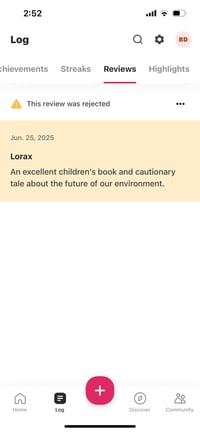
- You can view, edit, or delete any reviews you submitted by tapping the “Log” icon at the bottom of your screen, scrolling to the right, and selecting “Reviews.” Tap the “...” icon next to the review you want to change and then select “Edit Review” or “Delete Review.”
- If your librarian or site administrator rejects your review, you can still it but it will be marked as rejected on the app: