
Tags: Challenges, Reading Lists, Setup
Library administrators and school staff can now create reading list challenges on their Beanstack sites, which specify a list of books from which readers must log to progress in the challenge. You can create a reading list challenge from scratch or load a reading list challenge template onto your site to customize and publish.
Note: Any in-app reading content Beanstack and its partners provide are only available via reading list challenge templates, and not through custom-made challenges (even if they use the same titles).
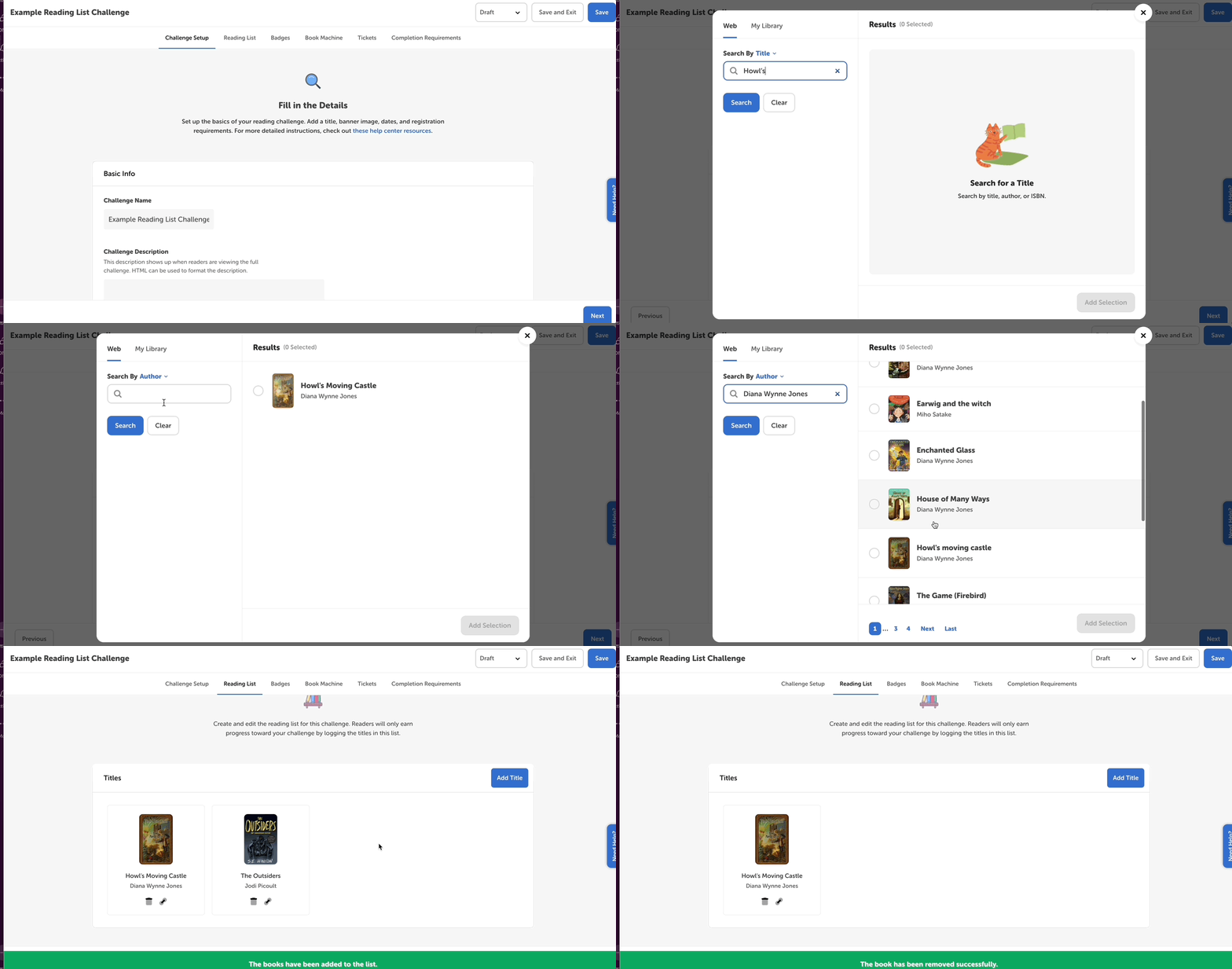
The steps below will walk you through adding titles to the challenge's reading list. Remember that readers will only earn badges in your challenge by reading the titles included here.
-
Log in to the admin view of your site.
-
Go to Challenges and edit your draft reading list challenge.
-
Click over to the “Reading List” tab.
-
Click “Add Title” to open the title search and selection window.
-
Enter a title, author, or ISBN from a book you would like to add to your reading list and click “Search.”
-
Use the dropdown to change between “Title”, “Author”, or “ISBN.”
-
-
Locate the accurate title(s), making sure to confirm the author and cover image, and then click on it. You will see the title(s) highlighted in green with a check mark in the corner to indicate they have been selected. When done, click Add Selection.
-
Note: You can select multiple titles in one search, but cannot include more than 30 titles in each reading list challenge.
-
-
Click the trashcan icon under a title to remove it from the reading list. Click the link icon under a title to add an external URL to that title in your e-resources or catalog. Drag and drop a title card to change its order.
-
Click “Save” when your list is finalized.