

Tags: Challenges, Setup
When creating a new challenge for your community, it can be a good idea to test out the reader experience participating in the challenge before publishing it. In the admin view, the preview and duplicate options can be good challenge simulators, for ensuring correct content and behavior prior to publishing.
Note: It is not possible to simulate a drafted challenge in the mobile app experience.
After logging in and navigating to Challenges, there are a few ways to test a challenge:
Duplicate a challenge for staff testing
Use the preview option
To preview a challenge:
- Find the draft challenge and click the eye “👁️” icon to preview the challenge.
- After the preview is opened, navigate between the overview and any other tabs (e.g., “Activities” or “Tickets”).
Duplicate a challenge for staff testing
Follow the steps below to create and try out a staff testing challenge:
-
Find the draft challenge you want to test out and click the plus “+” icon to its right to duplicate it. This lets you test a challenge without impacting the original.
-
Once duplicated, the cloned challenge automatically opens up for you to edit. Edit the challenge name to add testing or staff to the title and then scroll down to the challenge ages.
-
To test a challenge from the reader side, a reader must be within the specified age range, or else the challenge will not be available for enrollment. The easiest way to avoid problems with age availability is to change the challenge’s age or grade range to the upper limit, so that all staff readers can help test the challenge, regardless of age.
-
If you’re testing multiple alternative challenges in tandem, perhaps to see who is eligible for which challenge based on their age or grade, then you may decide to keep the age ranges the same. If so, you’ll want to make sure you have readers within the challenge’s age ranges in order to test them.
-
-
Next, update the challenge’s start and end dates so that it starts today and ends when you want to close testing.
-
If your challenge has any restricted badges, note that they will not be available to earn during testing unless you also update their dates.
-
-
Below the date fields, there is a question asking “Is this challenge only for staff members?” Select “Yes” so that only accounts with staff access or higher can see and register for this challenge.
-
If you included ticket drawings in your challenge, double check the “Tickets” tab to ensure they match with your original challenge. Please note that you may need to re-add the number of tickets to your badges. (This is intended to prevent duplicate ticket drawings appearing across multiple challenges.)
-
Change the challenge’s status from “Draft” to “Published,” and then click “Save and Exit.”
-
Switch over to your reader view by clicking the green “View Reader Experience” button on the ride side of the screen.
-
To test on mobile, you’ll need to search for the site name and log in with your credentials.
-
-
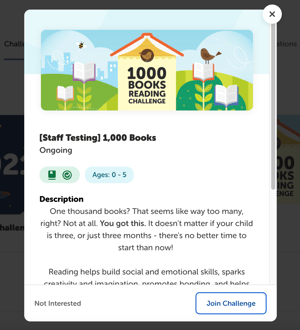
On your reader’s current challenges page, under “More Challenges,” click on the available testing challenge and then select “Join Challenge.”
-
Click the challenge card to access the challenge page, where you can view the description and all of the challenge’s components (e.g., badges, rewards, certificates, and ticket drawing prize options). You can also log reading and activities to experience earning badges and hitting key challenge milestones just like readers do.
-
Once you and your staff are done testing the challenge, head back to your admin dashboard to implement any desired changes in your original challenge and delete the training challenge if you desire.