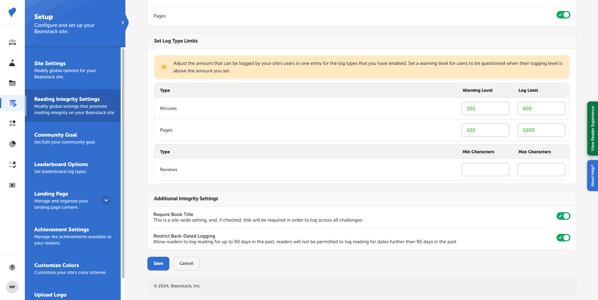
Beanstack helps school administrators ensure reading integrity with options to flag and limit suspiciously high reading logs.
Table of Contents
Log Warning Level
How to Track and Delete Flagged Log Entries
Log Limits
Daily Limits
How to set or change log warning and limit levels
Log Warning Level
Setting a log warning level for a specified number of reading units displays a warning and an extra verification check to students who log more than your limit in a single session. For instance, if you set the log warning level for minutes on your site to 120 minutes, any student who logs more than 2 hours in one reading session will see a warning message. They must then confirm that their log is true and accurate before proceeding.
If you would like to disable this feature, simply set the warning level to 0!
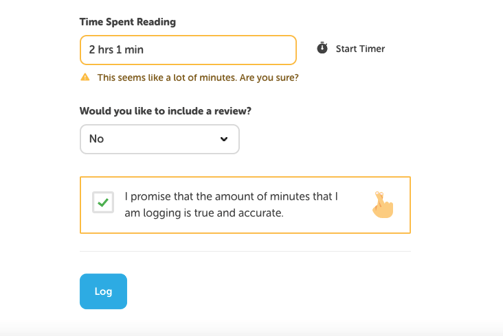
Note: For schools with Book Talks with Benny, students who log above this Log Warning Level will trigger a conversation with Benny.
How to Track and Delete Flagged Log Entries
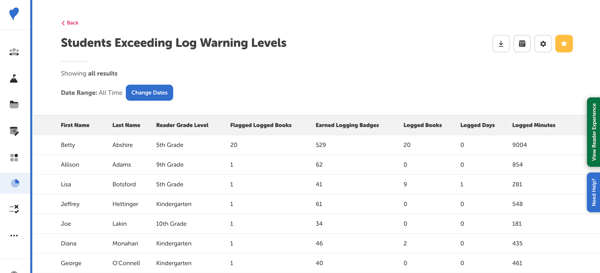
Any session that goes over your log warning limit appears in both the the “Students Exceeding Log Warning Levels” report and in Classes and Readers > Students > Sessions for Review.
Use the “Flagged Sessions” section to view flagged reading sessions and delete them in bulk.
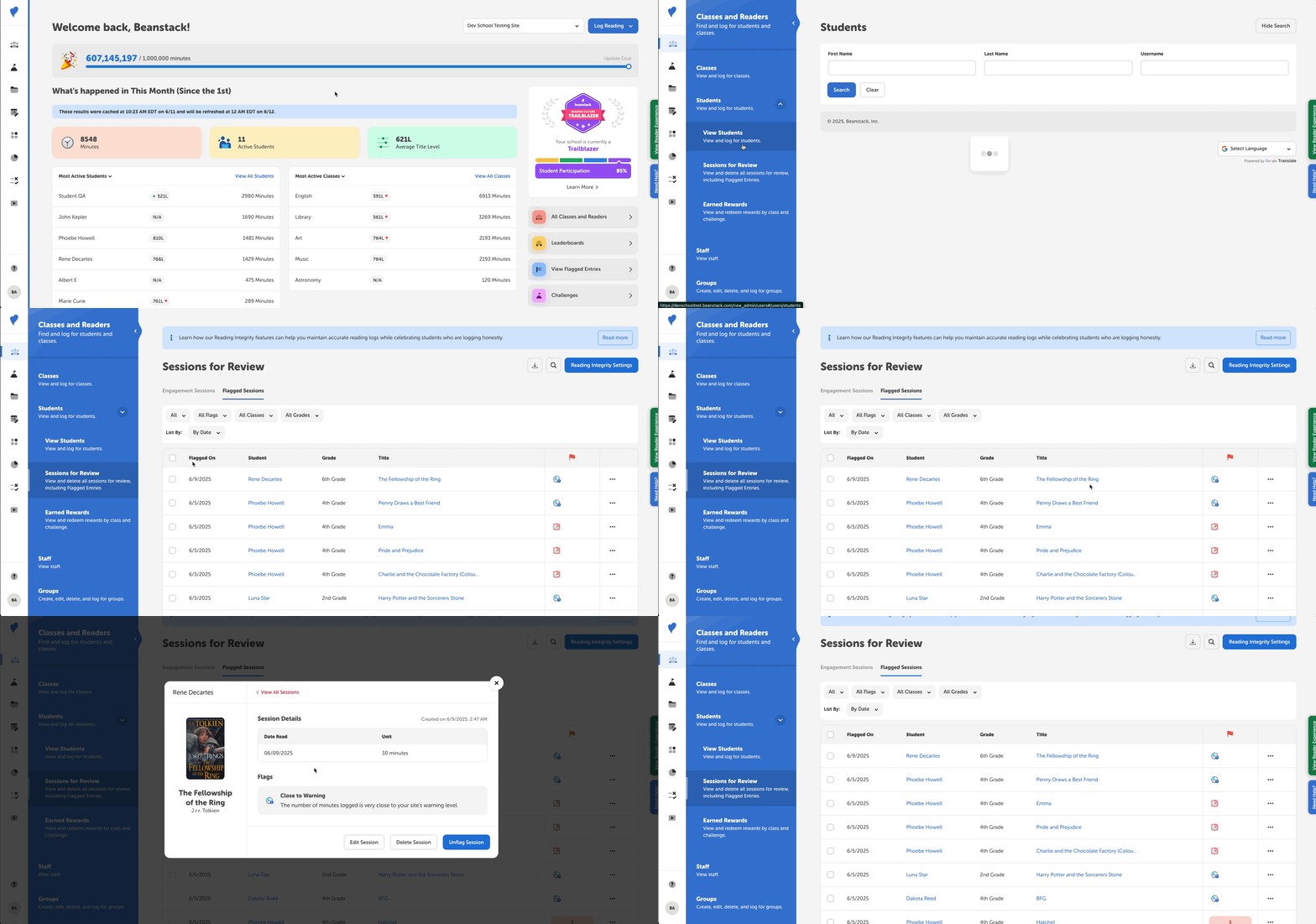
Note: For more about reviewing a student’s reading sessions, check out this article.
The “Students Exceeding Log Warning Levels” report can be used to restrict flagged logs by date. You can also schedule this report to be delivered to your inbox at regular intervals.
Finally, you can view and edit specific students’ flagged reading sessions in individual reading logs. Once you find a student using the search function within Classes and Readers > Students and searching for their name. Any flagged entries will appear with a yellow warning sign next to them. You can then choose to edit or delete flagged entries.
.jpg?width=670&height=202&name=A%20student%E2%80%99s%20reading%20log%20featuring%20a%20flagged%20entry%20with%20101%20minutes%20logged%2c%20beyond%20the%20set%20daily%20limit%20(1).jpg)
Per Log Limits
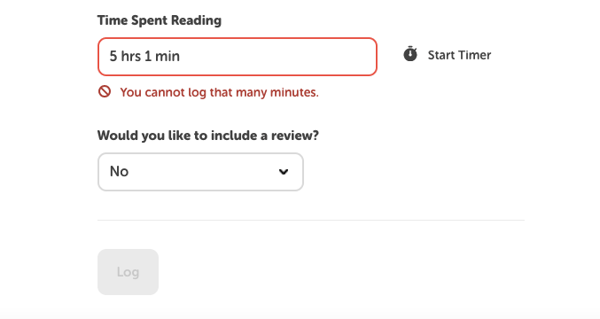
Setting a log limit completely restricts students from logging above the limit in a single reading session. If, for example, you set the log limit to 300 minutes, any student who tries to log more than 5 hours in one reading session will be unable to add the reading to their log.
Per Day Limits
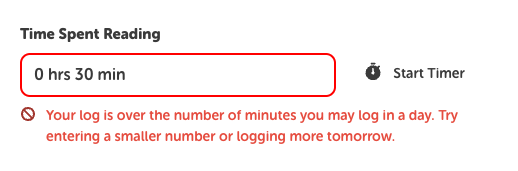
Setting a daily logging limit completely restricts students from logging above the limit in a single day. This daily total resets at midnight. If, for example, you set the log limit to 300 minutes, any student who tries to log more than 5 hours in one day will be unable to add the reading to their log for the remainder of the day.
How to set or change log warning and limit levels
To update log warning and limit levels for your site:
- Log in as a media specialist plus.
- Navigate to Setup > Reading Integrity Settings.
- Scroll down to “Set Log Type Limits.” Enter a log warning level and/or log limit level for your log types then scroll to the bottom of the page and click Save.