Once a library reader links to a school profile, they can end the link at any time. Revoking or replacing a tandem link does not remove any reading sessions added while the original profiles were linked, nor does it retroactively add past reading to any newly linked profiles.
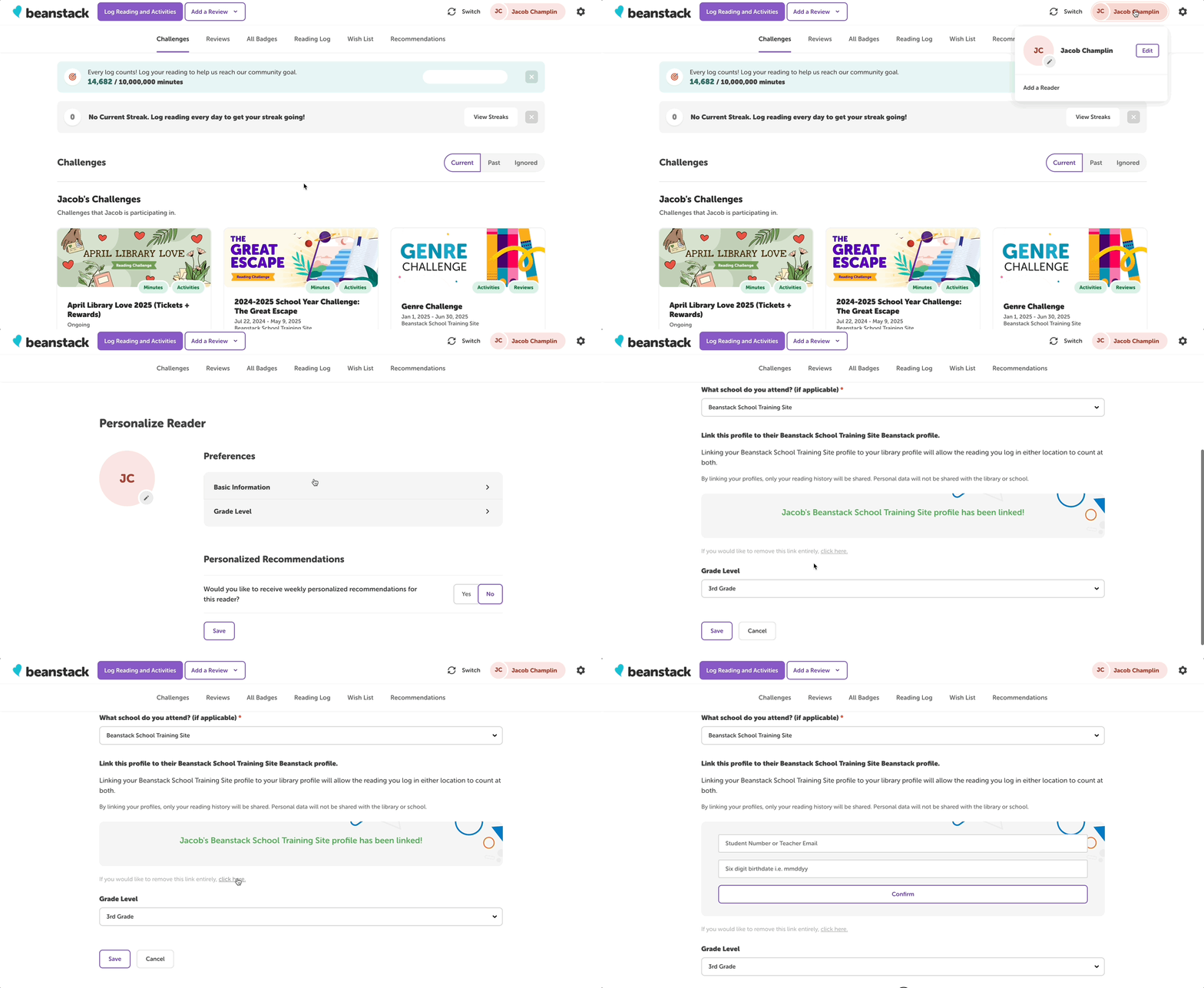
Linking profiles and revoking or replacing linked profiles can only be done from the reader side. If a patron needs help, log in to their account with them and follow the steps below:
- You can revoke the link between profiles at any time by clicking the reader name in the top right corner of the screen and selecting “Edit.”
- On the Personalize Reader page, select “Basic Information.”
- On the Edit Basic Information screen, scroll down to the banner image of the tandem connection.
- Below this banner, click the link that says “click here” to end the connection.
- You can then proceed to link to a new library account and profile.
How to Replace a Tandem Link
When linking to a school profile, a library reader can choose to replace an existing link by following these steps.
- Follow steps 1 and 2 from the steps above.
- Select the correct school and enter their school login information.
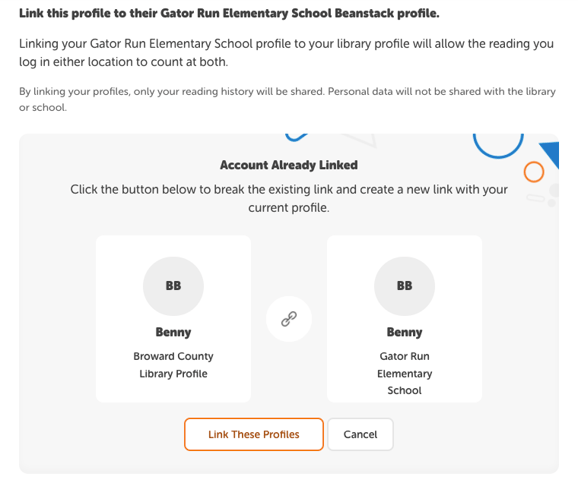
- If that school reader is already linked to another library profile, you will see an “Account Already Linked” message notifying you that linking to this profile will break an existing link and create a new one with their school profile. You can then click “Link Profiles” again to proceed to replace the link.