

Tags: Classes & Readers, Staff
When a student or class is enrolled in a reading list challenge, their reading sessions must be associated with the specific titles in the reading list in order to count toward the challenge’s badges, reading log, and completion requirements. Teachers can add or edit reading logs for students in classes rostered to them, while media specialists plus can add or edit reading logs for any students at the school.
To add a new reading session to a student or class’s reading list challenge log, follow the steps below:
-
Log in to the admin view of your school site.
-
Navigate to Classes and Readers.
-
To log reading for a student:
-
Navigate to Students > View Students.
-
Enter the student’s information and click “Search.”
-
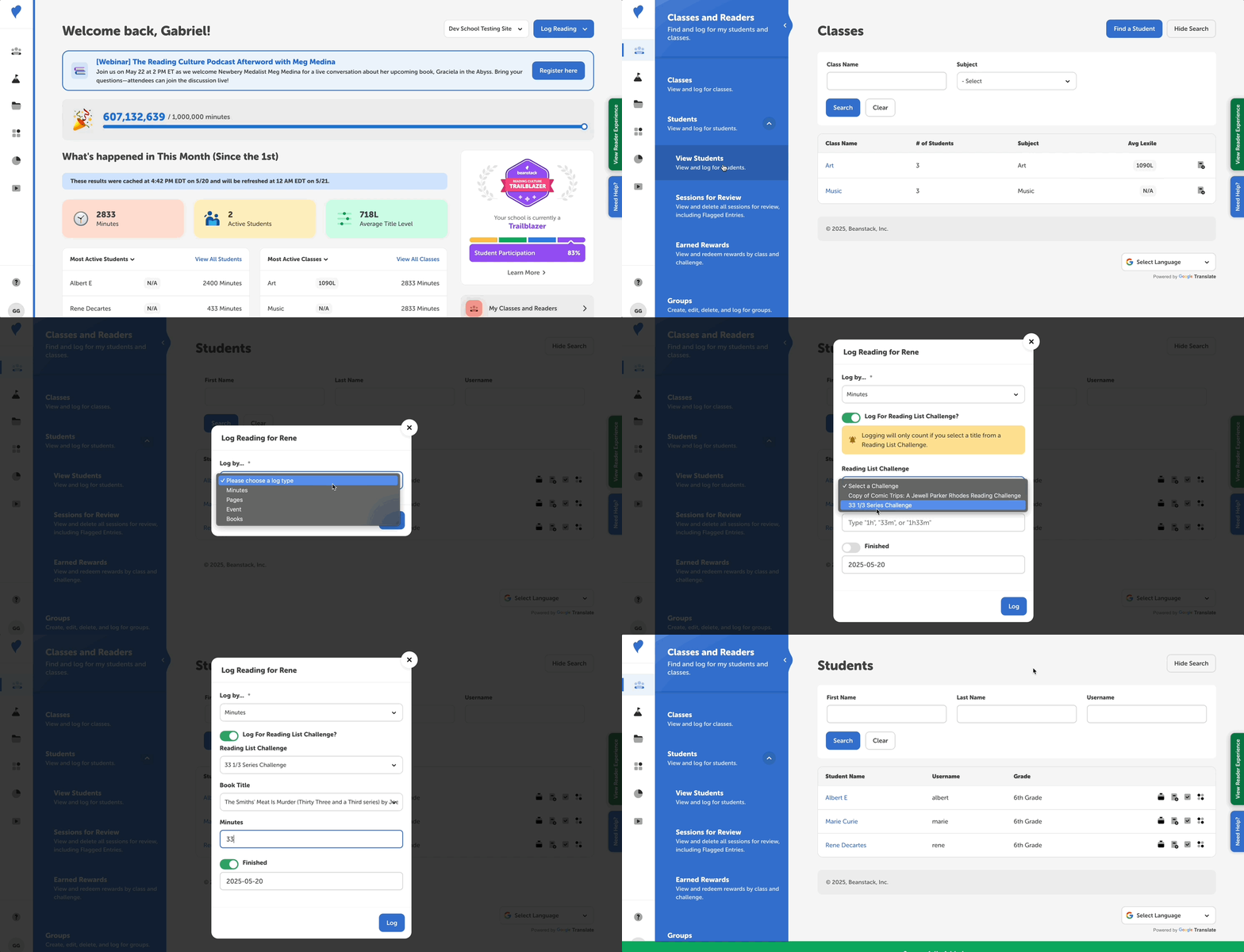
Click the “Add to Log” quick-action icon to the right of their reader name or click their name and then the “Add to Log” button in the top right corner of their reader profile page to open the logging modal.
-
-
To log reading for a whole class:
-
Navigate to the Classes.
-
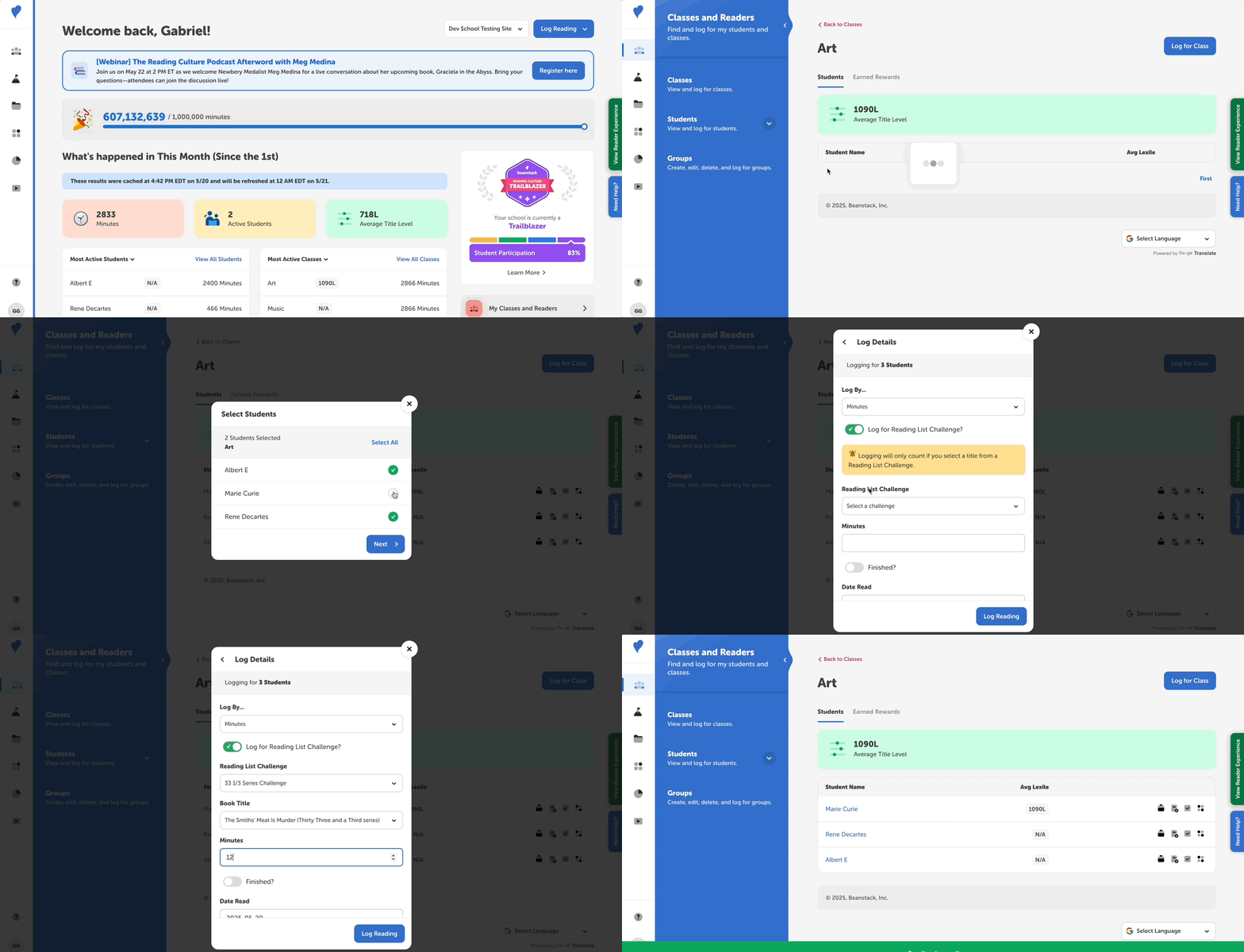
Search the class or teacher name, and then click the “Log Reading” quick action icon to the right of the class to open the logging modal and select the correct class and students.
-
-
Select the log type for the current or past reading list challenge and then toggle the “Log For Reading List Challenge?” selection on and select the appropriate reading list challenge and book title from the dropdown fields.
-
Enter any additional logging information, like minutes and completion status, and make sure to select a date during the reading list challenge before clicking “Log.”
To edit a log that was already added in order to make it count for a reading list challenge, follow these steps:
-
Navigate to Classes and Readers > Students > View Students.
-
Enter the student’s information and click “Search.”
-
Click the student name’s to view their reader profile page and then click the “Reading Log” tab on the left to view all of their logged reading sessions.
-
Find the corresponding reading session, click the three dots icon to its right, and select “Edit.”
-
Toggle on the “Log For Reading List Challenge?” setting.
-
Select the corresponding reading list challenge and title from the dropdown fields and then click “Save.” The displayed title and author will update in the reader’s reading log.