Tags: Challenges, Reading Lists, Setup
In a reading list challenge, library administrators or media specialists plus can add a link to an individual title to send readers directly to that book within your catalog, ebook provider, or other system.
You can add an external link to any title by following the steps below:
-
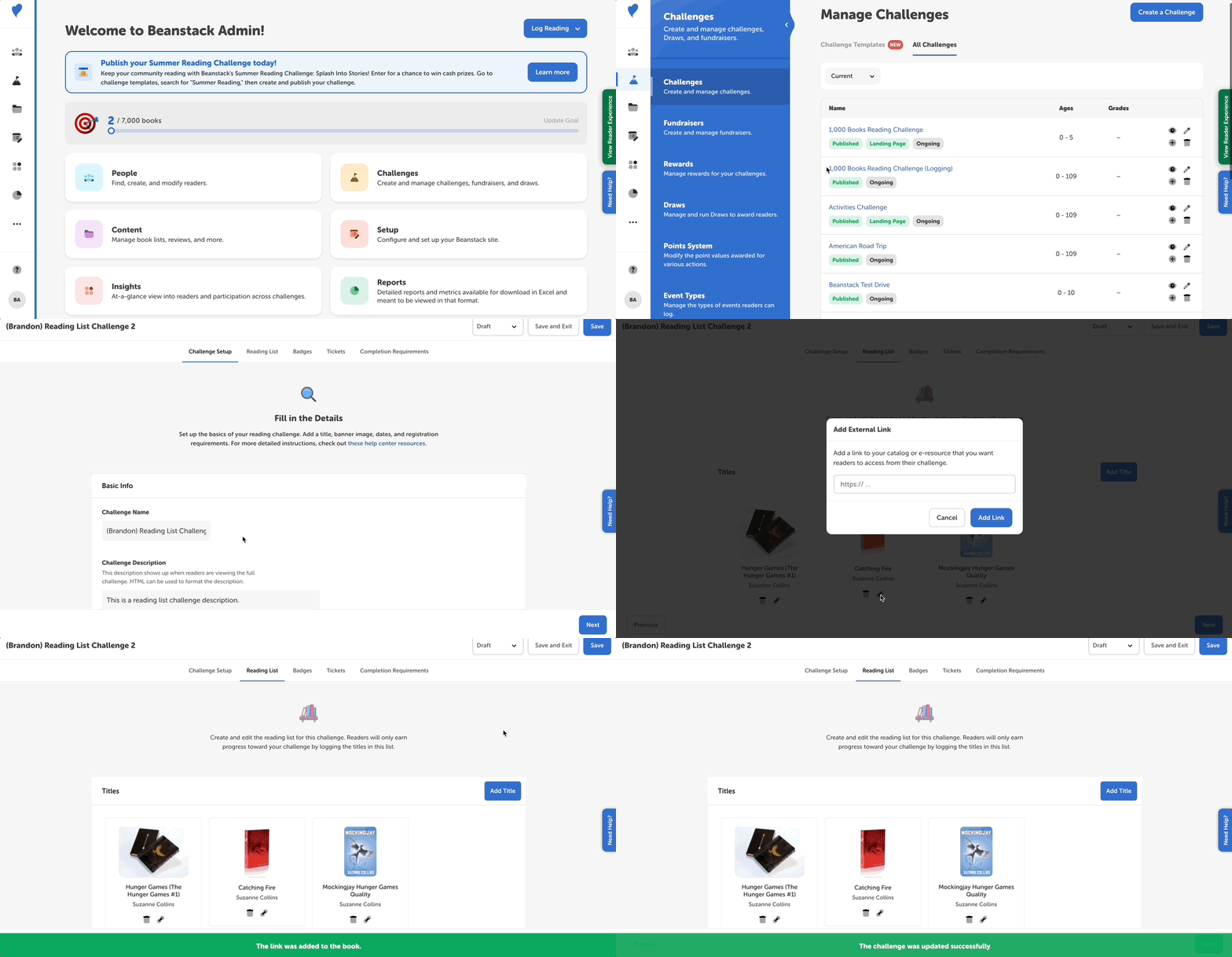
Log in to the admin view of your site.
-
Navigate to Challenges, and edit your draft reading list challenge.
-
Go to the “Reading List” tab.
-
Each title displays a link icon below the title and author name.
-
-
Click the link icon, paste a URL starting with “https://“ or “http://“ into the field in the pop-up window, and then click “Add Link”.
-
Click the link icon below the title again to view, update, or remove your URL.
-
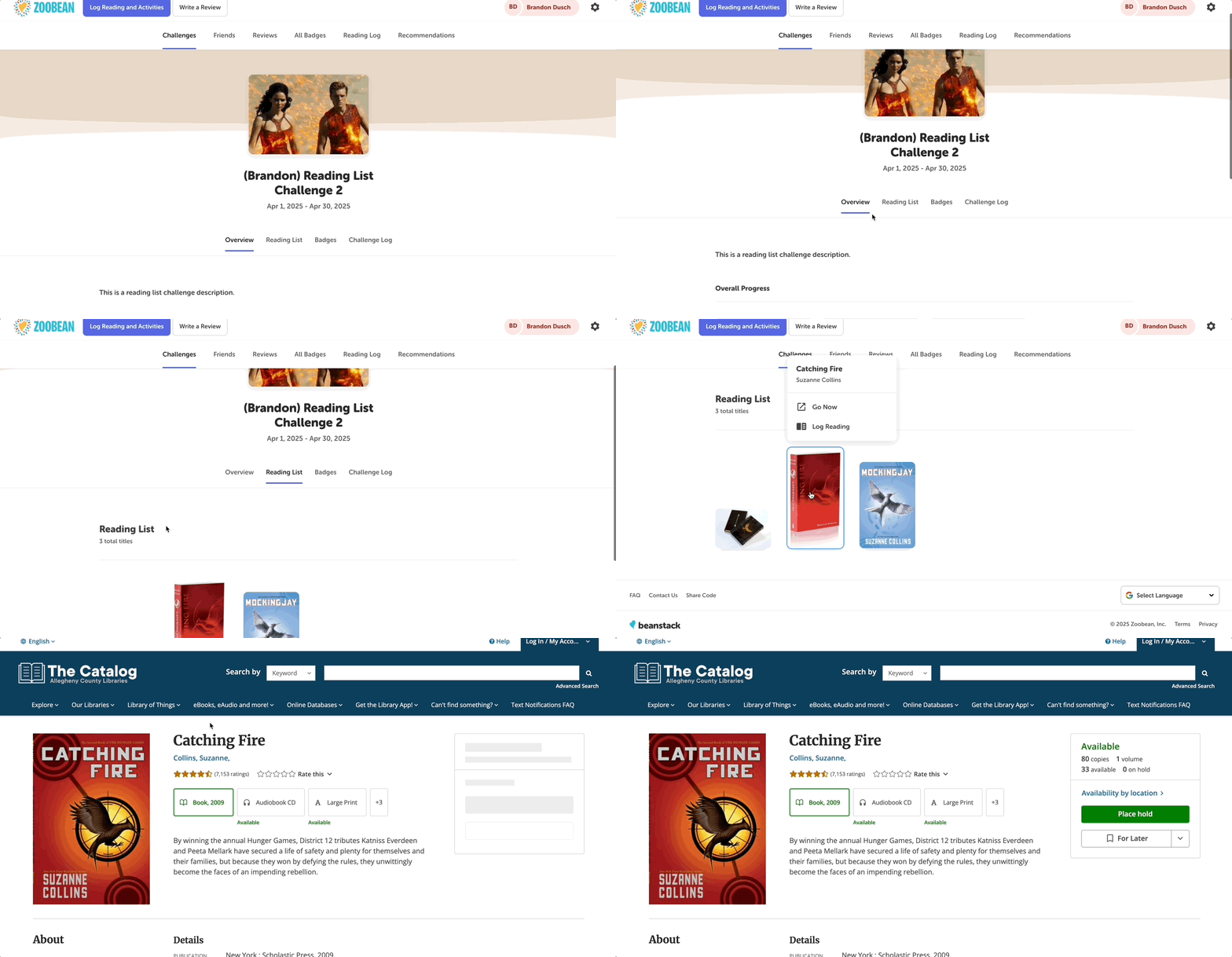
Remember to save your challenge and then to check the link from the reader side, either after publishing a testing challenge or before promoting your published challenge to your community. When an enrolled reader clicks on a title with an added external link, selecting the “Go Now” option opens a new tab and sends them to that external URL (shown below).