

Tags: Fundraisers, Libraries, Donor Experience
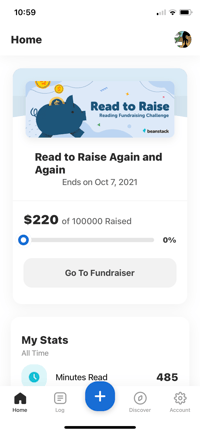
Once a library reading fundraiser is published, readers can preview and pre-register for the fundraiser from the home screen of the mobile app. Then, once the fundraiser is live, they can continue registering, as well as start participating by logging their minutes of reading, sharing their donation page, and collecting and making donations. Tapping “Go To Fundraiser” opens the fundraiser challenge page to track individual and library-wide progress in the readathon.
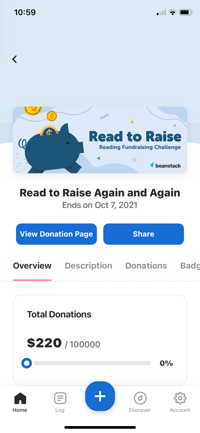
To view a reader’s individual donation page, they can tap “View Donation Page.” This opens up their individual donation webpage on their device, where family, friends, and community members can see their progress, learn about the readathon, donate straight to them and the library, and share the page with other people. Donations through this page will be linked to the specific reader and help them earn donation badges and any attached prizes.
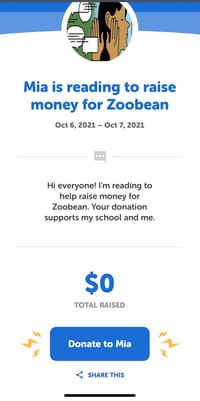
Readers can easily share their donation page from the app by tapping “Share” to view and copy the URL to their donation page or share it directly to social media, to an individual contact, or via email.
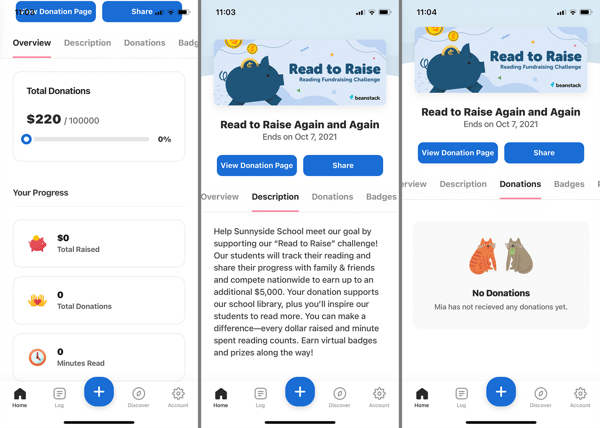
Back on the reading fundraiser challenge page in the app, readers can access details about the different challenge components through the challenge tabs at the top of their screen. The “Overview” tab shows the library’s total fundraising progress, followed by the individual reader’s progress in the readathon. The “Description” tab contains the public description for the reading fundraiser. The “Donations” tab lists all the donations contributed to that individual reader.
The “Badges” tab displays the reading fundraiser’s logging badges, which are earned for logging each badge’s specified number of minutes, and donation badges, which are earned when the specified number of donations are submitted to their individual donor page. Any earned badges appear in color, while unearned badges are in grayscale. To view more about a badge, including any prizes attached to it, simply tap the badge to open up a pop-up window with its details.
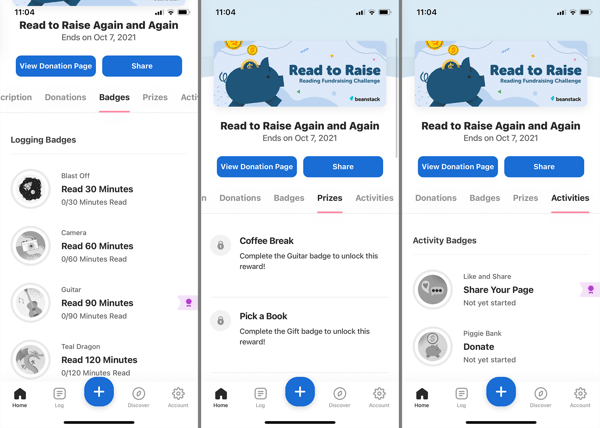
The “Prizes” tab shows all the possible prizes a reader can earn in a readathon. Any earned prizes are unlocked, with the instructions visible, while un-earned prizes remain locked. The “Activities” tab displays all the activity badges included in the reading fundraiser. The specific activities required to earn the badge and any prizes attached to it can be viewed by tapping the badge. The activities can be completed by checking off the specific activity.