

Tags: Fundraisers, Setup
When you’re setting up your reading fundraiser, you can add a custom opt-in/opt-out statement to your fundraiser’s donation form to ask donors’ permission for any number of custom requests, like permission to add them to your library newsletter, to share their information with your sponsors, or to send them a follow-up survey. Follow the steps below to activate this optional setting in your next reading fundraiser!
-
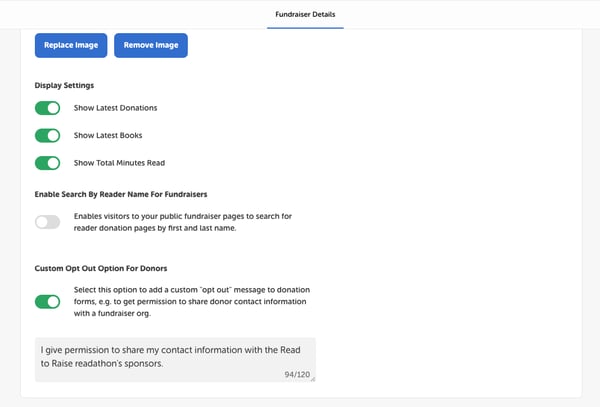
When editing a draft or live reading fundraiser, scroll down to the bottom of the Landing Page section in the Fundraiser Details tab.
-
Toggle on the “Custom Opt Out Option For Donors” setting.
-
Type the message you’d like to display next to the checkbox in the text field that appears below.
-
Click “Save & Exit.”
-
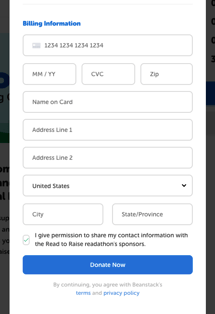
When your fundraiser is live, donors will see the checkbox and message below their billing information and above the “Donate Now” button. The checkbox defaults on, but donors can choose to uncheck it before completing their donation.
-
Once a donation is processed, navigate to Challenges > Fundraisers, click your fundraiser’s name, and then click the “Donations” tab. In the “Custom Opt Out Option” column, you’ll see True for any donor who left the checkbox checked and False for any who unchecked it.
.webp?width=600&height=222&name=Screen%20Shot%202022-09-22%20at%209%20(1).webp)
You can also click the download button to export a spreadsheet of all donors and sort by the “Custom Opt Out Option” column to group together all the donors who opted in and out.