

Tags: Students, Challenges, Staff
To learn more about challenges, including setup and badges, visit Beanstack for Everyone.
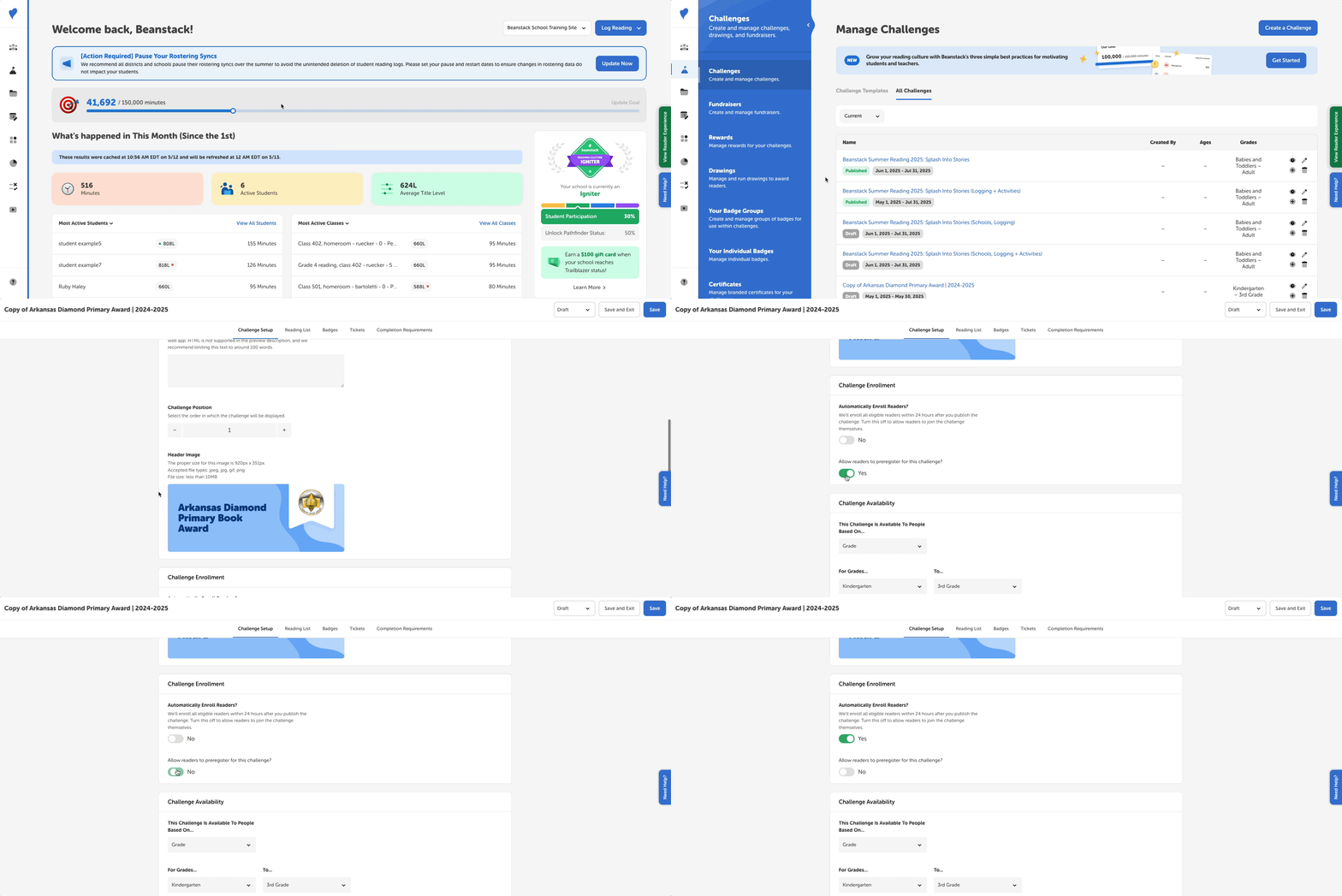 When a teacher, media specialist, or media specialist plus creates a challenge on their school’s Beanstack site, they can automatically enroll all eligible readers upon publishing the challenge by following the steps below:
-
Log in to the admin view of your school site.
-
Navigate to Challenges.
-
Select a challenge draft.
-
Within the challenge’s “Challenge Setup” tab, scroll down to the “Challenge Enrollment” section.
-
Leave the “Automatically Enroll Readers?” option set to “Yes,” which is its default.
-
Make sure the “Allow readers to preregister for this challenge?” option within the “Challenge Enrollment” section is toggled to “No,” as both options cannot be true for one challenge.
-
-
Proceed with the rest of your challenge setup, or select “Save” or “Save and Exit.”
A few notes on auto-enrollment:
-
Once you publish a challenge with auto-enrollment, you cannot edit its enrollments or make any additional ones, even if you change selections within the “Challenge Setup” tab. So when you’re sure you’ve finalized your challenge, change its status from “Draft” to “Published” and click “Save” in the top right corner of the screen.
-
All students, teachers, and staff within the challenge’s grade or age range or all students in the selected classroom are automatically enrolled within 24 hours of publishing. Readers will see the challenge appear in their “My Challenges” section and automatically earn its registration badge, if one is included.