

Tags: Staff, Media Specialists
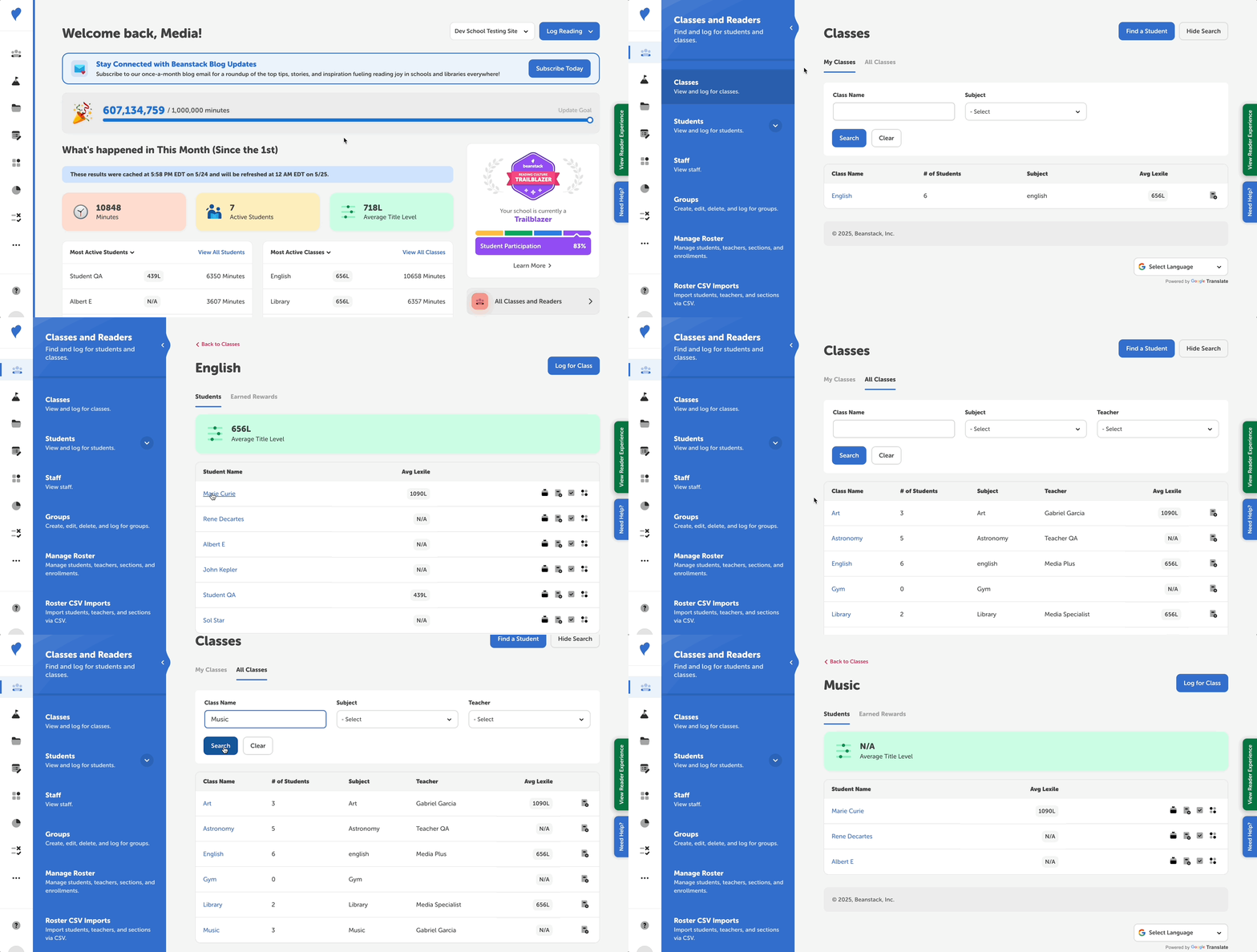 As a media specialist plus, you can view all of the sections at your school within the Classes and Readers section of your admin dashboard.
- Log in to the admin view of your school site.
- Navigate to Classes and Readers > Classes.
- To view all classes at your school:
- If at least one class is rostered to you, click the “All Classes” tab.
- If no classes are rostered to you, you’ll already see all classes at your school.
- You can search for a specific class by class name, subject, and/or teacher. In the results, you can see the class name, as well as the period, number of students, subject, and teacher. You can also log for a class using the quick action icon button in the far right column.
- Click a class name to view all the students in that class, as well as take actions and view information for those specific students.